
- Connector Migration Overview
- Cloud Collectors Overview
- Navigate the Cloud Collectors UI
- Which Collector to Use?
- Hybrid Deployment Experience
- Supported Regions for Cloud Collectors
- Access the Cloud Collectors Service
- Set up a New Cloud Connectors Instance
- Early Access Cloud Collectors
- Troubleshooting Cloud Collectors
Prerequisites to Configure OpenAI Cloud Collector
Set up an OpenAI cloud collector to continuously ingest data from your from your Open AI platform. This cloud collector supports data collection from the Open AI's Audit API.
Before you configure the OpenAI Cloud Collector, ensure that you complete the prerequisites.
Log in to the New-Scale Security Operations Platform with your registered credentials as an administrator.
Navigate to Collectors > Cloud Collectors.
Click New Collector.
Click the tile for the OpenAI cloud collector.
Enter the following information for the cloud collector:
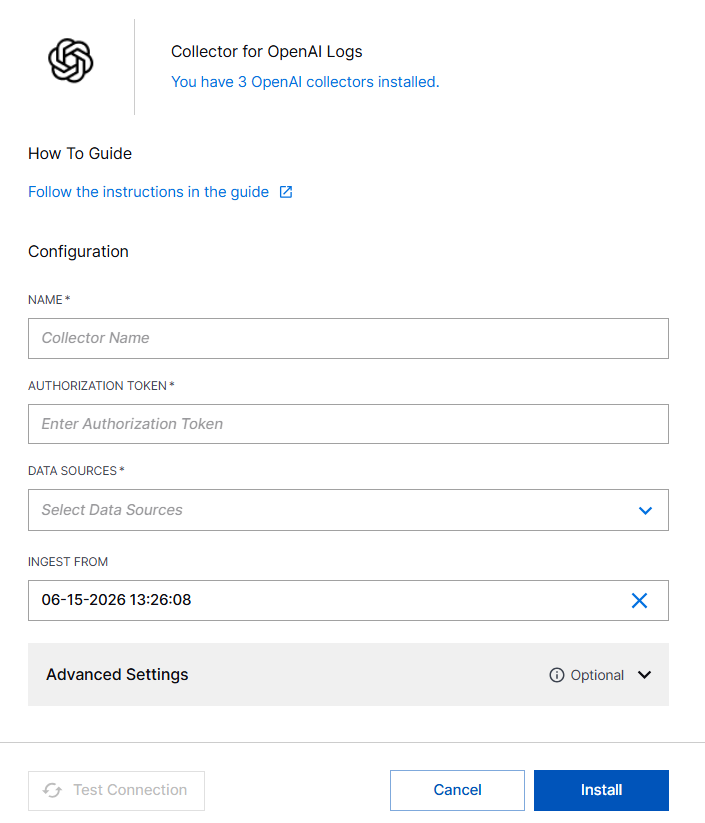
Name – Enter a name for the OneLogin cloud collector.
Authorization Token – Enter the Secret Key that you acquired when you created a new OpenAI admin key during the prerequisites.
Data Sources – Select Audit Logs to collect OpenAI Audit logs. For more information about audit logs and event types, see List audit logs in OpenAI documentation.
Ingest From – Select the time and date from which the collector must start ingesting events. The collector fetches data every ten minutes. If the Ingest From date is from the past, in every run the collector fetches data in 4 hours batches until it comes to real time.
(Optional) SITE – Select an existing site or to create a new site with a unique ID, click manage your sites. Adding a site name helps you to ensure efficient management of environments with overlapping IP addresses.
By entering a site name, you associate the logs with a specific independent site. A sitename metadata field is automatically added to all the events that are going to be ingested via this collector. For more information about Site Management, see Define a Unique Site Name.
(Optional) TIMEZONE – Select a time zone applicable to you for accurate detections and event monitoring.
By entering a time zone, you override the default log time zone. A timezone metadata field is automatically added to all events ingested through this collector.
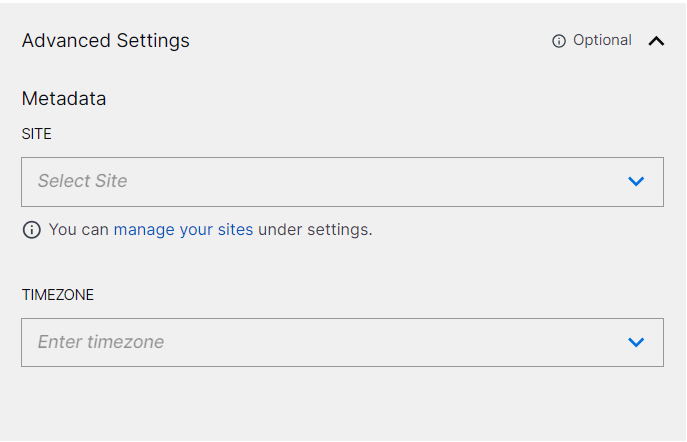
A cloud collector determines whether Daylight Saving Time (DST) is active based on the current date and automatically adjusts the time by adding or subtracting one hour, ensuring more accurate time reporting.
To confirm that the New-Scale Security Operations Platform communicates with the service, click Test Connection.
Click Install.
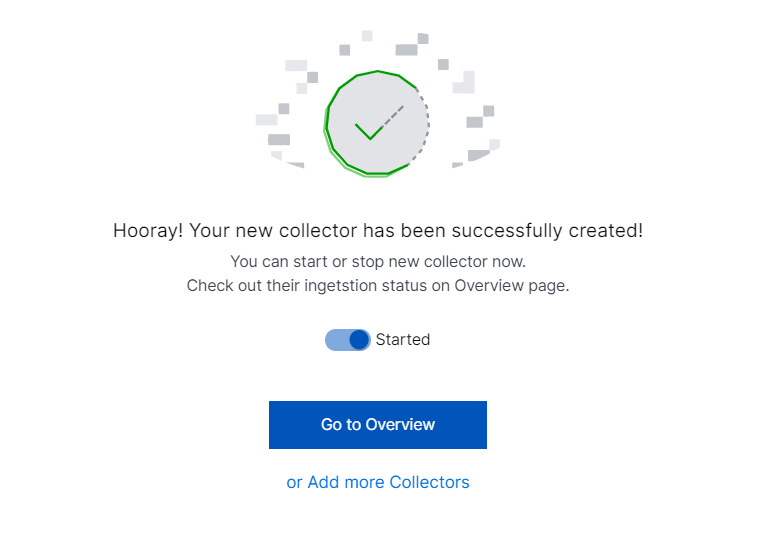
A confirmation message informs you that the new Cloud Collector is created.