
- Automation Management
- Automation Management Permissions
- Automation Management Playbooks
- Automation Management Playbook Triggers
- Pre-Built Automation Management Playbooks
- Automation Management Advanced Playbooks
- Automation Management Rule-Based Playbooks
- Filter Automation Management Playbooks
- Find Automation Management Playbooks
- Enable or Disable an Automation Management Playbook
- Reorder an Automation Management Playbook
- Delete an Automation Management Playbook
- Automation Management Services
- Automation Management Actions
- Create an Automation Management Action
- Clone an Automation Management Action
- Edit an Automation Management Action
- Deploy an Automation Management Action
- Preview Automation Management Action Code
- View Automation Management Action Run History
- View Automation Management Action Version History
- View Automation Management Action Audit Log
- Delete an Automation Management Action
- Refresh Automation Management Action List
- Automation Agents
Send Case Templated Email Pre-Built Playbook
Automatically send a customized email notification to specific email recipients using the Send Case Templated Email pre-built playbook.
Send Case Templated Email is a partially configured pre-built playbook that is disabled by default. It is partially configured so you can use it as a template and customize it with your own details.
Playbook Logic
The Send Case Templated Email pre-built playbook has the Case created trigger. If the playbook is enabled, the playbook automatically runs when a Threat Center case is created.
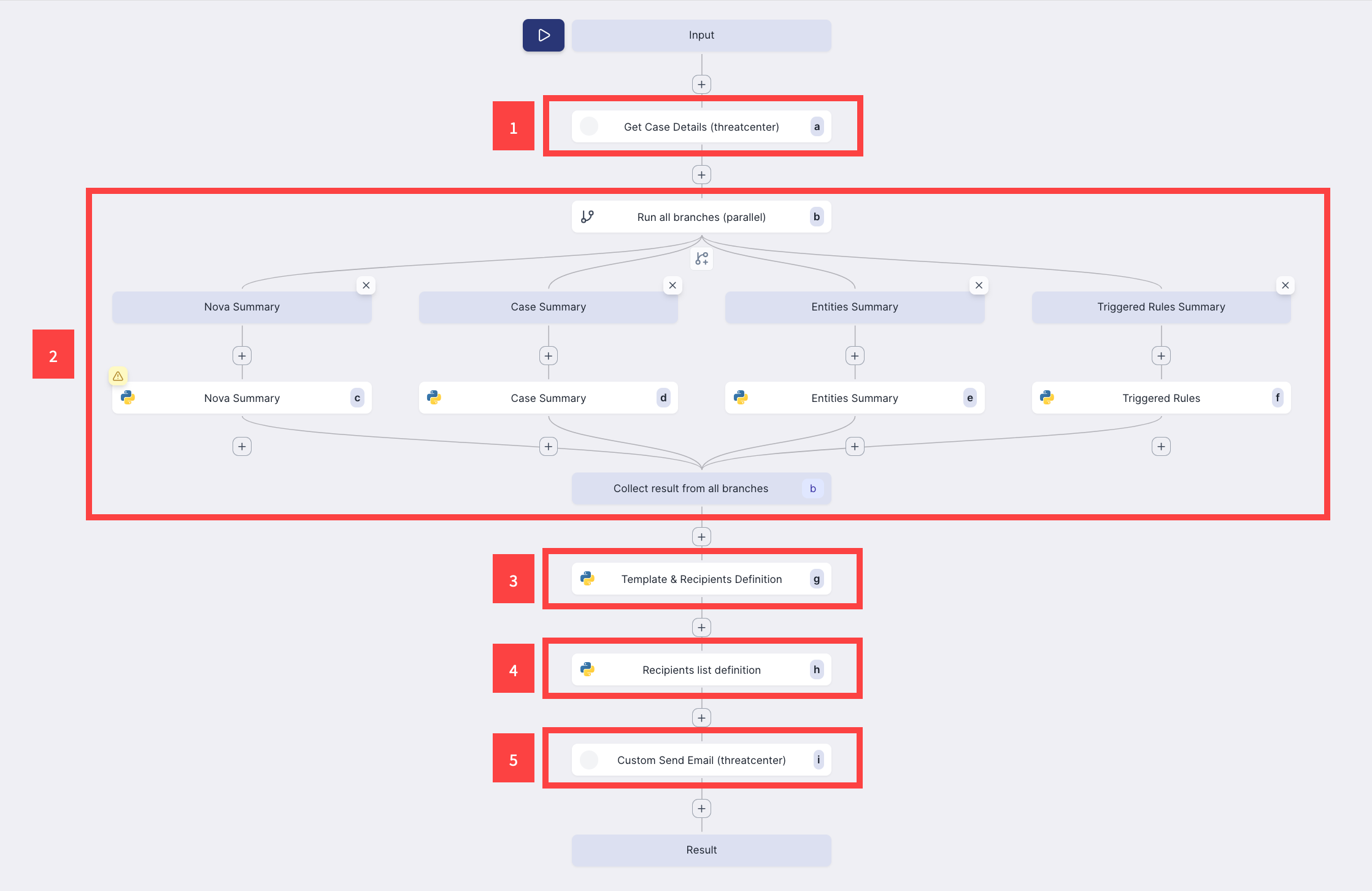
1 The playbook uses the Get Case Details action to retrieve the following case information:
alertCreationTimestamp – The date and time the associated alert was created
alertId – The UUID of the associated alert
approxLogTime – The date and time Search indexes an event
assignee – The assignee assigned to respond to the case
assigneeId – The ID of the person assigned to respond to the case
creationTimestamp – The date and time the case was created
caseId – The UUID of the case
caseNumber – The number assigned to the case
creationBy – Who created the case
stage – The current case stage
closedReason – If the case is closed, the selected pre-defined case closed reason
supportingReason – If the case is closed, the comment added to the pre-defined case closed reason
alertDescription – Case description in either plain text or HTML format. For example Suspicious Activity (plain text) or <strong>Suspicious Activity<strong> (HTML). If HTML formatting is used, it will also be reflected in the Threat Center web interface.
hasAttachments – A boolean value indicating whether the case has attachments.
isDeleted – A boolean value indicating whether the case is deleted.
lastModifiedBy – Who last modified the case.
lastModifiedTimestamp – The date and time the case was last modified.
mitres – The associated MITRE ATT&CK® tactic and technique and their corresponding keys.
alertName – The name of the associated alert.
priority – The case priority: Low, Medium, High, Critical, or Undefined.
riskScore – The case risk score
queue – The queue assigned to respond to the case
status – Whether the case is read or unread
tags – Tags added to the case
useCases – Associated Exabeam use cases
products – The products associated with related detections
vendors – The vendors associated with related detections
srcHosts – The source host names associated with related detections.
srcIps – The source host IP addresses associated with related detections
destHosts – The destination host names associated with related detections
destIps – The destination IP addresses associated with related detections
users – The users associated with related detections
groupedbyKey – The attribute by which detections are grouped
groupedbyValue – The attribute value by which detections are grouped
ingestTimestamp
srcEndpoints – The source host names and IP addresses associated with related detections
destEndpoints – The destination host names and IP addresses associated with related detections
groupingRuleId – The ID of the detection grouping rule used to group related detections
rules – The triggered analytics rules, correlation rules, and Advanced Analytics associated with related detections
2 The playbook runs a branch to all. In this branch to all:
Nova Summary – The branch calls an Exabeam API to generate a 600 character plain-text summary of the case using the Exabeam Nova Investigation Summary.
Case Summary – The branch generates a dictionary of key case attributes:
Priority
Queue
Severity
Case number
Stage
Status
Risk score
Assignee
The date and time the case was created
The date and time the associated alert was created
The name of the associated alert
The branch generates display-ready headers for the following attributes:
Case number
Risk score
The date and time the case or associated alert was created
The name of the associated alert
The case severity, mapped to a color
The case URL
The branch generates a email subject header in the following format: [<Priority>] <Associated alert name or case name>; for example, [Critical] Malware Detected on Endpoint.
Entities Summary – The branch generates two formatted HTML tables of Attack Surface Insights entities associated with the case, one for user entities and the other for device entities.
Triggered Rules Summary – The branch generates a dictionary of the top 10 unique triggered rules associated with the case and their trigger counts, sorted by severity, then in descending order by trigger count.
3 The playbook runs the Template & Recipients Definition action. The action uses the results from the branch to all to generate a raw HTML string of an email notification.
4 The playbook runs the Recipients list definition action. The action validates a list of email recipients to ensure they follow a valid email format, removes duplicate email addresses from the list, then generates final list of email recipients that also includes the case assignee.
5 The playbook runs the Custom Send Email pre-built threatcenter action. The action uses the list of email recipients, the email subject, and the raw HTML string of the email notification to send an email notification using the Exabeam notification service. It returns a status object indicating whether the email was successfully sent.
Use the Playbook as a Template
The Send Case Templated Email pre-built playbook is partially configured so you can use it as a template and customize it with your own details.
To use the playbook as a template, clone the playbook, then edit the Template & Recipients Definition and Recipients list definition actions.
To create your own email notification HTML structure, edit the Template & Recipients Definition action logic with your own email notification HTML structure.
To define your own list of email recipients, under the Recipients list definition action, navigate to the Step Input tab, then enter each recipient email address under recipientsEmail.