
- Get Started with Outcomes Navigator
- Use Outcomes Navigator from a MITRE ATT&CK® Perspective
- Use Outcomes Navigator from a Threat Detection, Investigation, and Response (TDIR) Use Case Categories Perspective
- View Recommendations for Improving Your Configuration
- Share Information in Outcomes Navigator
- Outcomes Navigator Coverage Calculation
- Outcomes Navigator Parser Calibration Tier Average Calculation
Assess Configuration Efficacy for a Use Case
Understand how well your environment is configured to protect against a specific use case.
After you get a high-level view of your overall use case coverage, drill down to a specific use case under the Organizational Coverage tab. Find more resources about the use case, view the products you configured that provide data for related Exabeam applications and features, and learn what Exabeam applications and features your current configuration enables.
To navigate to the Organizational Coverage tab, in View Outcomes by Use Case, hover over a use case, then click See Details.
Choose a use case to assess
Under Use Case Category, select the use case category you want to assess or All use case categories, then select a use case.
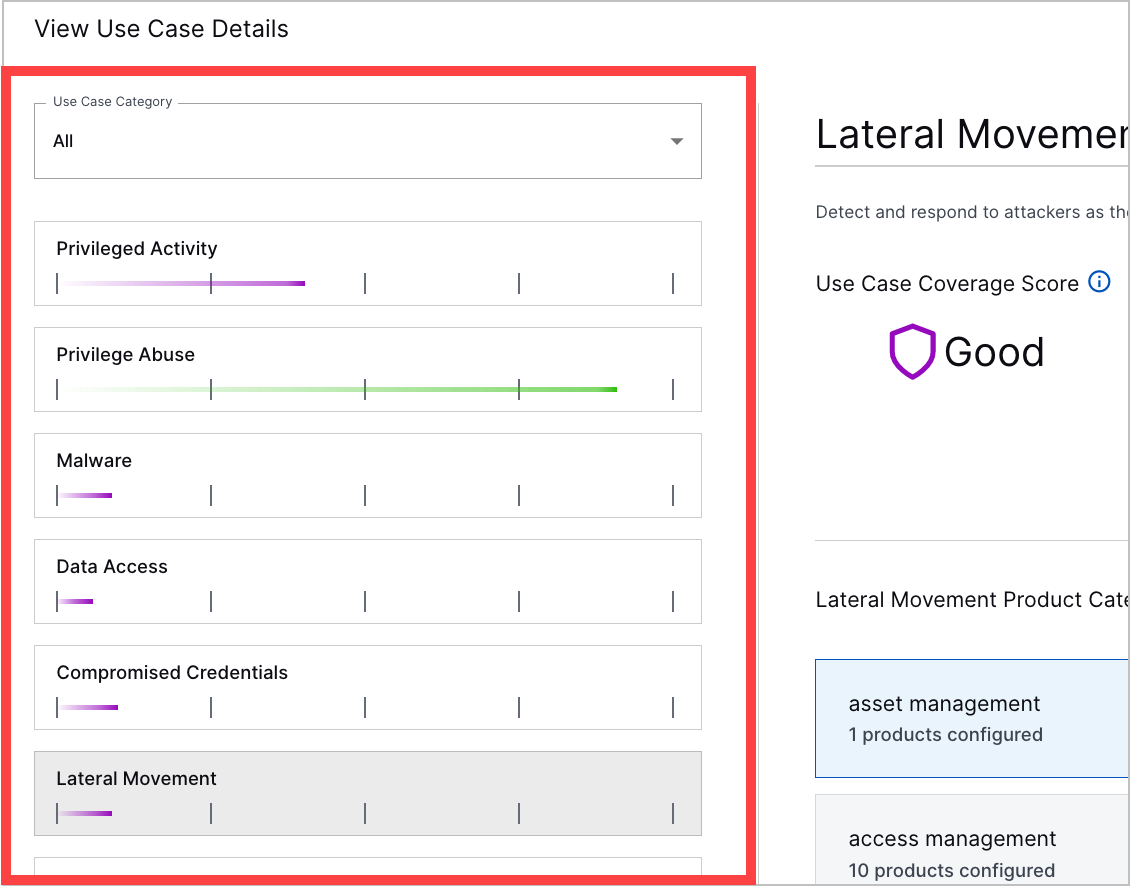 |
Summarize your configuration
At a glance, understand how well your environment is configured to protect against the use case:
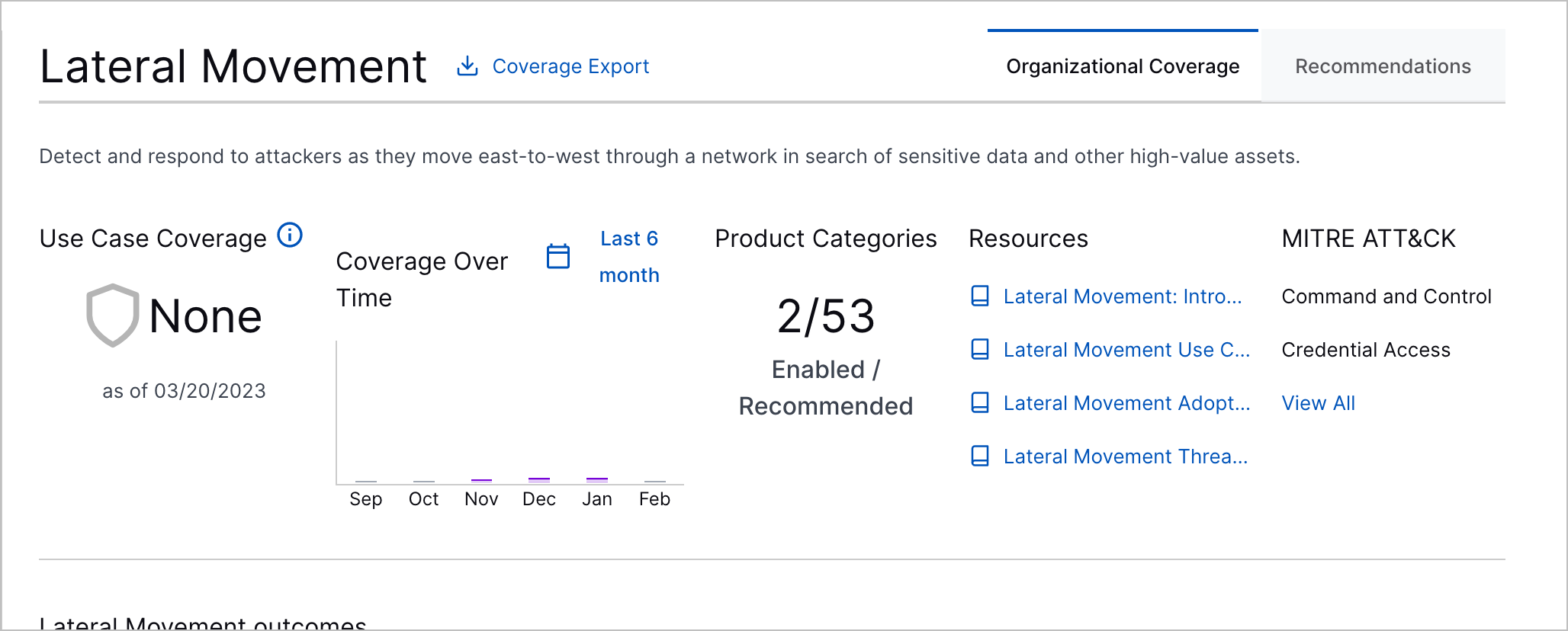
Under Use Case Coverage Score, view the Use Case Coverage Score for the use case.
Under Coverage Over Time, view the Use Case Coverage Score for the use case over the past six months or weeks. To learn why your score may have increased or decreased, hover over the bar for that month or week. The chart updates at the end of each month or week. To toggle between weekly or monthly scores, click Last 6 months or Last 6 weeks.
Under Product Categories, view the number of recommended product categories for which you configured a product out of the total recommended product categories.
Under Resources, find resources about the use case, including what it is, why it's important to protect against, and what Exabeam functionalities protect against it.
Under MITRE ATT&CK, view the MITRE ATT&CK® tactics to which the use case is related.[7]
Assess coverage for the features your configuration enables
Under <Use Case> Outcomes, view the Exabeam features and applications your configured products enable, including Dashboards, default and custom Advanced Analytics rules, correlation rules, and analytics rules.
For each feature, view how well your configuration enables the feature to address a given use case, also known as your coverage. The level of coverage from None to Best is calculated differently for each feature.
To view more details about what's enabled for each feature, click View <feature>. For example, to view which dashboards have all the data they need to be complete, click View Dashboards.
If you see gaps in your coverage, follow recommendations to improve your coverage directly in Outcomes Navigator. You can view recommendations only if you have a license that includes Advanced Analytics.
View configured products
Under <Use Case> Product Categories, view the top five most important product categories you need to provide data for related Exabeam features and applications and the products you configured under each product category.
Under each product category, view the number of products you configured. Click the product category to view the specific products you configured and the Parser Calibration Tier Average for each product.
[7] MITRE ATT&CK and ATT&CK are trademarks of The MITRE Corporation ("MITRE"). Exabeam is not affiliated with or sponsored or endorsed by MITRE. Nothing herein is a representation of the views or opinions of MITRE or its personnel.