
- Welcome to the New-Scale Security Operations Platform
- Licenses
- Supported Regions for Data Residency
- Get Started with the New-Scale Security Operations Platform
- Universal Role-Based Access
- Exabeam Nova
- Monitoring
- Export Your Exabeam Data
Set up Okta as your Identity Provider using Okta Integration Network
These instructions provide comprehensive instructions for configuring Okta as an Identity Provider (IdP) and implementing Universal Logout through the Okta Integration Network (OIN).
Single Sign-on Configuration
Prerequisites
To configure Single Sign-On (SS0), you must have a local user with administrative privileges for your Exabeam tenant. Alternatively, an Exabeam administrator must be available to assist with the configuration.
Supported Features
Service Provider (SP) - initiated SSO
Identity Provider (IdP) - initiated SSO
Just-In-Time (JIT) provisioning
Configuration Steps
Note
Before initialing the integration, ensure that your Okta Administrator is available for necessary adjustments in Okta.
Add the Exabeam application in Okta via OIN
Add Okta as IdP in Exabeam
Update the Entity ID and Assertion Consumer URL in the Okta Exabeam Application
Add the Exabeam Application in Okta via OIN
Sign in to your Okta instance as an administrator and navigate to Applications > Applications > Browser App Catalog.
On the Browse App Integration Catalog page, select the Exabeam application and click Add Integration.
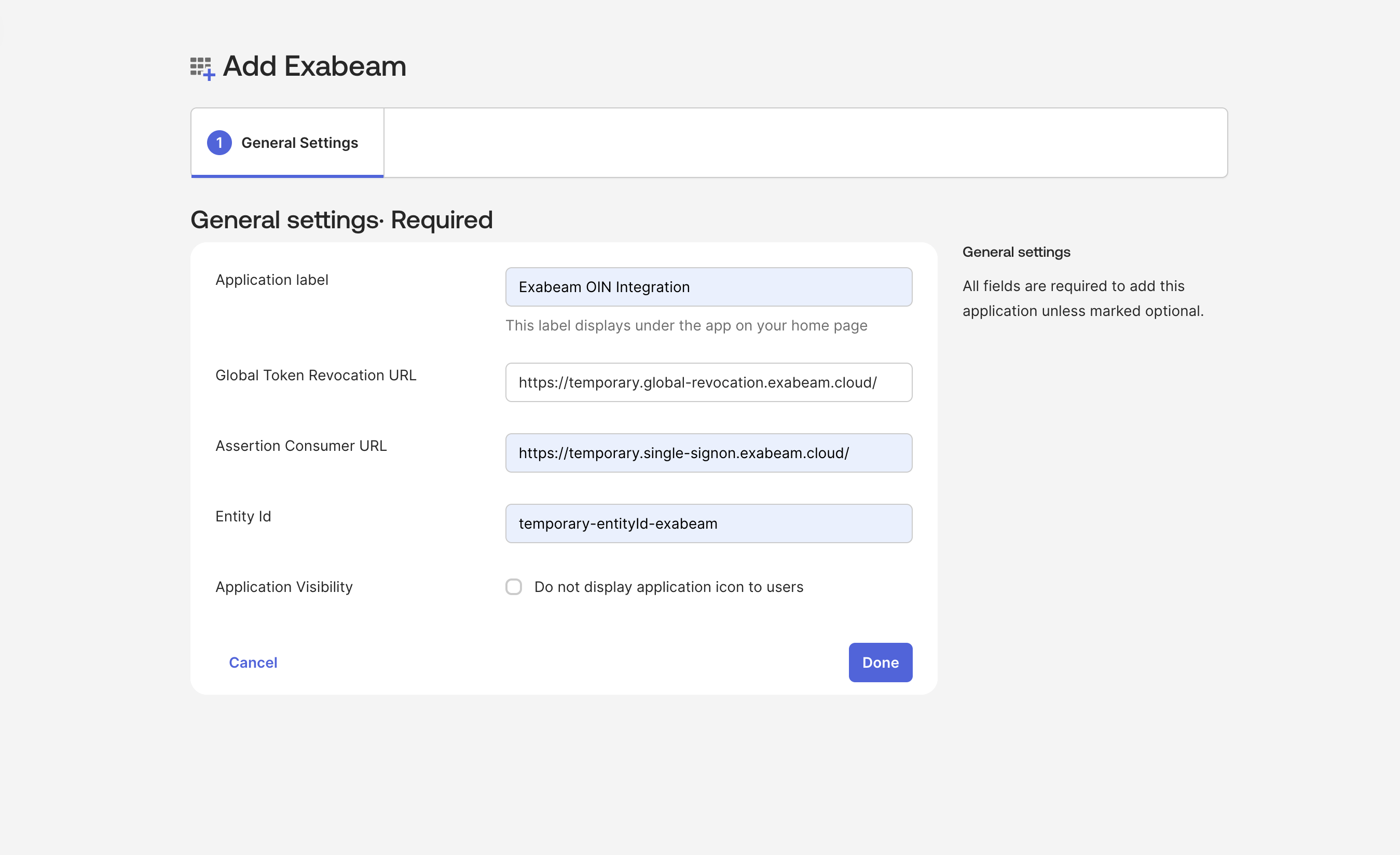
On the General Settings page, specify the Application label, Global Token Revocation URL, Assertion Consumer URL, and Entity ID and click Done:
- Global Token Revocation URL: https://temporary.global-revocation.exabeam.cloud/
- Single Sign-On URL: https://temporary.single-signon.exabeam.cloud/
- Audience URI: temporary-entityId-exabeam
Caution
These values serve as placeholders while you finalize the setup of the Okta IdP configuration in the Exabeam New-Scale Security Operations Platform. You will return later to update this configuration with actual values.
Navigate to the Assignment tab to specify which users and groups should be allowed to access the Exabeam New-Scale Security Operations Platform using Okta.
Note
If you haven't created a group for Exabeam access yet, you will need to do so and assign users and rights to this group.
Navigate to the Single Sign-On page, click Edit, and update the group.
If you utilize multiple values for Exabeam (like exabeam-users, exabeam-groups), you can define this field using the filter:

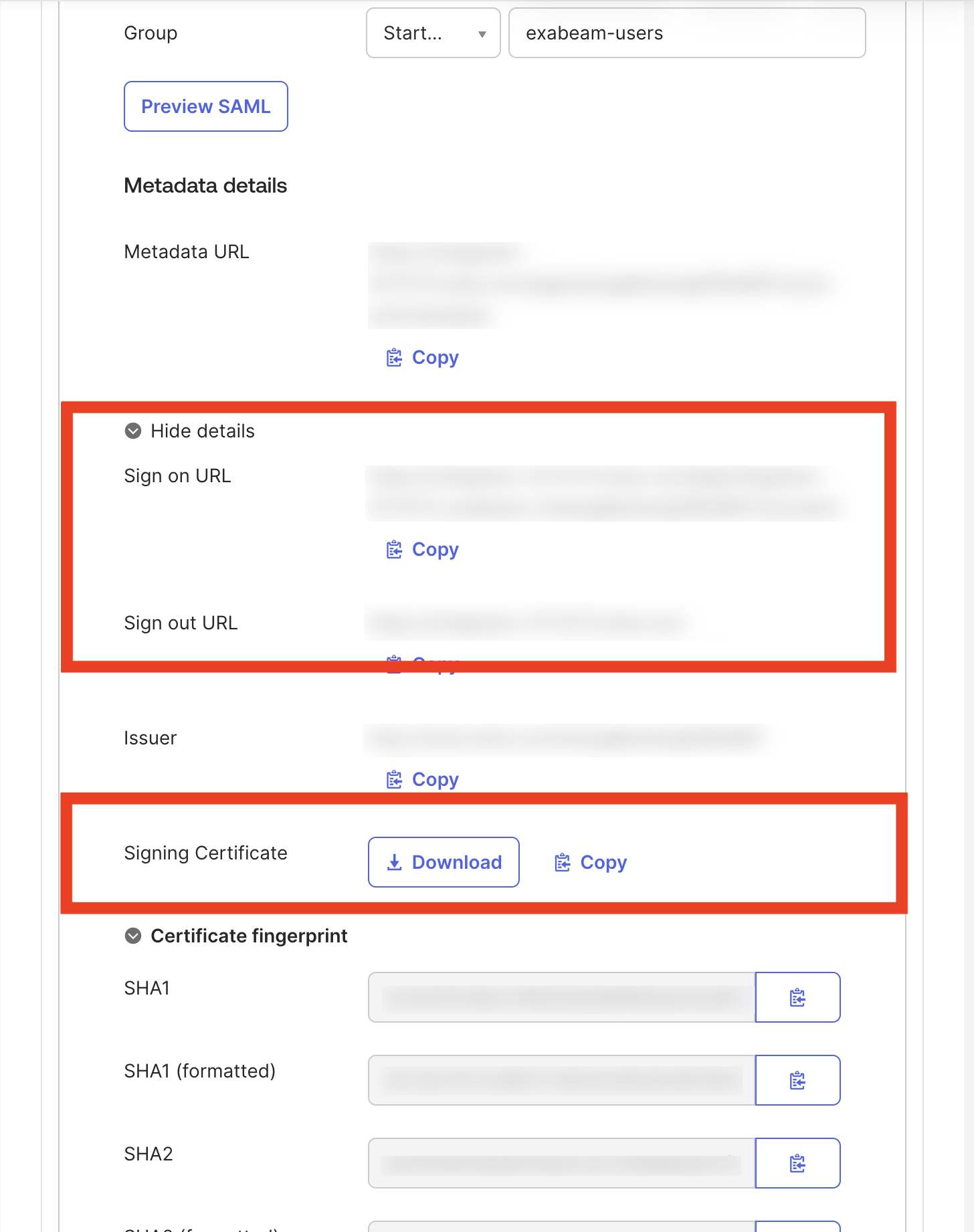
Navigate to the Single Sign-On tab. Note down the Sign-On URL, Sign-Out URL, and download the certificate. These values and the certificate will be required during IdP configuration in the Exabeam New-Scale Security Operations Platform.
Add Okta as IdP in Exabam
In this section, you will enter information about the Exabeam Application that you configured in Okta using OIN. It is advisable to have both the Exabeam IdP configuration and your Okta Admin Console open at the same time.
Log in to the Exabeam New-Scale Security Operations Platform, navigate to Settings > Single Sign-On (SSO) MFA, and click on Add New Identity Provider.
Enter the Identity Provider name and user email domain.
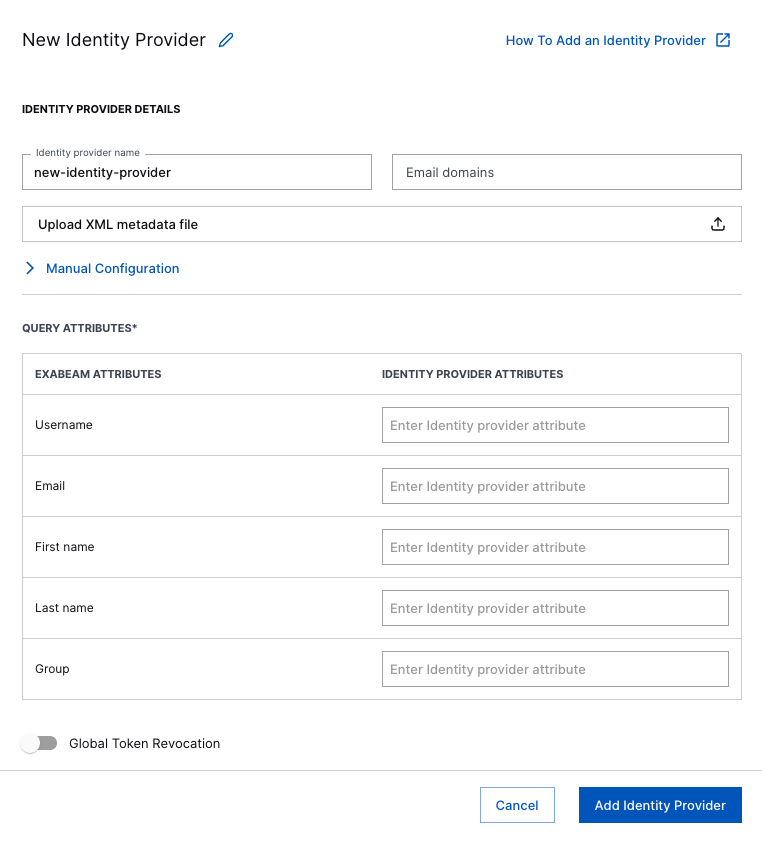
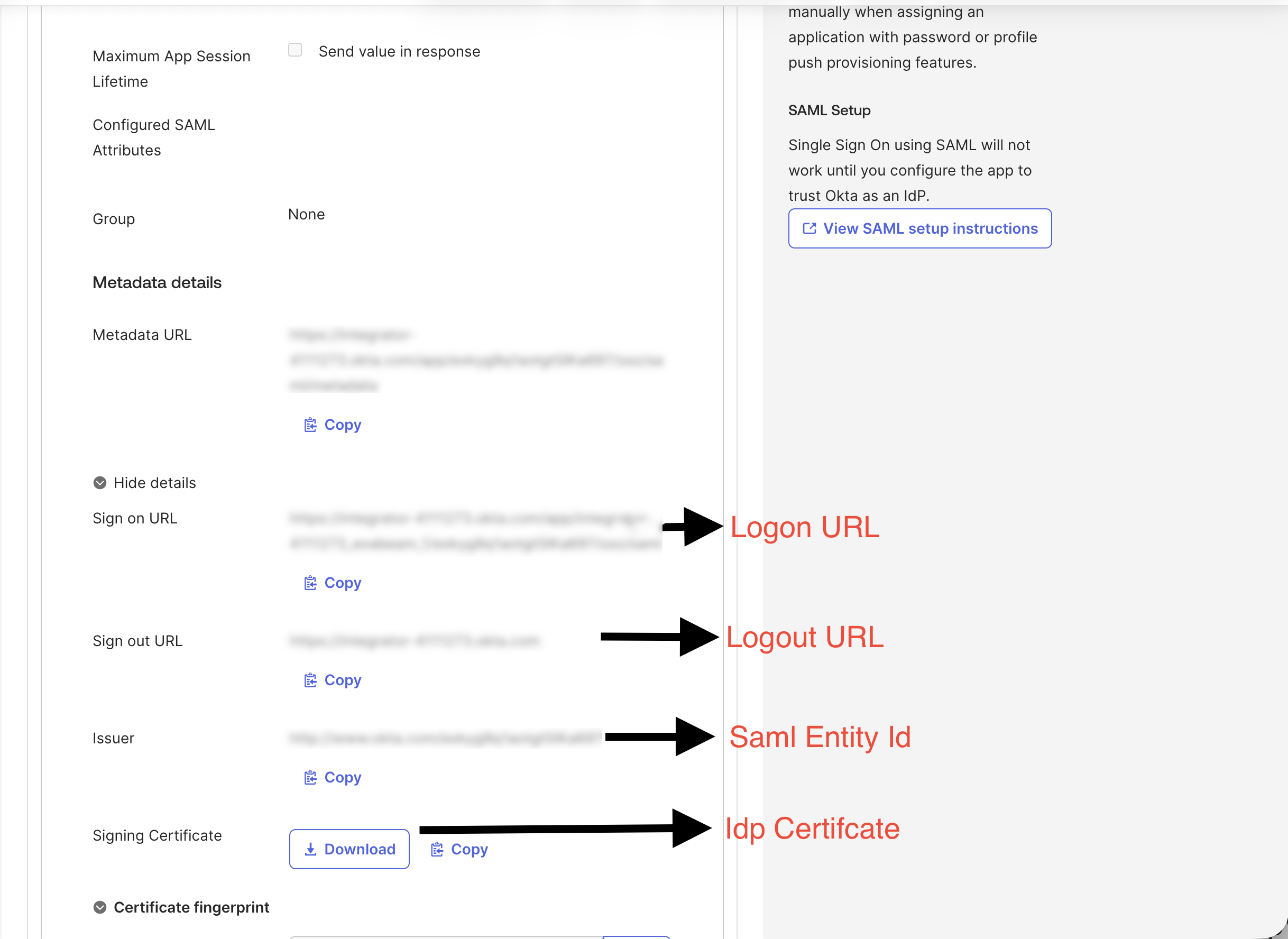
Under Manual Configuration, enter Enter the Issuer, Sign-On URL, and Sign-Out URL values from Okta into the Saml Entity ID, Logon URL, and Logout URL fields, respectively. Then upload the certificate from Okta.
For Query Attributes, map the attributes in these fields to match those you defined in Okta as follows: UserName, Email, FirstName, LastName, Group.
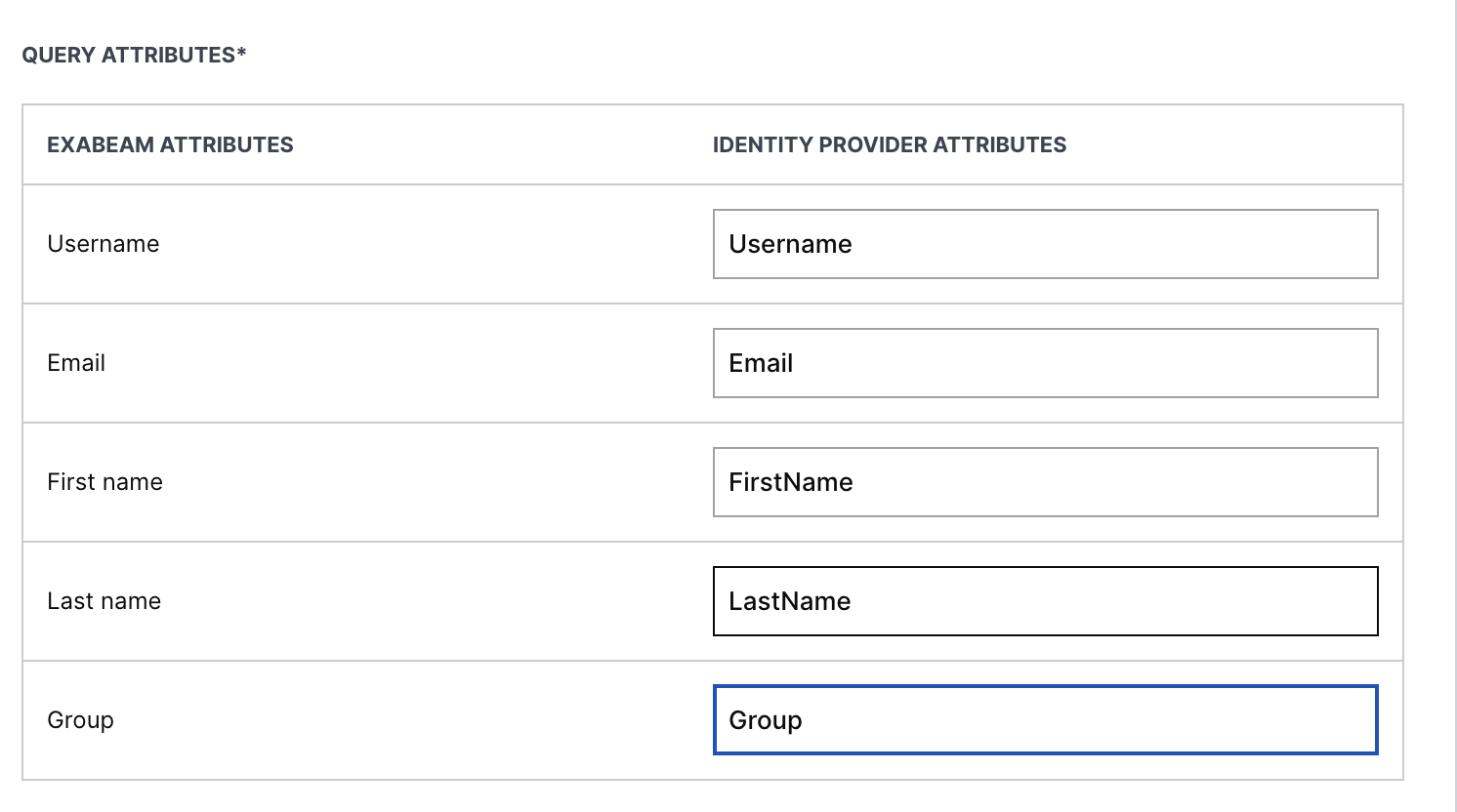
Click Add Identity Provider to save the configuration.
Copy and note the Entity ID and Assertion Consumer URL values. These values need to be updated in the Okta Exabeam App in the next section.
Configure group mapping in the New-Scale Security Operations Platform. by clicking on Group Mapping > Add new mapping.
In the Group name box, enter the name of the group from Okta.
Note
Ensure that group mapping matches the name of the group created in Okta (See Add the Exabeam Application in Okta via OIN section above for more information).
Click the Roles drop-down list, and then select the Exabeam roles that you want to assign to the group.
After you have selected all the roles that you want assigned to the group, click Add Mapping.
Toggle to enable the IdP.

Update the Entity ID and Assertion Consumer URL in the Okta Exabeam Application
Log in to the Okta admin console and navigate to the Exabeam application created using OIN.
Navigate to the General Tab. Update the Entity ID and Assertion Consumer URL from the last section , and save the configuration.

Test your login to the New-Scale Security Operations Platform to ensure users can now access it using their Okta credentials.
Test IdP-initiated login by accessing the Exabeam Application from Okta.
SP-initiated SSO
Note
This section is applicable only to SAML integrations that support app-initiated Single Sign-On (SSO), also known as Service Provider (SP) initiated SSO.
This sign-in flow begins at your Exabeam tenant. When you enter your username, you are redirected to Okta for authentication. After a successful Okta sign-in, you are returned to the Exabeam interface.
Sign-in Steps
Navigate to your Exabeam tenant sign-in page.
Enter your username to be redirected to the Okta sign-in page.
Enter your Okta credentials.
Configure Universal Logout/Global Token Revocation
Note
This is an optional step/configuration, but recommended for additional security protection.
Okta’s Universal Logout feature allows you to terminate user sessions and tokens for supported applications when identity threat protection detects risk.
With Universal Logout, if a user is logged out with the identity provider (IdP) —such as during an admin-initiated logout or a security event—they will also be logged out of all applications, including Exabeam.
Configuration Steps
Exabeam configuration
Okta Exabeam Application configuration
Exabeam configuration
Log in to the Okta admin console and navigate to the Exabeam Application. Go to the Sign On tab and copy the Issuer and Subject from Okta. The Subject is an Application Id.
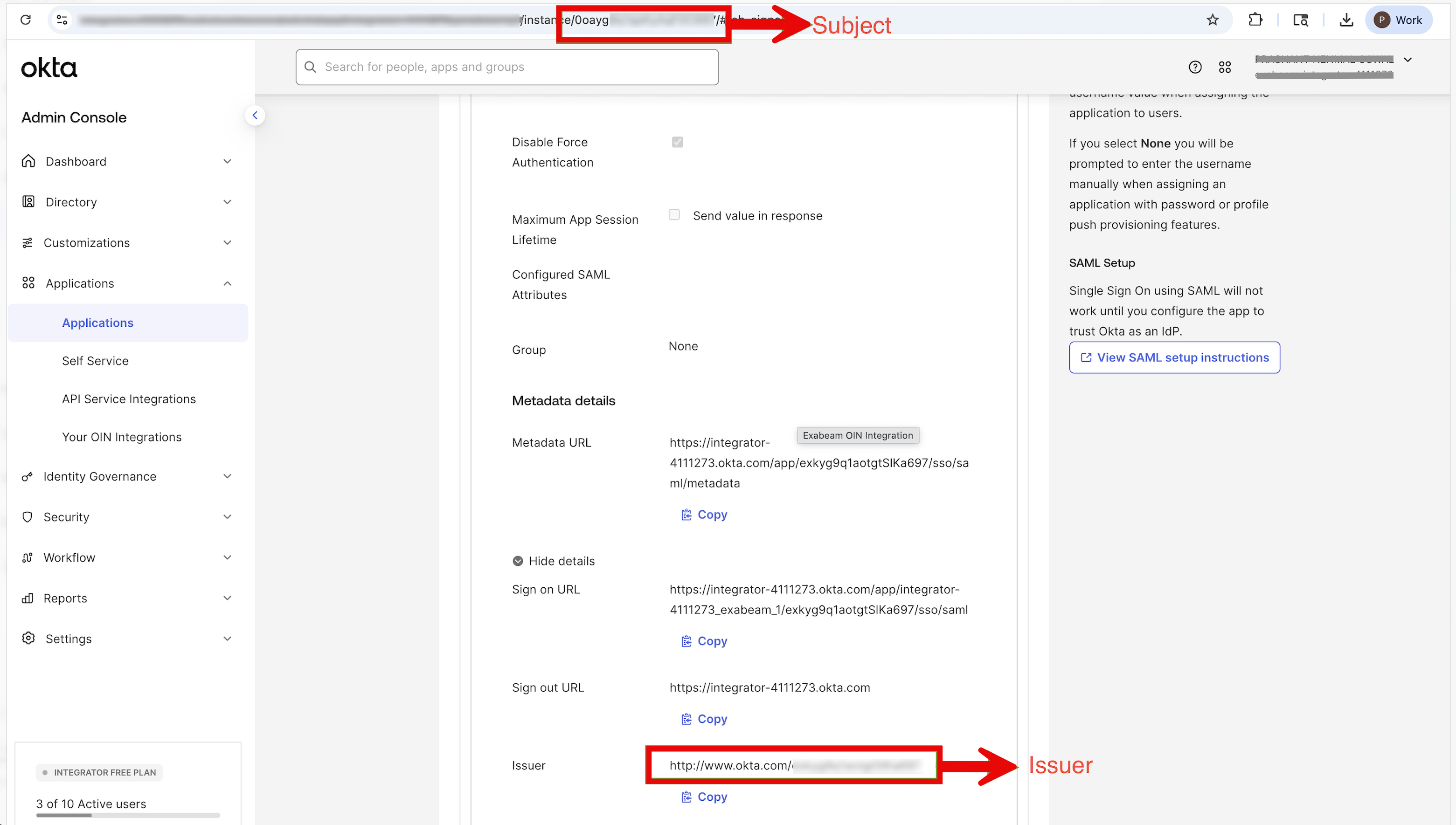
Log in to Exabeam New-Scale Secruity Operations Platform and navigate to Settings > Single Sign-On (SSO)/MFA, and edit the IdP configuration.
Toggle on Global Token Revocation. Enter the Subject and Issuer information, and click Update Identity Provider.
In the next box that appears, copy the Global Token Revocation Endpoint. This endpoint will need to be configured in Okta.
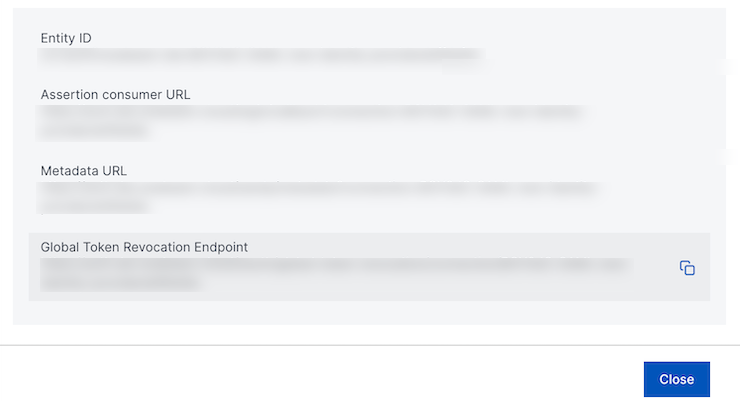
Okta Exabeam Application Configuration
Log in to the Okta admin console and navigate to Applications > Application and select the Exabeam application created for SSO.
Navigate to the General tab and edit the app settings section to update the Global Token Revocation URL.
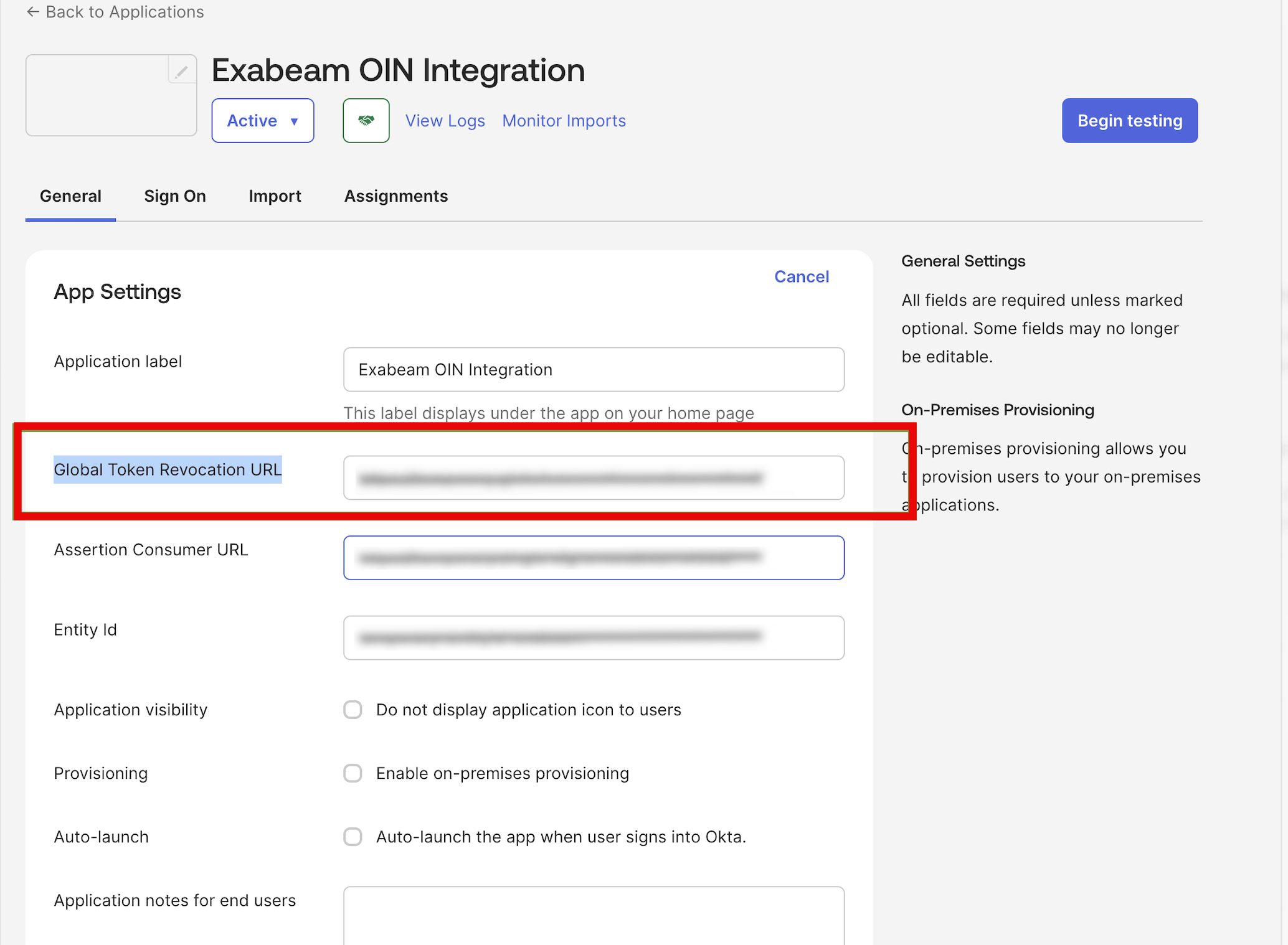
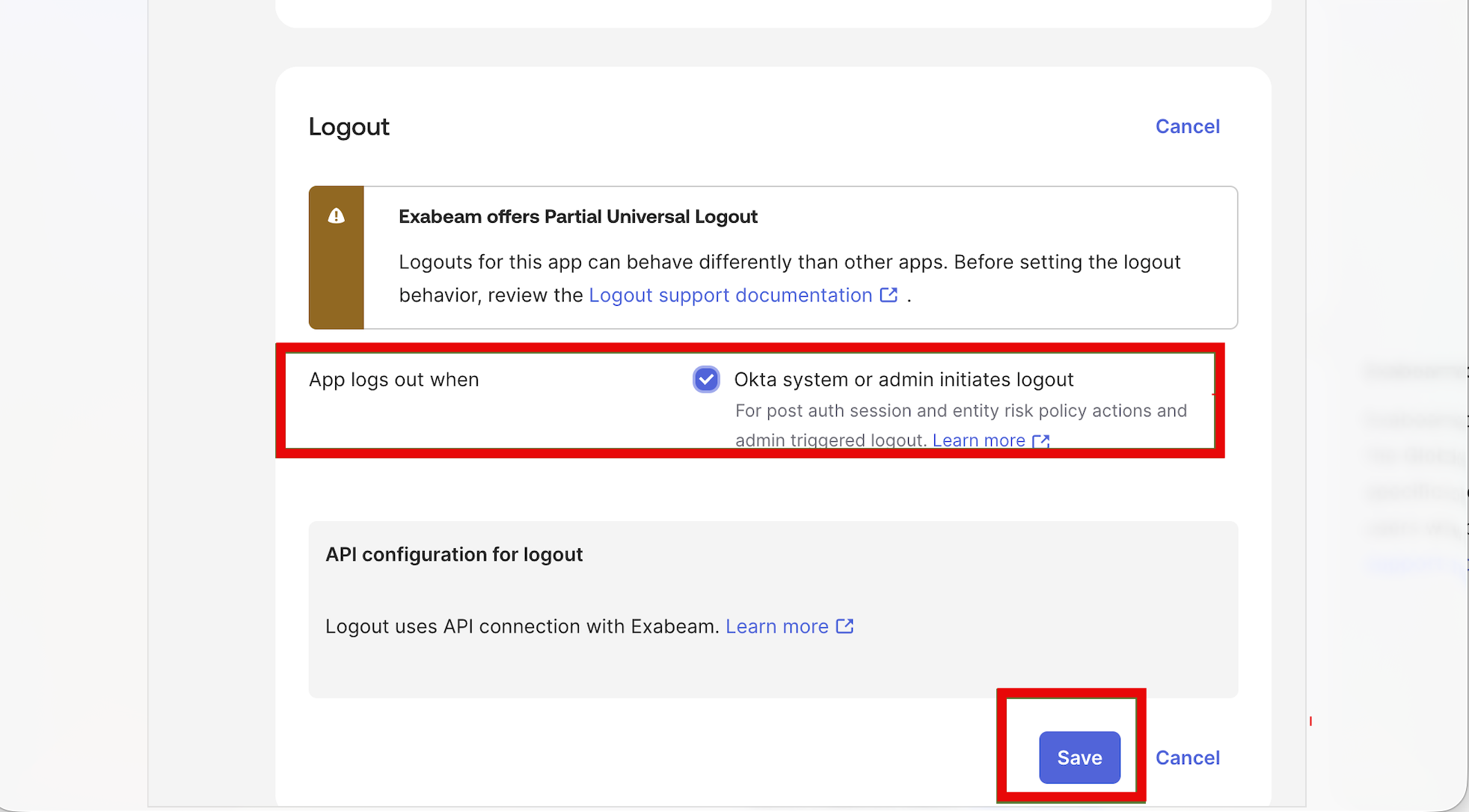
Navigate to the Sign On tab, edit the Logout section to enable Universal Logout, and save the configuration.
After enabling Universal Logout, users can be forcefully logged out by Okta due to security or administrative events. If this occurs, users will see a Session Revoked page on their next login attempt.
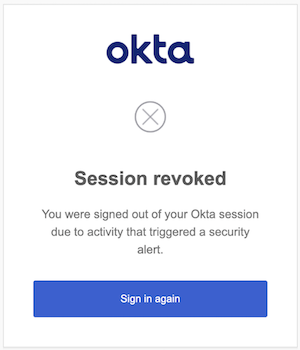
Users need to close the current browser tab and open a new tab to log in again.
Note
If you encounter any issues during the process, or receive a generic access denied message after authenticating through Okta, please open a case with the Exabeam support team at https://portal.exabeam.com/support/s/