
- Get Started with Attack Surface Insights
- Configure Attack Surface Insights
- Get an Overview of Entities in Attack Surface Insights
- Review Entity Health in Attack Surface Insights
- Search for Entities in Attack Surface Insights
- View Entities in Attack Surface Insights
- Manage Entities in Attack Surface Insights
- Entity Attributes
Review Entity Health in Attack Surface Insights
On the Attack Surface Insights Health tab, you can view an assessment of the quality and reliability of your attribute data from Context Sources, as well as the conditions leading to reduced entity accuracy and investigation confidence within your environment. Security Engineers or Platform Administrators can use the Health tab to ensure that logs are being properly parsed and attribute information is assigned to entities correctly.
Note
This is an early access feature. To enable this dashboard for your environment before general release, contact Exabeam Support.
The Entity Health tab contains two sections: Context Health for Entity Linking and Entity Health Findings.
The Context Health for Entity Linking section can help you discover that certain attributes are not being used properly in the Context Source, and therefore renders those attributes less effective when assigning them to entities with Attack Surface Insights. For example, the Context Health section could show that only 3% of your entities have an Employee ID assigned to them, indicating that the field is not being filled in correctly or accurately in the Context Source, and action can be taken to rectify this oversight.
The Entity Health Findings section displays data about entities that are already within your environment. The information garnered from the Entity Health Findings section can be used to initiate investigations into upstream Context Sources or the log ingestion process in your environment. For example, the Entity Health Findings section could indicate that your entities have conflicting identity issues, meaning that the same identifier has been assigned to multiple subjects, and the Context Source can be investigated to determine how or why this has occurred.
The findings are calculated using data processed in the last 24 hours. The Entity Health dashboard refreshes daily.
Select a Source to View Context Health
The Context Health for Entity Linking section shows attribute statistics for one Context Source at a time. The data shown here gives an overview of the uniqueness of attributes and the health of data from Context Sources used for the creation and linking of user entities within Attack Surface Insights. If the data is not unique or “healthy,” this can lead to over-linking or orphaned entities. For more information on how linking works within Attack Surface Insights, refer to Linking in Attack Surface Insights.
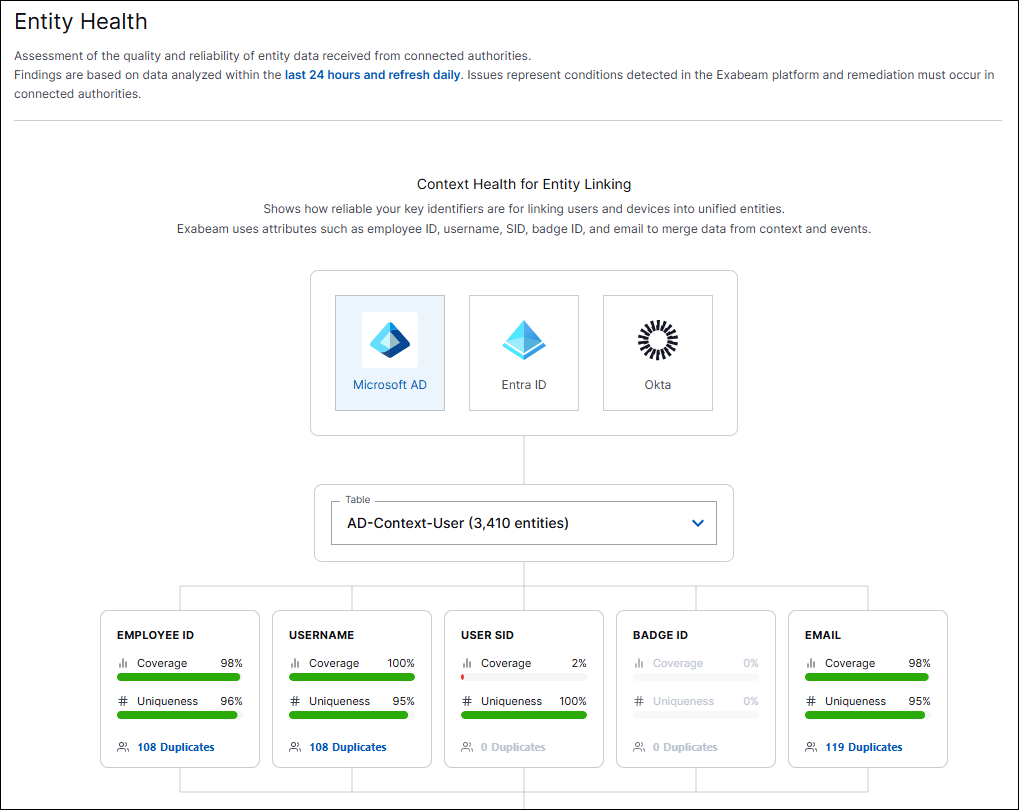
Click one of the displayed Context Sources (for example, Microsoft AD) to display information relating to the health of the data used for the creation and linking of entities from the selected authority. Only third-party Context Sources are available in the Entity Health tab; custom and Exabeam authorities do not display.
Note
In the context of Attack Surface Insights, these Context Sources are also referred to as “Authorities.”
Once a Context Source is selected, open the Table drop-list and select the appropriate Context Table to use that table's detection and enrichment rules to determine Context health. Selecting a new Context Table refreshes the data in the Context Health section.
The Attribute tiles re-populate once a Context Source and Context Table have been selected.
Note
The Entity Health tab only displays information for Context Sources that are active and receiving data in the environment.
Context Health Attribute Statistics
Below the Context Source and Context Table selection are the Attribute tiles. These tiles show coverage, uniqueness, and duplicate statistics for the following attributes:
Employee ID
Username
User SID
Badge ID
Email
Note
For more information on how Attack Surface Insights creates and updates entities, as well as how event attributes are identified, refer to How Attack Surface Insights Works.
The following statistics are displayed in the Attribute tiles. These attribute statistics can be used as an indicator of unhealthy data within the Context Source. Low coverage and uniqueness can result in issues with linking, certain entities missing data, and orphaned entities.
Statistic | Description |
|---|---|
Coverage | Displays the percentage of entities in the context table that have a value for the given attribute. |
Uniqueness | Displays the percentage of entities in the context table that have a unique value for the given attribute. |
Duplicates | Displays the number of duplicate attributes. For example, multiple user entities using the same Email. NoteThis value goes together with the Uniqueness value; if the Uniqueness value is 100%, there are no duplicates. |
Entity Health Findings
The Entity Health Findings section displays statistics about conditions that are leading to reduced entity accuracy and lower investigation confidence. The results in this section can identify problems with entities that lead to investigations in the upstream Context Sources or the log ingestion process to resolve issues.
Warning
The Entity Health Findings section is separate from the Context Health section described above. The attribute data given for selected Context Sources in the Context Health section provides a health snapshot for the data parsed from those sources. The Entity Health Findings section provides information about entities that are already in your environment.
Additionally, the Context Health for Entity Linking section only provides data for user entities. The Entity Health Findings section provides data for both user and device entities.
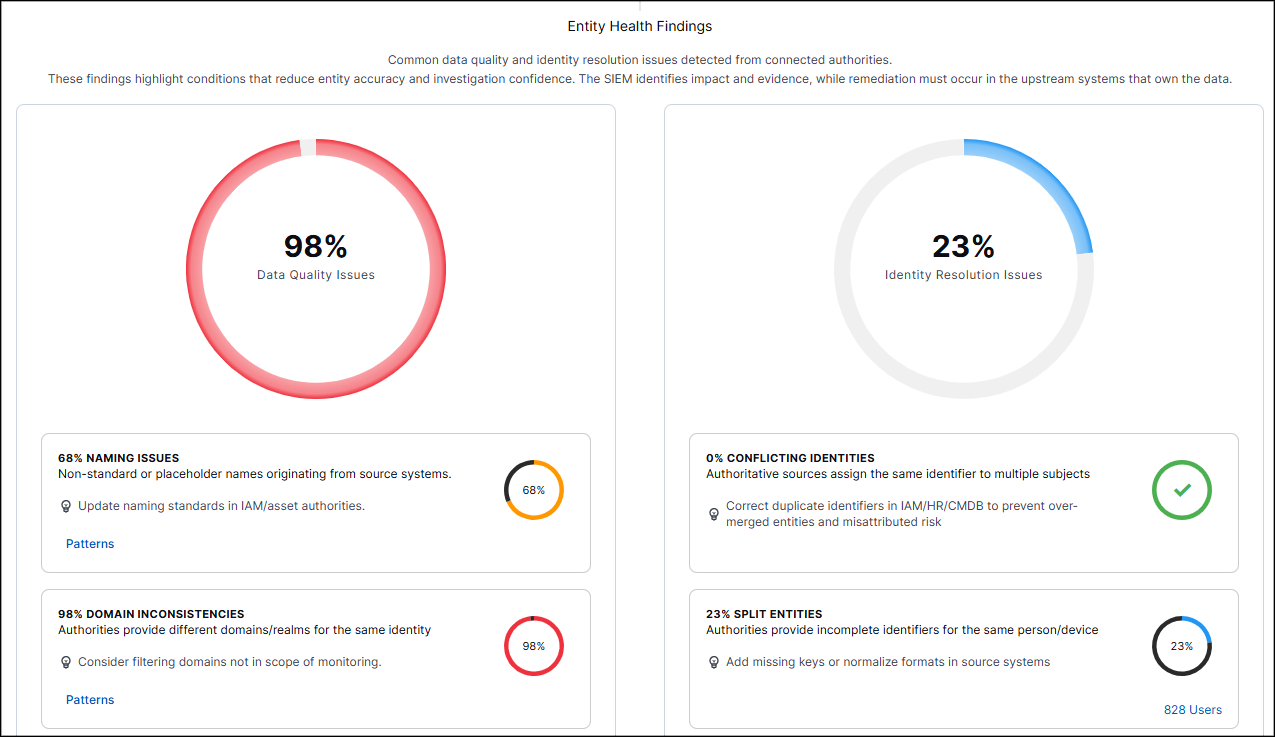
These findings are divided into two categories: Data Quality Issues and Identity Resolution Issues.
Note
Remediation of issues displayed in this section must occur in the upstream systems that own the data.
 |
Note
If there are no entities triggering issues for a given section, the section displays a green checkmark and a “0%” message.
The Data Quality Issues section contains statistics about entities that may come from inconsistent domains or with non-standard names. The following statistics are available in this section:
Section | Description |
|---|---|
Naming Issues | Displays the percentage of entities that contain non-standard or placeholder names originating from source systems. These issues can potentially be addressed with updates to naming standards in IAM/asset authorities and tuning to log ingestion to ensure the correct fields are being parsed. |
Domain Inconsistencies | Displays the percentage of entities where disparate domains or realms are provided for the same identity. These issues can potentially be addressed by filtering domains which are not in scope for monitoring. |
Ephemeral Entities | Displays the percentage of entities that are system, machine, or non-human and that should be filtered out from Attack Surface Insights. These issues can potentially be addressed by filtering out any Context Sources that contain only these types of entities. |
The Identity Resolution Issues section contains statistics about entities that may be dormant, abnormally large, or have conflicting identities. The following statistics are available in this section:
Section | Description |
|---|---|
Conflicting Identities | Displays the percentage of entities where the same identifier has been assigned to multiple subjects. These issues can potentially be addressed by correcting duplicate identifiers in IAM/HR/CMDB to prevent over-merged entities and misattributed risk. |
Split Entities | Displays the percentage of entities where incomplete identifiers have been assigned to the same person or device. These issues can potentially be addressed by adding missing keys or normalizing formats in source systems. |
Large Entities | Displays the percentage of entities where upstream data has caused many identifiers to be mapped to one subject. These issues can potentially be addressed by reviewing shared accounts and key uniqueness within Context Sources. |
View Entity Health Patterns
Patterns are sets of rules and Regex expressions that determine whether an entity has a data quality issue worthy of including in the Entity Health tab. To view the Patterns for any of the Data Quality sections, click Patterns within the tile.
The following columns appear in the Patterns pop-up:
Column | Description |
|---|---|
Order | Displays the order in which Patterns are used to validate data entering Attack Surface Insights. Lower values are evaluated first. NotePatterns with the same Order number are evaluated in the order they were created. |
Rule Name | Displays the unique name and description for the Pattern rule. |
Applies To | Displays the attribute (i.e., Username or Employee ID) to which the Pattern applies. |
Entity Types | Displays the entity (i.e., Users or Devices) to which the Pattern applies. |
Status | Displays whether the Pattern is currently enabled or disabled. |
Actions | Open the menu to perform one of the following actions:
|
Create New Entity Health Patterns
While many Entity Health Patterns are available out-of-the-box, you may wish to create your own to better filter your entities as they enter Attack Surface Insights.
Note
You can copy the Regex from an existing out-of-the-box Entity Health Pattern and create new Patterns that slightly tweak the original Regex to fit your needs. These out-of-the-box Patterns can also be disabled if you do not wish to use them.
To create your own Entity Health Pattern:
Click the Patterns link in the section for which you would like to create a new Pattern.
The Patterns pop-up displays.
Click + Add in the top-right corner.
The Add Pattern pop-up displays.
Enter the following information:
Field/Option
Description
Rule Name
Enter a unique name for this Pattern.
Description
Enter a detailed description for this Pattern.
Entity Types
Select whether this Pattern applies to User entities, Device entities, or both.
Applies To
Open the drop-list to select the entity attribute(s) to which the Pattern applies.
Note
You can re-open the drop-list to select additional attributes. To remove an attribute from consideration, click the X next to its name.
Order
Enter the order in which this Pattern should be evaluated when an entity is being created or updated.
Note
Lower values are evaluated first. This field can be used strategically to order multiple related patterns.
Extraction Strategy
The Extraction Strategy field works alongside the Regex expression to specify exactly which part of a matched string should be flagged. While the Regex expression determines if an attribute triggers the rule, the Extraction Strategy determines how the specific problematic element is isolated.
Note
The Extraction Strategy can only be specified for Naming Issue and Domain Inconsistency Patterns.
keyword_capture - Extracts matched keywords using the Regex expression, best used for finding specific terms.
For example, enabling keyword_capture for a rule parsing for the word “test” returns all results containing the word “test”, such as “Test123” and “NewTest98”.
unusual_characters - Extracts individual unusual characters using the Regex expression.
For example, enabling unusual_characters for a rule parsing for the characters “$” and “#” returns all results containing those characters.
placeholder - Extracts simplified keywords such as “user”, “temp”, “default”, etc.
For example, enabling placeholder for a rule parsing returns results containing temporary or “placeholder” terms.
full_match - Uses the rule type as a generic marker when the entire string matches the Regex qualifications.
For example, if the attribute “12345” meets the Regex expression, “numeric_only” is extracted.
default - The fallback behavior when no strategy is specified that extracts the first capturing group.
Expression
Create a Regex expression to determine the steps and actions this Pattern takes when evaluating entities.
Note
For more information on creating Regex expressions, refer to Query Using Regex.
Enable
By default, new Patterns are enabled. Click the toggle to disable the Pattern.
Click Add.
The new Pattern is saved and added to the Patterns list.