
- Get Started with Attack Surface Insights
- Configure Attack Surface Insights
- Get an Overview of Entities in Attack Surface Insights
- Review Entity Health in Attack Surface Insights
- Search for Entities in Attack Surface Insights
- View Entities in Attack Surface Insights
- Manage Entities in Attack Surface Insights
- Entity Attributes
View User Entity Details
View detailed information about a user entity.
To view details about a user entity, select the user entity. From the details, view:
View User Entity Attributes
You can view all user entity attributes in user entity details.
Critical attributes are highlighted at the top of the entity details. For these attributes, you can view the attribute value for accounts associated with the user entity by clicking the attribute value.
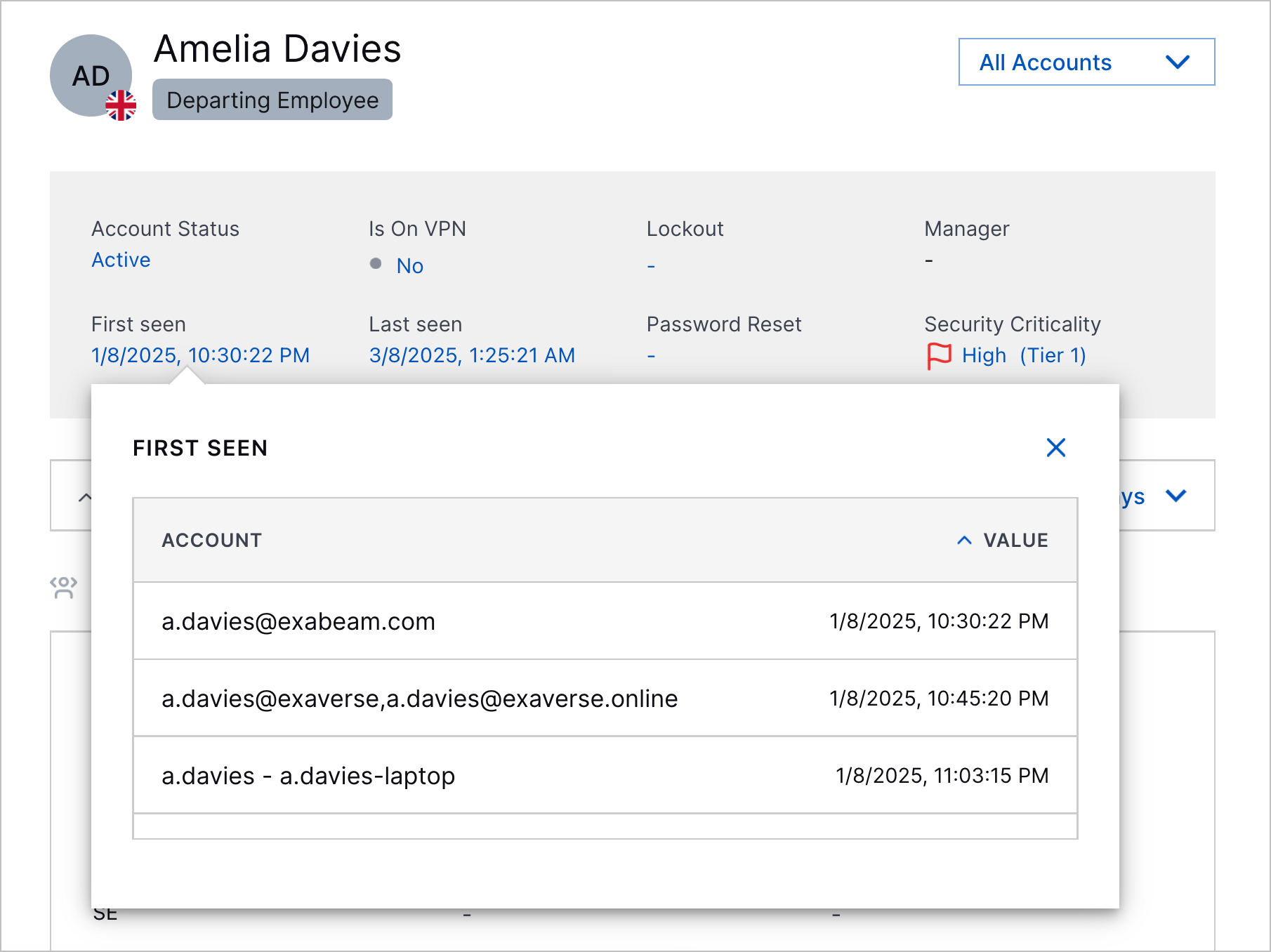
To sort the attribute values by ascending or descending order, click the VALUE column header.
The only exception is the Manager attribute; if you click on the Manager attribute value, you're directed to to the user entity details for the manager, if it exists.
Other attributes are organized by the source from where they're derived: attributes derived from context tables are under Context Data and attributes derived from events are under Event Data.
View Security Criticality Details
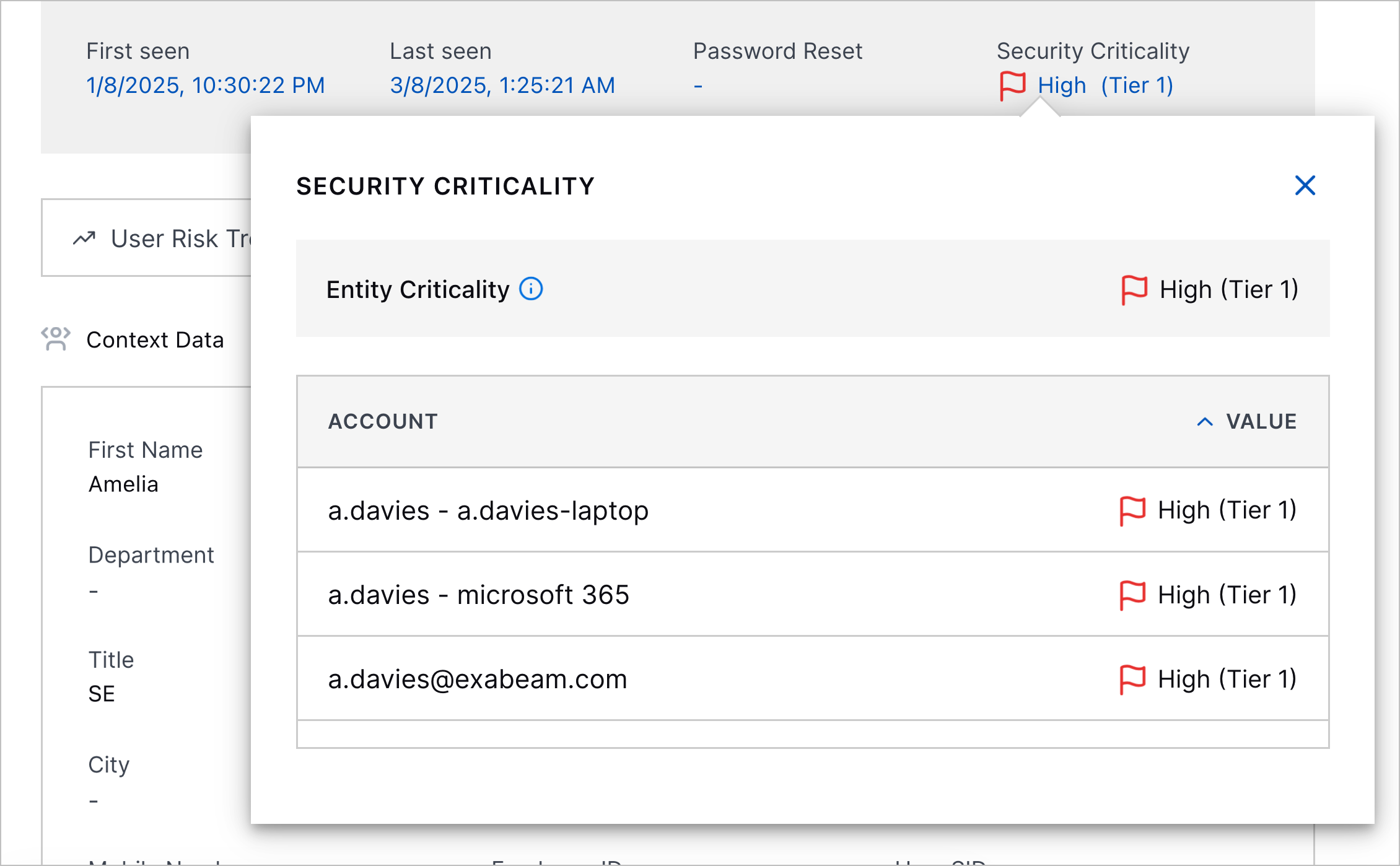
Security criticality is determined by either the highest security criticality of all accounts associated with the user entity or an Attack Surface Insights rule.
To view information about how the security criticality is determined, click on the value of Security Criticality.
You can view all accounts associated with the user entity and their security criticality.
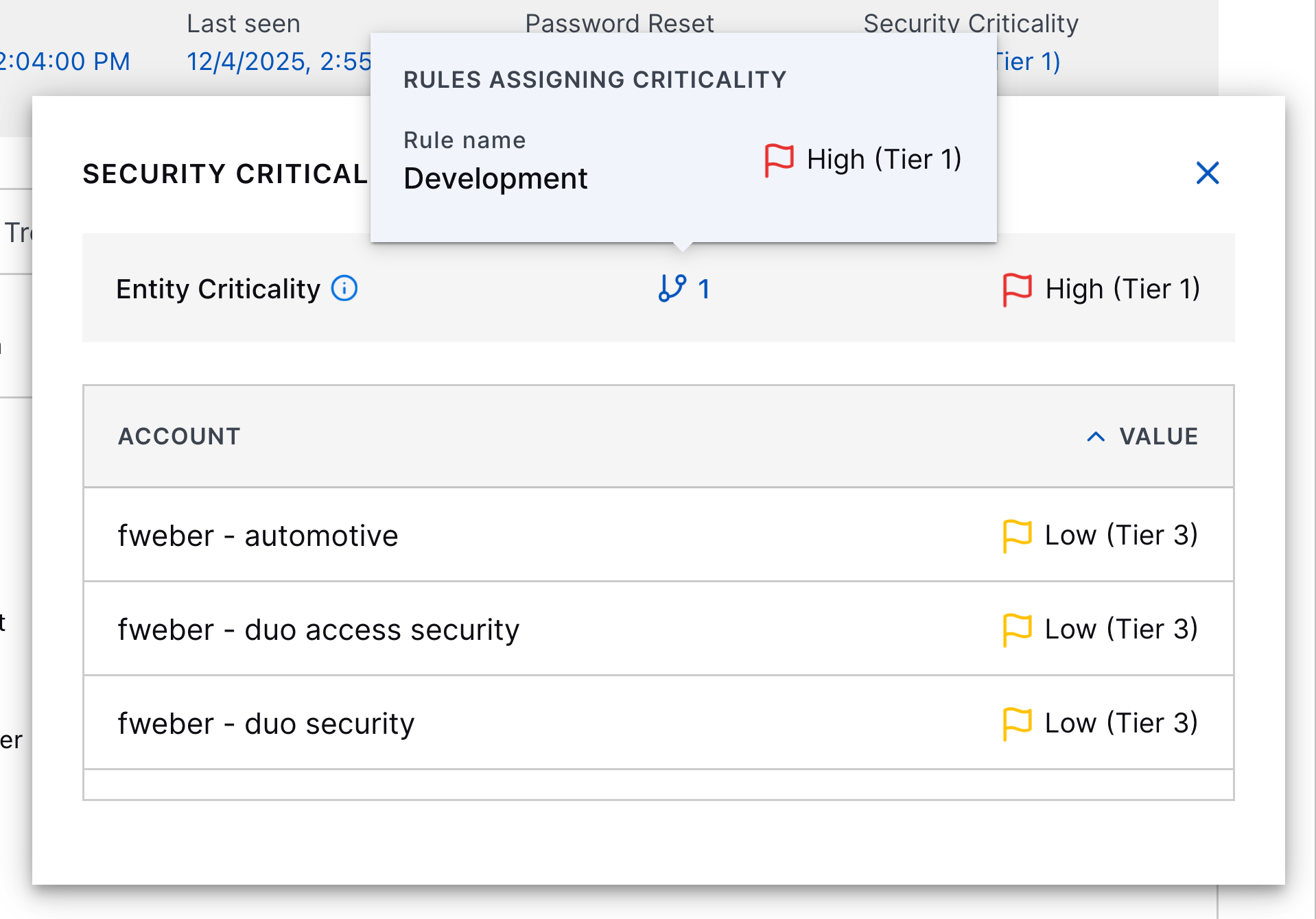
If the security criticality is assigned by an Attack Surface Insights rule, you can identify the Attack Surface Insights rule by hovering over  .
.
View Associated Events
To view all the events associated with a user entity or an account, hover over the Event ID field.
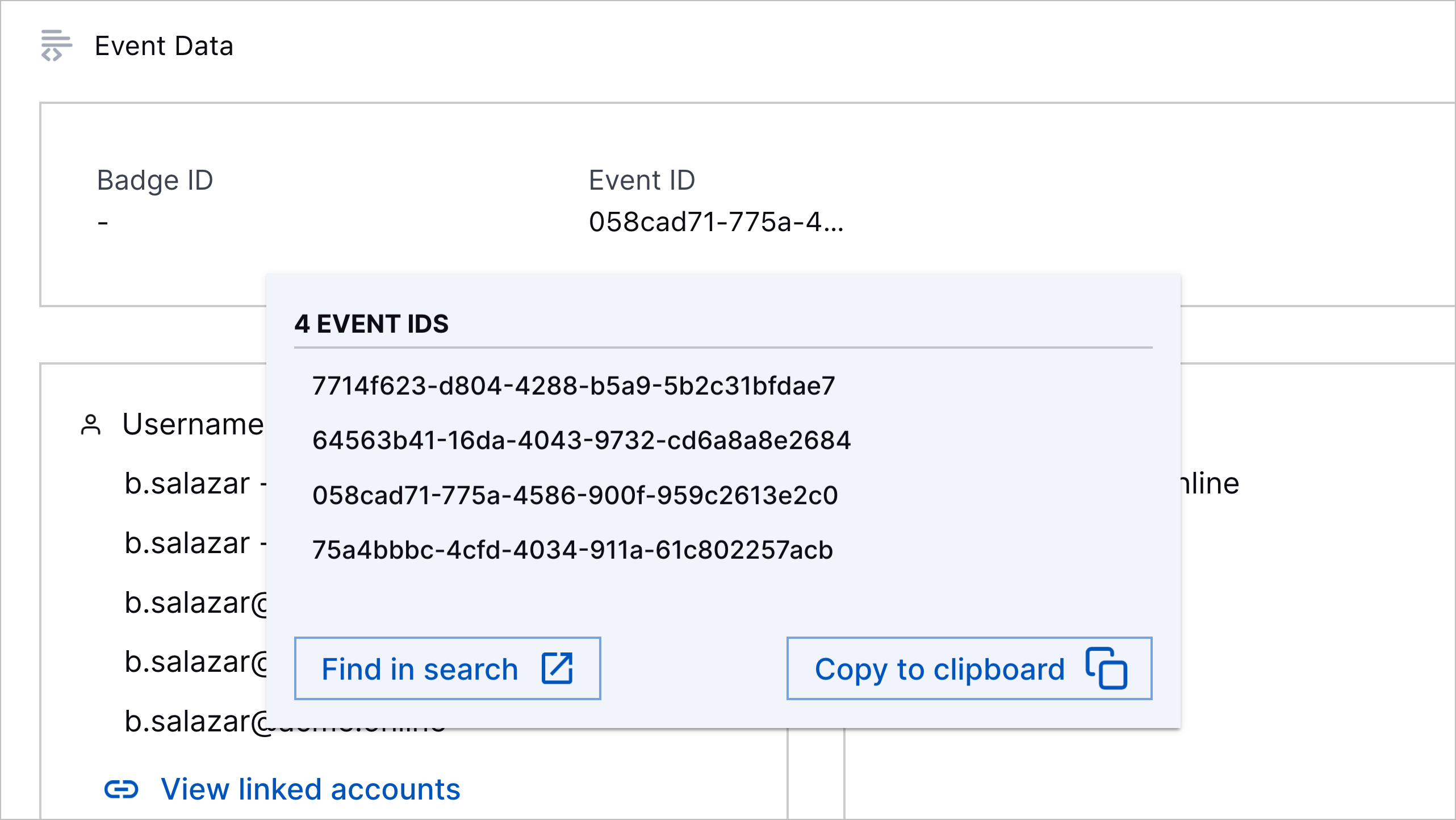
To navigate to these events in Search, click Find in search.
To copy all associated event IDs to your clipboard, click Copy to clipboard.
View User Entity Threat History
Under User Risk Trend, view a history of the cases and alerts associated with a user entity over a period you specify: last seven days, last two weeks, last month, last two months, or last three months:
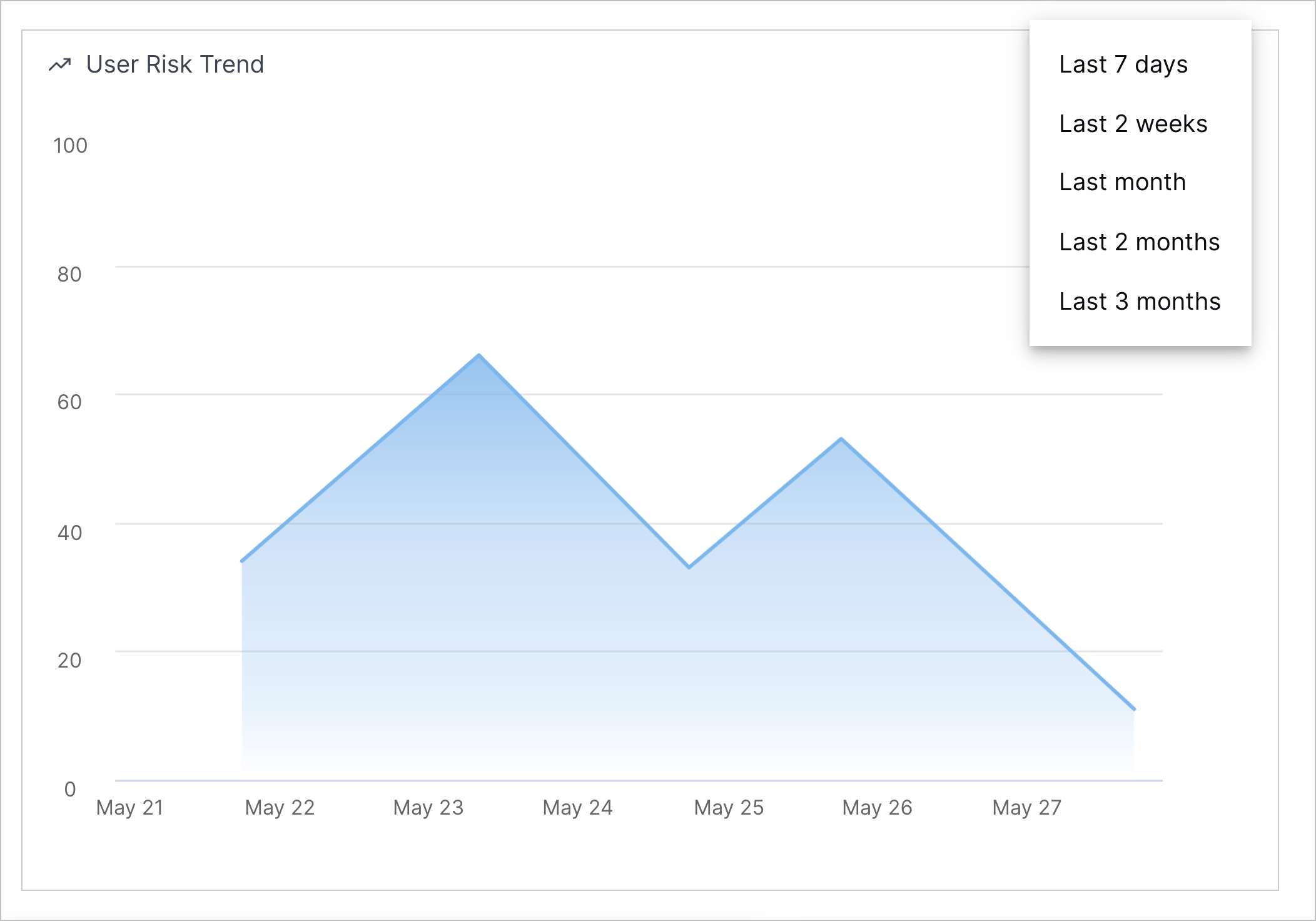 |
To view the number of open cases and alerts created over the specified period, minimize User Risk Trend:

To view details about the cases and alerts, click <#> cases or <#> alerts:
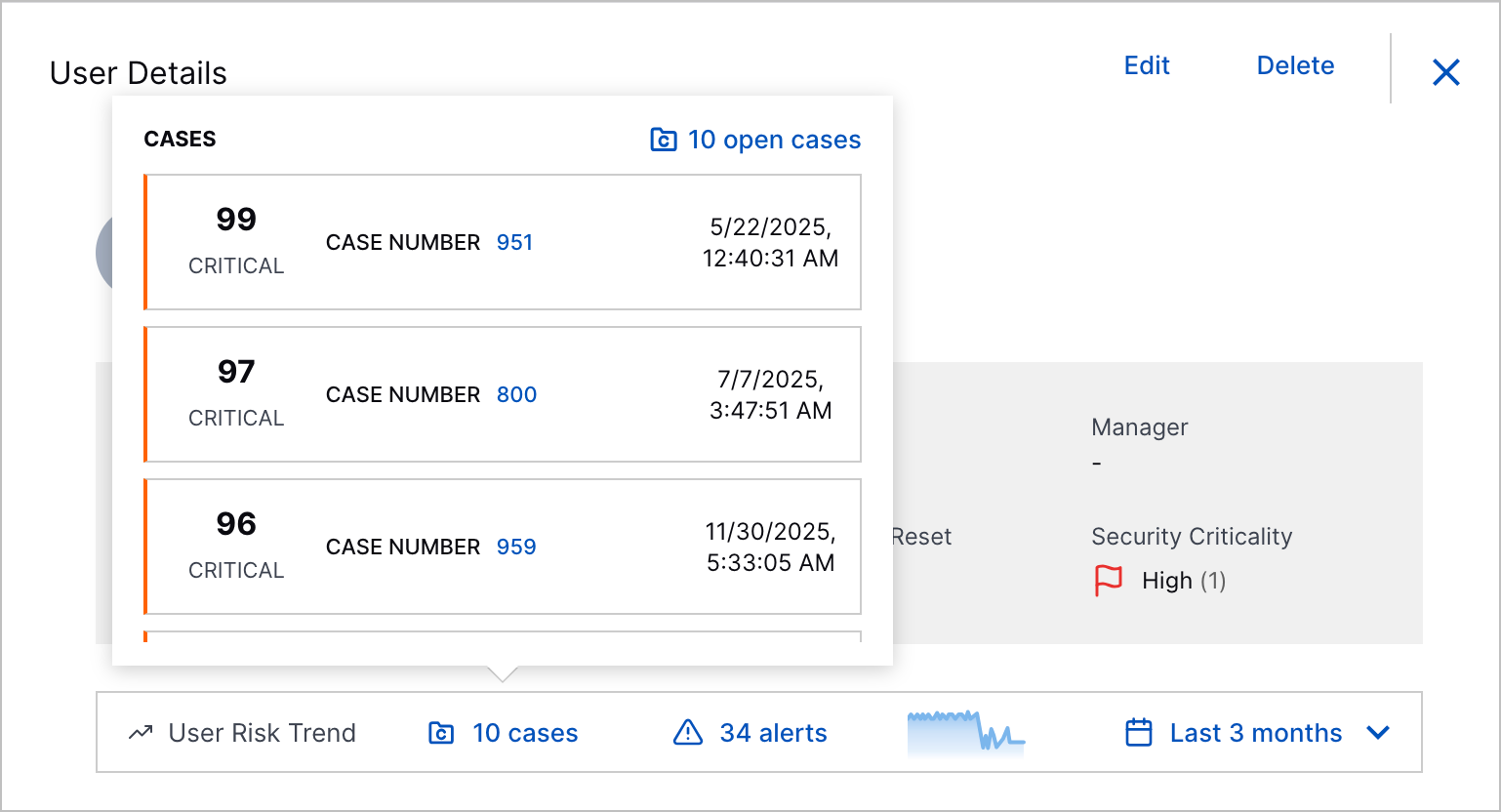 |
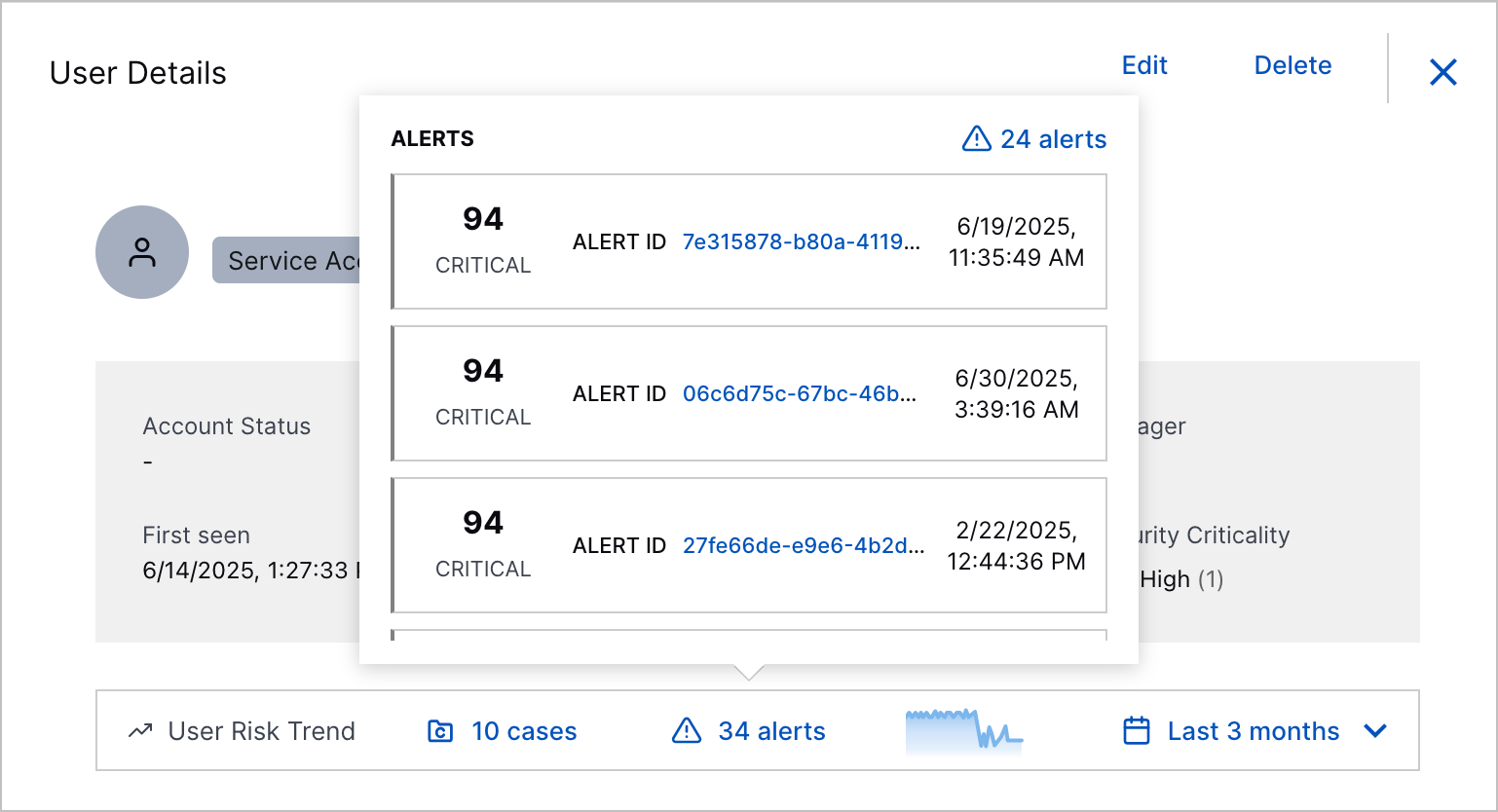 |
To view a line chart of a user entity's risk score over time, expand User Risk Trend. Each point on the line chart represents the highest Threat Center case or alert risk score associated with the user entity on a given day.
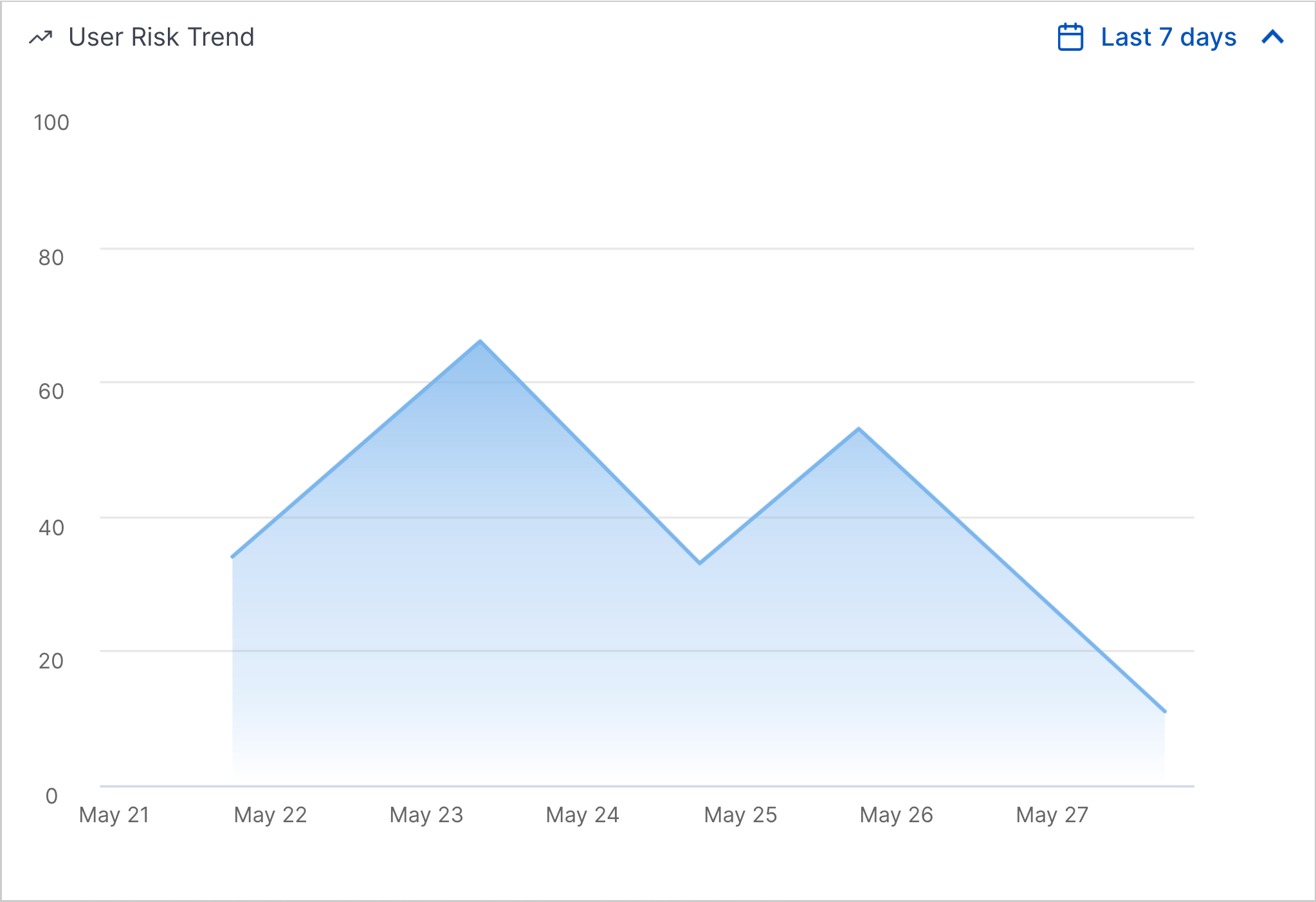 |
To view more information about the case or alert with the highest risk score, hover over the point on the line chart:
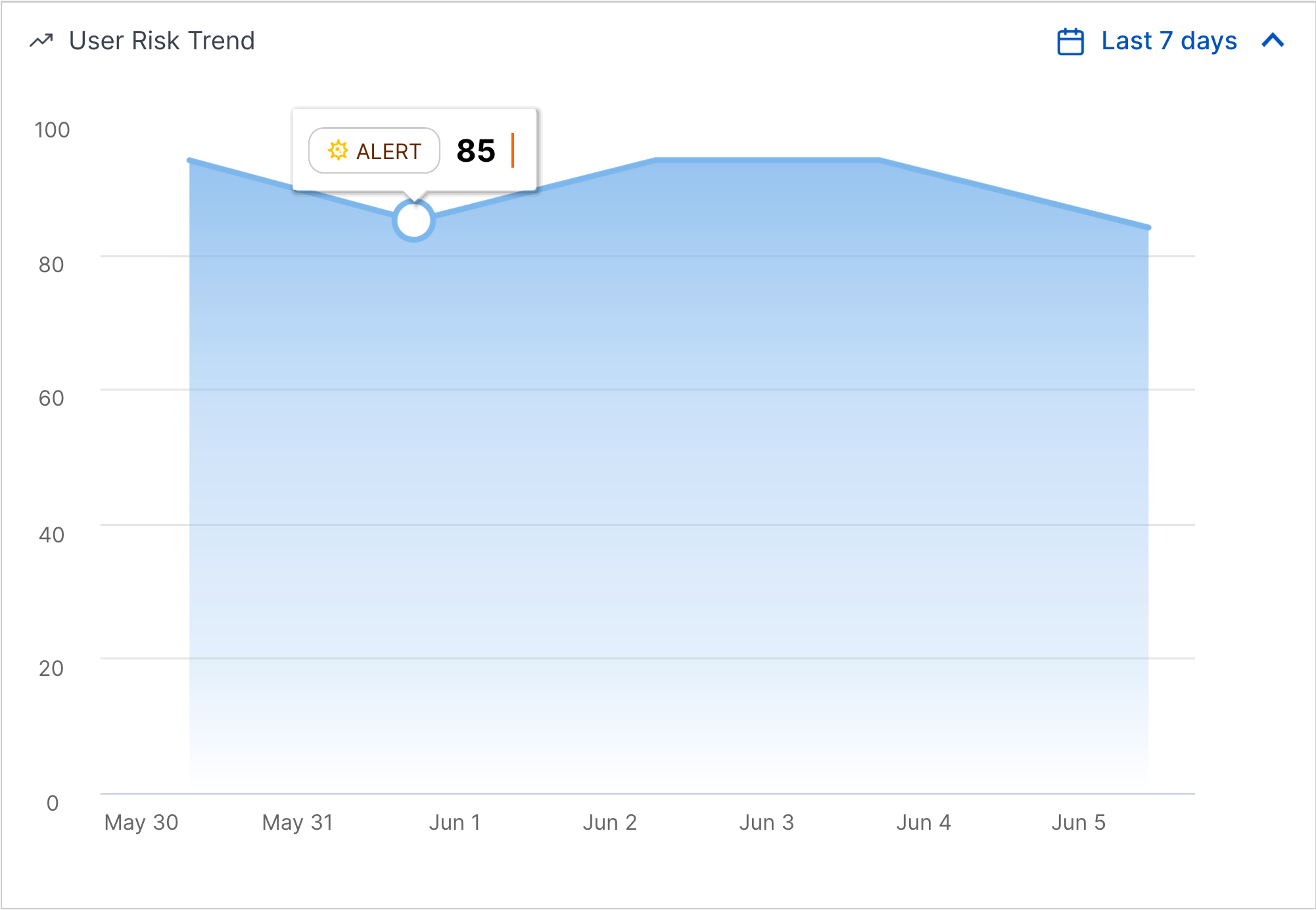 |
To navigate to the case or alert with the highest risk score in Threat Center, click the point.
View User Entity Accounts
You can view all accounts associated with the user entity and the attributes associated with a specific account.
Accounts are associated with user entities through linking.
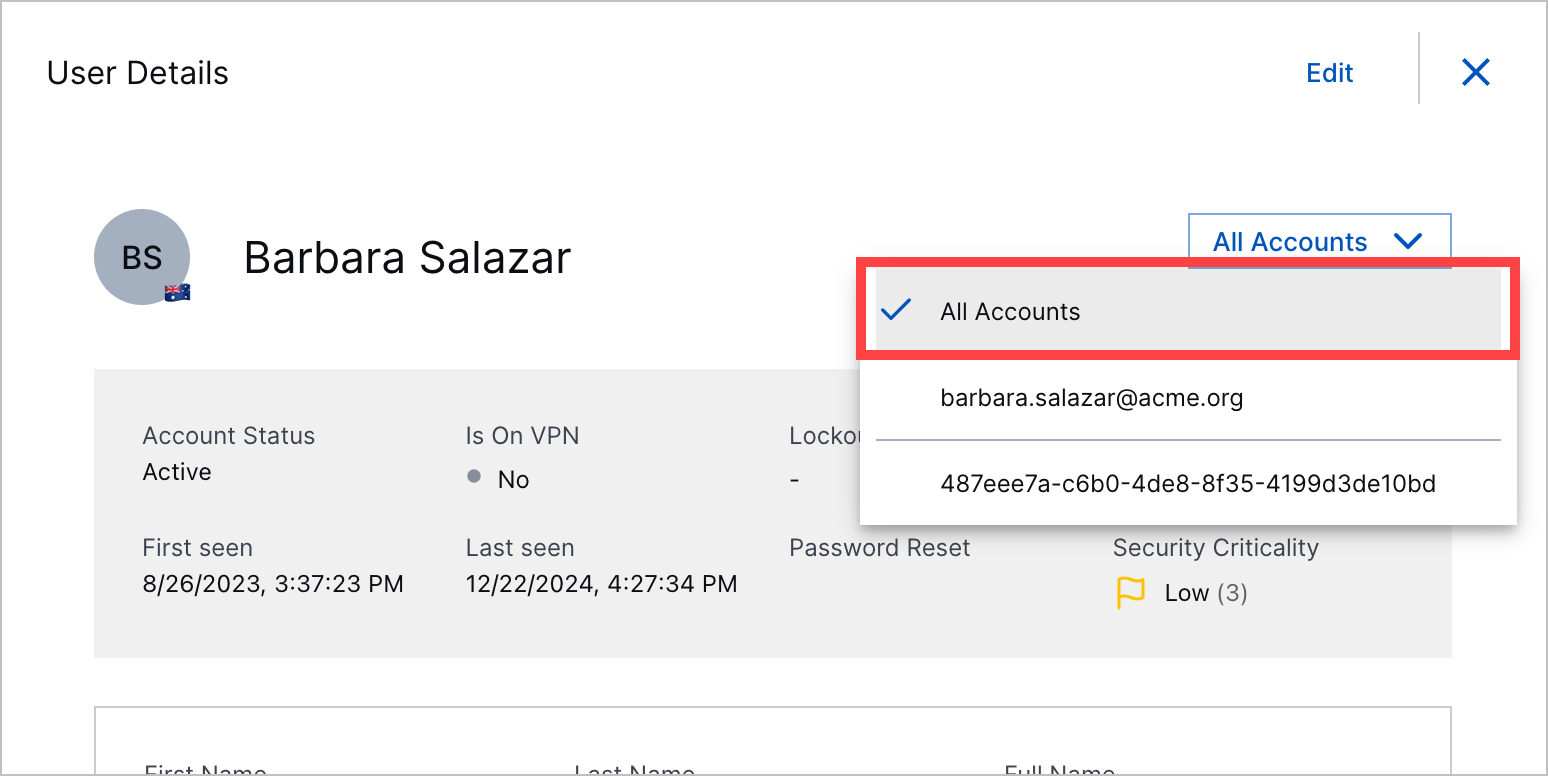
To view all attributes across all accounts, select All Accounts.
 |
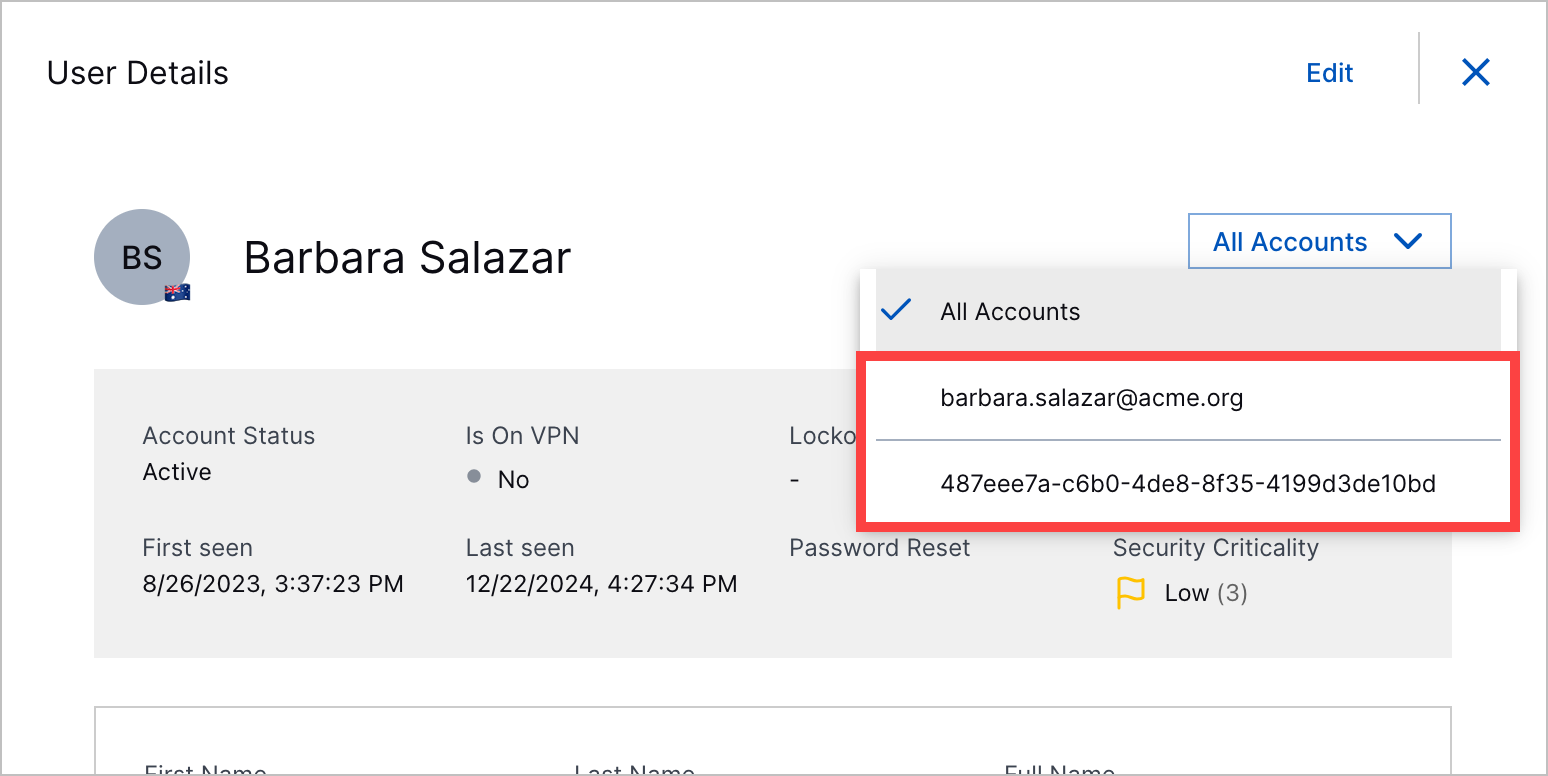
To view attributes associated with a specific account, select the account from the menu.
 |
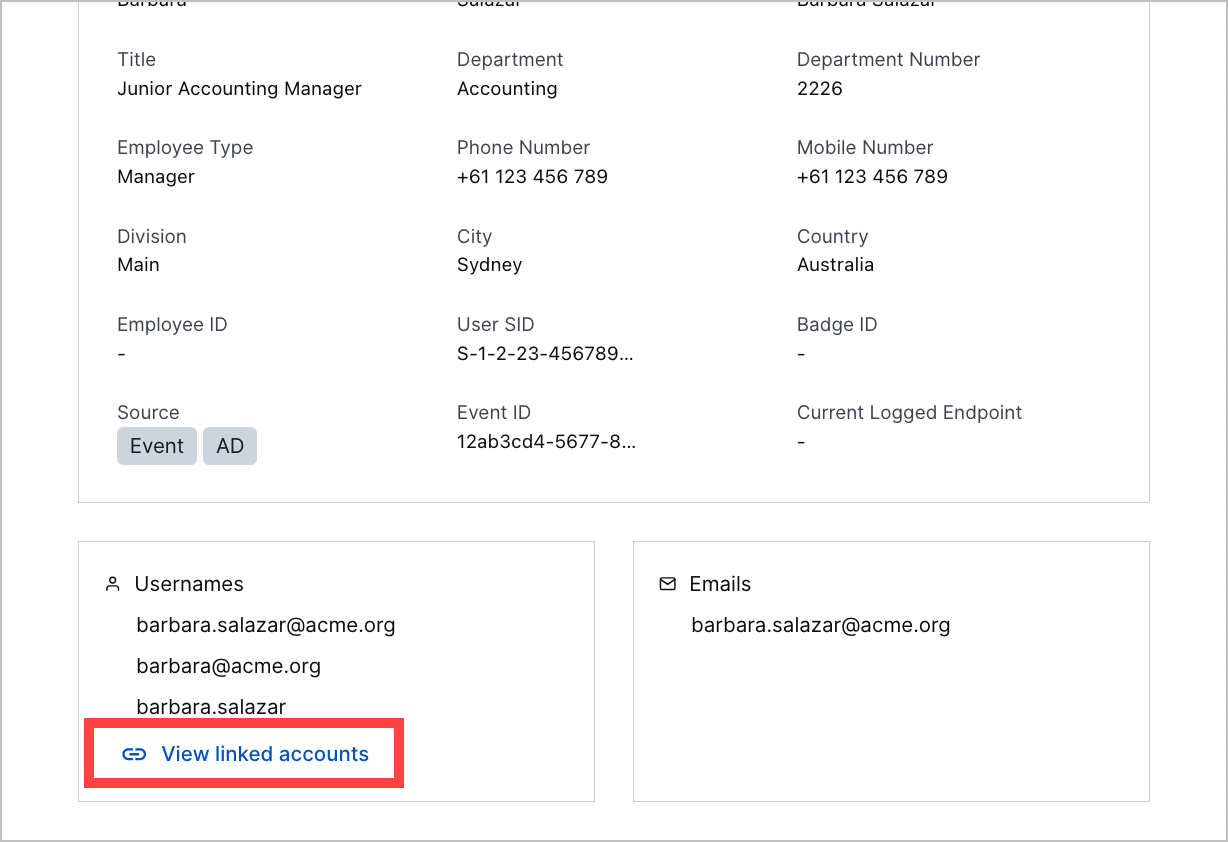
To view all associated accounts, under Usernames, click View linked accounts.
 |
For each account, view:
User name – The user name associated with the account.
Email address – The email address associated with the account.
Employee ID – The employee ID associated with the account.
User SID – A unique security identifier for a security principal object.
Badge ID – The badge ID associated with the account.
Password reset – The time when the user last reset their account password.
Source – The sources from where the account attributes are derived.
Link reason – The method and field value used to link the account to the user entity. The value in blue is the link method. The value next to it is the matched field value linking the account to the entity.
Possible link methods include:
MANUAL_LINK – An account was linked to the user entity using custom linking.
SID_MATCH – The value of an identifying
user_sidattribute matches the value ofu_object_sidin Active Directory context data.CONTEXT_PREFIX_UPN – Prefix search using @ as the delimiter. The prefix before @ in an identifying attribute value matches the prefix before @ in a context field value.
CONTEXT_PREFIX_HYPHEN – Prefix search using space hyphen space, - , as the delimiter. The prefix before - in an identifying attribute value matches the prefix before - in a context field value.
CONTEXT_DIRECT_MATCH – An exact match between an identifying attribute value and context field value.
ENTITY_STORE_PREFIX_SCAN – An orphaned entity is an entity that has not been linked to any context record. In this linking method, an attribute in an orphaned entity matches the attribute of a newly created entity using prefix search.
To view more information about the link, hover over the link reason value. You can view:
Method – The method used to link the account with the user entity.
Context Field – The context field that matched the identifying entity attribute.
Matched Value – The actual value that matches in both the entity and context. For example, if prefix search was used, the matched value is the prefix.
Source Key – The identifying entity attribute that matched the context field.
Context Source – The context source of the context field:
If the context field is from Active Directory, the context source is AD.
If the context field is from another context source, the context source is Context.
If the ENTITY_SCORE_PREFIX_SCAN linking method was used, the context source is Entity.
Context Table – The name of the context table where the context field was stored. ENTITY_STORE indicates no external context table was used.
Timestamp – The date and time the link was created.