
- Introduction to Context Management
- Onboarding a Context Table
- Custom Context Tables
- Create a Custom Context Table by Importing a CSV File
- Create a Custom Context Table Using the Add Custom Option
- Working with Filtered Context Tables
- View and Interact with a Custom or Filtered Context Table
- View the Details Panel for a Custom or Filtered Context Table
- Edit the Configuration of Custom or Filtered Context Tables
- Active Directory Context Tables
- Prerequisites to Onboard an Active Directory Context Table
- Create an Active Directory Context Table
- View and Interact with an Active Directory Context Table
- View the Details Panel for an Active Directory Context Table
- Edit the Configuration of an Active Directory Context Table
- Default User Attribute Mapping for Active Directory
- Default Device Attribute Mapping for Active Directory
- Anomali Context Tables
- Prerequisites to Onboard an Anomali Context Table
- Create an Anomali Context Table
- View and Interact with an Anomali Context Table
- View the Details Panel for an Anomali Context Table
- Edit the Configuration of an Anomali Context Table
- Default IP Attribute Mapping for Anomali
- Default Domain Attribute Mapping for Anomali
- CrowdStrike Context Tables
- Google Workspace Context Tables
- Prerequisites to Onboard a Google Workspace Context Table
- Create a Google Workspace Context Table
- View and Interact with a Google Workspace Context Table
- View the Details Panel for a Google Workspace Context Table
- Edit the Configuration of a Google Workspace Context Table
- Default Google Workspace Attribute Mapping
- Microsoft Entra ID Context Tables
- Prerequisites to Onboard a Microsoft Entra ID Context Table
- Create a Microsoft Entra ID Context Table
- View and Interact with a Microsoft Entra ID Context Table
- View the Details Panel for a Microsoft Entra ID Context Table
- Edit the Configuration of a Microsoft Entra ID Context Table
- Default User Attribute Mapping for Microsoft Entra ID
- Default Device Attribute Mapping for Microsoft Entra ID
- Okta Context Tables
- Recorded Future Context Tables
- Prerequisites to Onboard a Recorded Future Context Table
- Create a Recorded Future Context Table
- View and Interact with a Recorded Future Context Table
- View the Details Panel for a Recorded Future Context Table
- Edit the Configuration of a Recorded Future Context Table
- Default IP Attribute Mapping for Recorded Future
- Default Domain Attribute Mapping for Recorded Future
- REST API Context Tables
- STIX/TAXII Context Tables
- Prerequisites to Onboard a STIX/TAXII Context Table
- Create a STIX/TAXII Context Table
- View and Interact with a STIX/TAXII Context Table
- View the Details Panel for a STIX/TAXII Context Table
- Edit the Configuration of a STIX/TAXII Context Table
- Default IP Attribute Mapping for STIX/TAXII
- Default Domain Attribute Mapping for STIX/TAXII
- Custom Context Tables
- Add Data to an Existing Context Table
- Using Context Data in Downstream Applications
- Pre-Built Context Tables
- Context Management APIs
- Troubleshooting Context Management
- Refresh Rates for Context Tables
Create a REST API Context Table
Before beginning this procedure, review the prerequisites. Make sure you have accessed the extracted data schema in the corresponding cloud collector for information about how to configure the source attributes you want to include.
To onboard a REST API context table:
Log into the New-Scale Security Operations Platform with your registered credentials.
Find the Security Management tab and click the Context Management tile.
Navigate to the Context Library tab and click the REST API tile. The REST API Context Table panel opens.
Complete the Definition step by entering the following information:
Context Table Name – Enter a name for the new REST API context table you're creating.
Context Table Type – Select the type of data the new context table will contain. Options include User, Device, Other.
REST API Collector – In the Data Source section, choose a data source for your new context table. The drop down menu displays a list of the REST API Context cloud collectors that are currently configured and running in the Exabeam Cloud Collectors service. In the list, select a collector from which your new context table will process attribute data.
Note
The menu only provides REST API Context collectors that match the data type you selected for the new context table (User, Device, or Other).
If no REST API Context cloud collectors are listed, follow the steps in the Configure the REST API Context Cloud Collector in the Get Started with Collector Onboarding Guide.
Click Next. The Review Attributes step opens and displays an empty Review Attribute Mapping table. This table is where you will enter source attributes, based on the extracted data schema from the collector, and map them to target attributes.
The attribute mapping table includes the following columns:
 – Shows whether a specific attribute is visible as a column in the context table. Use the icon next to each attribute to toggle the display on or off.
Source Attribute – A column where you will add the attributes extracted from the source API endpoints that you want to map for the new context table.
Target Attribute – A column where you will select the target attributes you want to map to the source attributes, either available Exabeam common information model attributes or custom attributes.
 – Indicates that an attribute is designated as the key attribute for the context table. The designated key and its mapping cannot be changed.
 – Indicates that an attribute and its mapping cannot be changed.
In the Source Attributes column of the Review Attribute Mapping table, click Add New Attribute. A small Attribute Name dialog box opens.
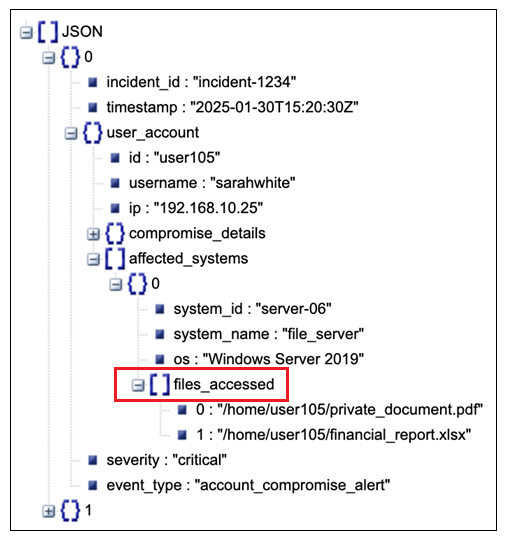
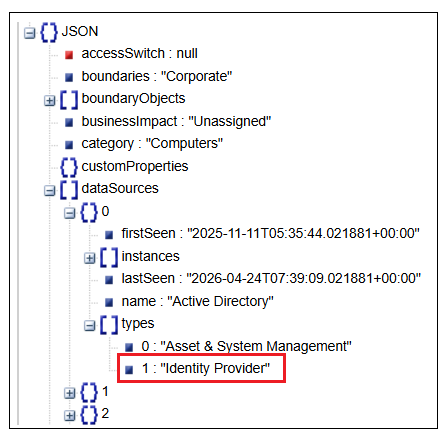
Enter the name of a source attribute that you want to include. Be sure to consult the extracted data schema to enter the the field with the appropriate JSON path syntax. See the syntax on the left below, configured for the JSON samples on the right.
First level field – Use the field name alone. Example:
lastUpdated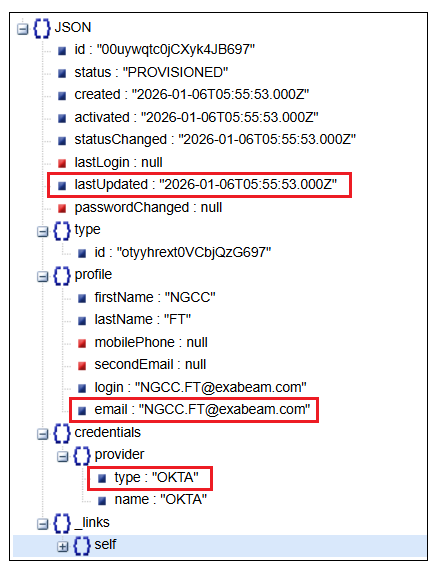
Nested field – Use a dot (.) between JSON levels. Examples:
profile.emailcredentials.provider.type
Array field – Add
$.before the name of the array field. Example:user_account.affected_systems.$.files_accessedNote
Extracted results are displayed in a concatenated array.
Element in an array field – Add the index number in squarre brackets for the element in the array. Example:
tags[0]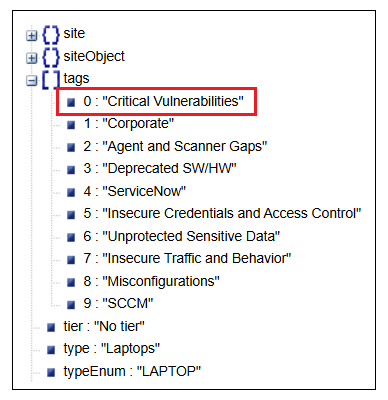
Element in a nested array field – Add $. before the name of the array field and the element index in square brackets after the array. Example:
dataSources.$.types[1]Note
Extracted results are displayed in a concatenated array.
After you enter the attribute, click the plus icon to the right to add the attribute to the Source Attributes column
In the Target Attributes column, click Add Target Attribute. The Available Attributes drop down list is displayed. Do one of the following to map a target attribute to the source attribute you just added:
Select a default attribute (
 ).
). Select an existing custom attribute (
 ).
).Click Add Custom Attribute and create a new target attribute to be mapped. A small Attribute Name dialog box opens. Enter a name for the new custom attribute and select a data type from the Type drop down list. Then click the plus icon (
 ) to add the new attribute to the Target Attributes column with a custom icon ().
Repeat steps 6 through 9 to add all of the desired source attributes to the table and map them to appropriate target attributes.
Click the key icon (
) next to one of the attributes to select it as the primary key for the table. The completed mapping table should look similar to the example below.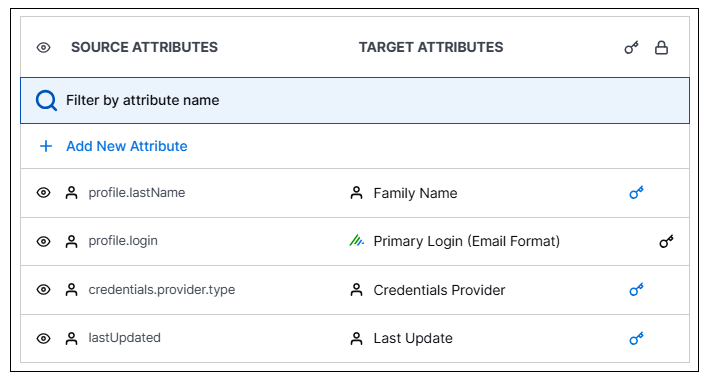
You can modify the mapping of any of the configured attributes, that is not a key or a locked attribute, in the following ways:
Hover over an attribute row where you want to change the mapping.
Click the delete icon (
 ) to remove the currently mapped target attribute.
Then click Add Target Attributes and do one of the following:
Search for and select an existing target attribute to map it as the target.
Click Add Custom Attribute and create a new target attribute to be mapped. A small Attribute Name dialog box opens. Enter a name for the new custom attribute and select a data type from the Type drop down list. Then click the plus icon (
) to add the new attribute to the Target Attributes column with a custom icon ().
When you are satisfied with the attribute mapping, click Create to onboard the new REST API context table. A success message is displayed.
Click Go to Overview to return to the Overview tab that lists all the context tables currently available. The new context table should appear in the list. When you open the table, it displays the user, device, or other objects processed from the source cloud collector.