
- Introduction to Context Management
- Onboarding a Context Table
- Custom Context Tables
- Create a Custom Context Table by Importing a CSV File
- Create a Custom Context Table Using the Add Custom Option
- Working with Filtered Context Tables
- View and Interact with a Custom or Filtered Context Table
- View the Details Panel for a Custom or Filtered Context Table
- Edit the Configuration of Custom or Filtered Context Tables
- Active Directory Context Tables
- Prerequisites to Onboard an Active Directory Context Table
- Create an Active Directory Context Table
- View and Interact with an Active Directory Context Table
- View the Details Panel for an Active Directory Context Table
- Edit the Configuration of an Active Directory Context Table
- Default User Attribute Mapping for Active Directory
- Default Device Attribute Mapping for Active Directory
- Anomali Context Tables
- Prerequisites to Onboard an Anomali Context Table
- Create an Anomali Context Table
- View and Interact with an Anomali Context Table
- View the Details Panel for an Anomali Context Table
- Edit the Configuration of an Anomali Context Table
- Default IP Attribute Mapping for Anomali
- Default Domain Attribute Mapping for Anomali
- CrowdStrike Context Tables
- Google Workspace Context Tables
- Prerequisites to Onboard a Google Workspace Context Table
- Create a Google Workspace Context Table
- View and Interact with a Google Workspace Context Table
- View the Details Panel for a Google Workspace Context Table
- Edit the Configuration of a Google Workspace Context Table
- Default Google Workspace Attribute Mapping
- Microsoft Entra ID Context Tables
- Prerequisites to Onboard a Microsoft Entra ID Context Table
- Create a Microsoft Entra ID Context Table
- View and Interact with a Microsoft Entra ID Context Table
- View the Details Panel for a Microsoft Entra ID Context Table
- Edit the Configuration of a Microsoft Entra ID Context Table
- Default User Attribute Mapping for Microsoft Entra ID
- Default Device Attribute Mapping for Microsoft Entra ID
- Okta Context Tables
- Recorded Future Context Tables
- Prerequisites to Onboard a Recorded Future Context Table
- Create a Recorded Future Context Table
- View and Interact with a Recorded Future Context Table
- View the Details Panel for a Recorded Future Context Table
- Edit the Configuration of a Recorded Future Context Table
- Default IP Attribute Mapping for Recorded Future
- Default Domain Attribute Mapping for Recorded Future
- REST API Context Tables
- STIX/TAXII Context Tables
- Prerequisites to Onboard a STIX/TAXII Context Table
- Create a STIX/TAXII Context Table
- View and Interact with a STIX/TAXII Context Table
- View the Details Panel for a STIX/TAXII Context Table
- Edit the Configuration of a STIX/TAXII Context Table
- Default IP Attribute Mapping for STIX/TAXII
- Default Domain Attribute Mapping for STIX/TAXII
- Custom Context Tables
- Add Data to an Existing Context Table
- Using Context Data in Downstream Applications
- Pre-Built Context Tables
- Context Management APIs
- Troubleshooting Context Management
- Refresh Rates for Context Tables
Prerequisites to Onboard a REST API Context Table
Before you can onboard a REST API context table in the Context Management service, you must ensure that the following prerequisites are met:
At least one REST API Context Cloud Collector is configured and running in the New-Scale Cloud Collectors service. If you need to create a new REST API Context Cloud Collector, follow the steps in the Configure the REST API Context Cloud Collector in the Get Started with Collector Onboarding Guide.
View the schema of data being extracted from the API response in the collector. You will need this information to properly configure the attribute mapping when you create the REST API context table. You can access the extracted data in the cloud collector as follows:
Open the Cloud Collectors service and navigate to the specific REST API Context collector whose data you want to onboard to a context table.
Click on the collector row to open the details panel on the right.
At the top of the panel, select Edit to open the collector Configuration panel.
Scroll to the bottom of the Configuration panel and click Test Connection. A Testing Results panel opens on the left.
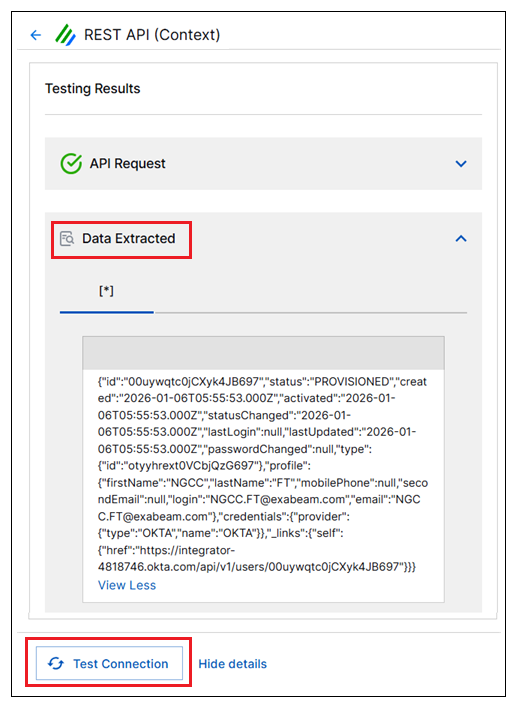
Expand the Extracted Data field. This expanded field shows the schema of the data being extracted from the API response. If necessary, you can click View More to see the entire schema. You might want to copy and paste it to a JSON viewer for structural clarity.
Click Hide Details to close the Testing Results panel.