
- Introduction to Context Management
- Onboarding a Context Table
- Custom Context Tables
- Create a Custom Context Table by Importing a CSV File
- Create a Custom Context Table Using the Add Custom Option
- Working with Filtered Context Tables
- View and Interact with a Custom or Filtered Context Table
- View the Details Panel for a Custom or Filtered Context Table
- Edit the Configuration of Custom or Filtered Context Tables
- Active Directory Context Tables
- Prerequisites to Onboard an Active Directory Context Table
- Create an Active Directory Context Table
- View and Interact with an Active Directory Context Table
- View the Details Panel for an Active Directory Context Table
- Edit the Configuration of an Active Directory Context Table
- Default User Attribute Mapping for Active Directory
- Default Device Attribute Mapping for Active Directory
- Anomali Context Tables
- Prerequisites to Onboard an Anomali Context Table
- Create an Anomali Context Table
- View and Interact with an Anomali Context Table
- View the Details Panel for an Anomali Context Table
- Edit the Configuration of an Anomali Context Table
- Default IP Attribute Mapping for Anomali
- Default Domain Attribute Mapping for Anomali
- CrowdStrike Context Tables
- Google Workspace Context Tables
- Prerequisites to Onboard a Google Workspace Context Table
- Create a Google Workspace Context Table
- View and Interact with a Google Workspace Context Table
- View the Details Panel for a Google Workspace Context Table
- Edit the Configuration of a Google Workspace Context Table
- Default Google Workspace Attribute Mapping
- Microsoft Entra ID Context Tables
- Prerequisites to Onboard a Microsoft Entra ID Context Table
- Create a Microsoft Entra ID Context Table
- View and Interact with a Microsoft Entra ID Context Table
- View the Details Panel for a Microsoft Entra ID Context Table
- Edit the Configuration of a Microsoft Entra ID Context Table
- Default User Attribute Mapping for Microsoft Entra ID
- Default Device Attribute Mapping for Microsoft Entra ID
- Okta Context Tables
- Recorded Future Context Tables
- Prerequisites to Onboard a Recorded Future Context Table
- Create a Recorded Future Context Table
- View and Interact with a Recorded Future Context Table
- View the Details Panel for a Recorded Future Context Table
- Edit the Configuration of a Recorded Future Context Table
- Default IP Attribute Mapping for Recorded Future
- Default Domain Attribute Mapping for Recorded Future
- REST API Context Tables
- STIX/TAXII Context Tables
- Prerequisites to Onboard a STIX/TAXII Context Table
- Create a STIX/TAXII Context Table
- View and Interact with a STIX/TAXII Context Table
- View the Details Panel for a STIX/TAXII Context Table
- Edit the Configuration of a STIX/TAXII Context Table
- Default IP Attribute Mapping for STIX/TAXII
- Default Domain Attribute Mapping for STIX/TAXII
- Custom Context Tables
- Add Data to an Existing Context Table
- Using Context Data in Downstream Applications
- Pre-Built Context Tables
- Context Management APIs
- Troubleshooting Context Management
- Refresh Rates for Context Tables
Edit the Configuration of a REST API Context Table
To edit the configuration of a REST API context table:
On the Overview tab, click the Options icon (
 ) to the right of a specific REST API context table and select Edit. The Configuration panel opens on the right.
 On the Definition tab, you can modify the following information:
Context Table Name – Enter a new name for the context table.
Note
Changing context table names is currently prohibited in order to avoid breaking functionality in downstream applications.
REST API Collector – Select a different REST API Context cloud collector as the source of data in the context table.
Click on the Review Attributes tab to modify the attribute mapping for the context table.
The attribute mapping table has the following columns (as shown in the image below):
 – Shows whether a specific attribute is visible as a column in the context table. Use the icon next to each attribute to toggle the display on or off.
Source Attribute – Shows the attributes extracted from the API response in the cloud collector.
Target Attribute – Shows the target attributes that are mapped to the source attributes. You can hover your cursor over a specific target attribute to see what data type it has been assigned.
 – Indicates that an attribute is designated as the key attribute for the context table. The designated key and its mapping cannot be changed.
 – Indicates that an attribute and its mapping cannot be changed.
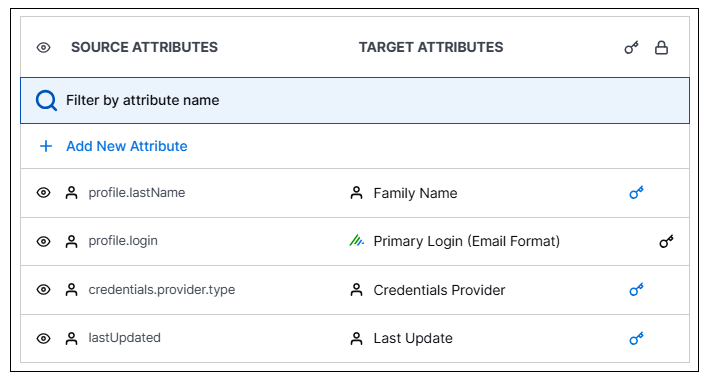
You can modify the mapping of any REST API attribute, that is not a key or a locked attribute, in the following ways:
Hover over an attribute row where you want to change the mapping.
Click the delete icon (
 ) to remove the currently mapped target attribute.
Then click Add Target Attributes and do one of the following:
Search for and select an existing target attribute to map it as the target.
Click Add Custom Attribute and create a new target attribute to be mapped. A small Attribute Name dialog box opens. Enter a name for the new custom attribute and select a data type from the Type drop down list. Then click the plus icon (
 ) to add the new attribute to the Target Attributes column with a custom icon (
 ).
).
When you are satisfied with the configuration edits, click Update to save the changes.