
- Log Stream Overview
- Parser Manager
- Parsers Overview
- View Parser Details
- Create a Custom Parser
- Import Sample Logs
- Define a Subset of the Sample Logs
- Add Conditions
- Add Basic Parser Information
- Extract Event Fields
- Extract Mapped JSON Fields
- Select JSON Fields from a List of Key/Value Pairs
- Select Tokenized JSON Fields from the Values in the Sample Log
- Manually Enter JSON Path Expressions
- Sample JSON Path Expressions for Manual Entry
- Reorder Mapped JSON Fields
- Review the Matching JSON Fields and Values
- Add Logic to JSON Field Extraction
- Expressions for JSON Parser Field Extractions and Enrichment Mapping
- Extract Fields Using Regular Expressions
- Reserved Fields
- Extract Mapped JSON Fields
- Add Event Builder Rules
- Review and Save Parser
- Manage Existing Custom Parsers
- Tokenize Non-Standard Log Files
- Customize a Default Parser
- Duplicate a Parser
- Enable or Disable Parsers
- Parser Updates
- Supported Vendors and Products
- Live Tail
- Enrichments
- Event Filtering
- Log Stream APIs
Interact with Enrichment Rules
On the Enrichments tab in Log Stream, you can interact, individually or in bulk, with enrichment rules as described below.
Individual Actions
To interact with an individual enrichment rule, click the options menu ( ) on the right side of a row and select from the following actions:
View Details – Select this option to open a panel with detailed information about the enrichment rule and its configuration. The panel includes the conditions that are configured to define when the rule is applied and the mapping of field names to field values.
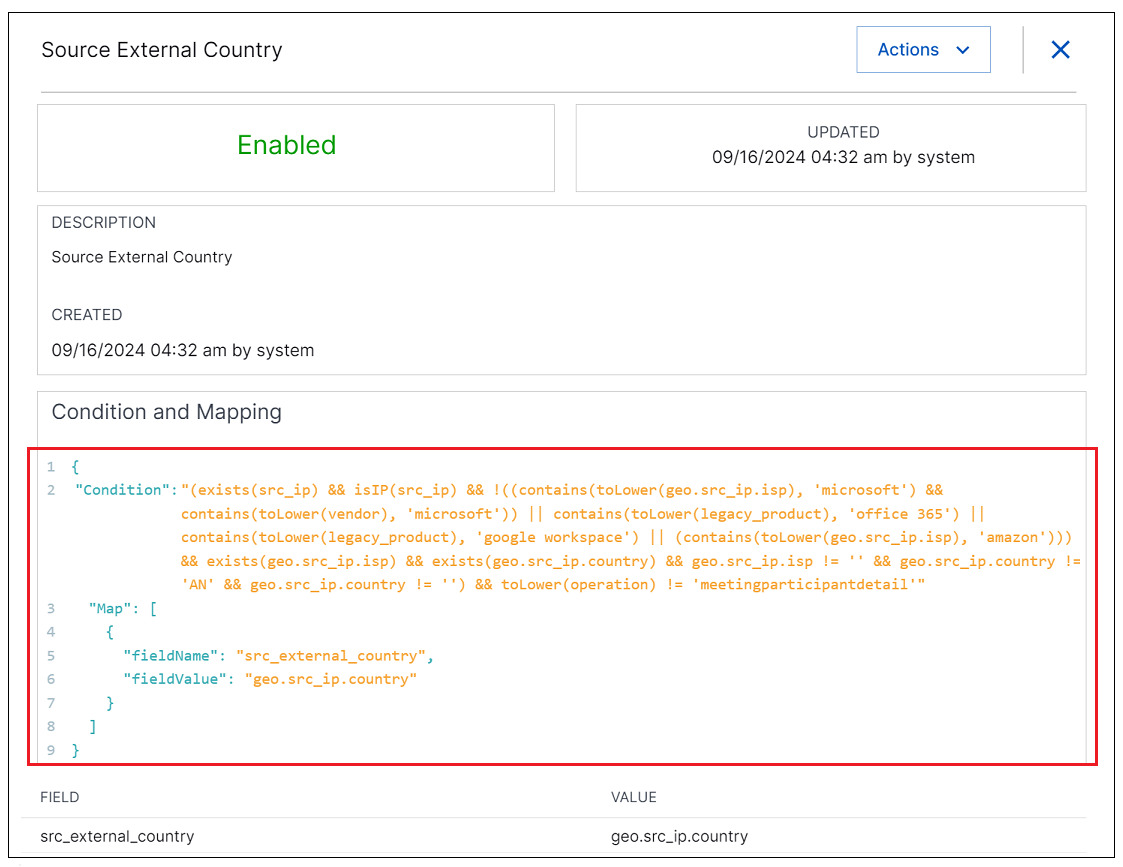
Disable or Enable – If a rule is enabled, select the Disable option to disable it. If the rule is disabled, click the Enable option to enable it. You will be prompted to confirm either selection.
Edit – If a rule is a custom rule (
 ), you can click the Edit option to open a dialog box and edit the configuration of the enrichment rule. For more information, see Define an Enrichment Rule
Duplicate – Click the Duplicate option to create a copy of an existing custom (
) enrichment rule. A Duplicate Enrichment Rule dialog box opens and the copied rule contains the same Enrichment Rule Name, but with the word "clone" appended. For information about editing a cloned rule see Define an Enrichment RuleNote
You can define a maximum of 100 custom enrichment rules, whether you are creating new rules or duplicating existing rules. When you reach the maximum, the create and duplicate options become disabled. You can delete existing custom rules to make room to create others.
Delete – Select this option to delete an existing custom (
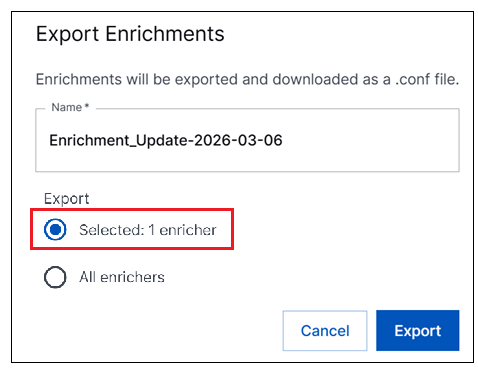
) enrichment rule. When prompted, confirm the deletion.Export – Select this option to export a specific enrichment rule. An Export Enrichments dialog box opens with the Selected: 1 enricher option selected. Enter a name and click Export. The rule is exported in a
.conffile.Tip
You can open the downloaded .conf file, edit the conditions and mapping, and import the file back into Log Stream where it will appear as a custom enrichment rule. Note that rule names must be unique.
Bulk Actions
To perform bulk actions, use the check box column on the far left of the table to select multiple enrichment rules. You can click the check box in the header of the column to select all of the enrichment rules on the page, or hover your cursor over the check box column for given rows and select multiple specific rules. Then you can click options to Disable, Enable, or Export all of the selected rules.
Once you start selecting multiple check boxes, the check box in the header row turns into an unselect icon. You can click it to unselect all of the currently selected rows.
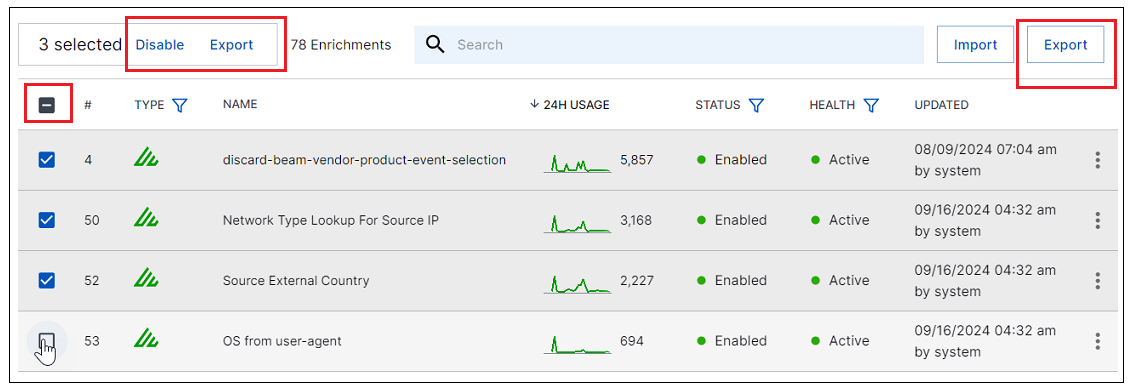
When you select the option to export selected enrichment rules. An Export Enrichments dialog box opens where you can choose to export only the selected enrichment rules or all of the rules in the table. Enter a name and click Export. The rules are exported in a .conf file.
Tip
You can open the downloaded .conf file, edit the conditions and mapping, and import the file back into Log Stream where it will appear as a custom enrichment rule. Note that rule names must be unique.