
- Log Stream Overview
- Parser Manager
- Parsers Overview
- View Parser Details
- Create a Custom Parser
- Import Sample Logs
- Define a Subset of the Sample Logs
- Add Conditions
- Add Basic Parser Information
- Extract Event Fields
- Extract Mapped JSON Fields
- Select JSON Fields from a List of Key/Value Pairs
- Select Tokenized JSON Fields from the Values in the Sample Log
- Manually Enter JSON Path Expressions
- Sample JSON Path Expressions for Manual Entry
- Reorder Mapped JSON Fields
- Review the Matching JSON Fields and Values
- Add Logic to JSON Field Extraction
- Expressions for JSON Parser Field Extractions and Enrichment Mapping
- Extract Fields Using Regular Expressions
- Reserved Fields
- Extract Mapped JSON Fields
- Add Event Builder Rules
- Review and Save Parser
- Manage Existing Parsers
- Tokenize Non-Standard Log Files
- Duplicate a Parser
- Enable or Disable Parsers
- Parser Updates
- Supported Vendors and Products
- Live Tail
- Enrichments
- Event Filtering
- Log Stream APIs
Extraction Preview Tab
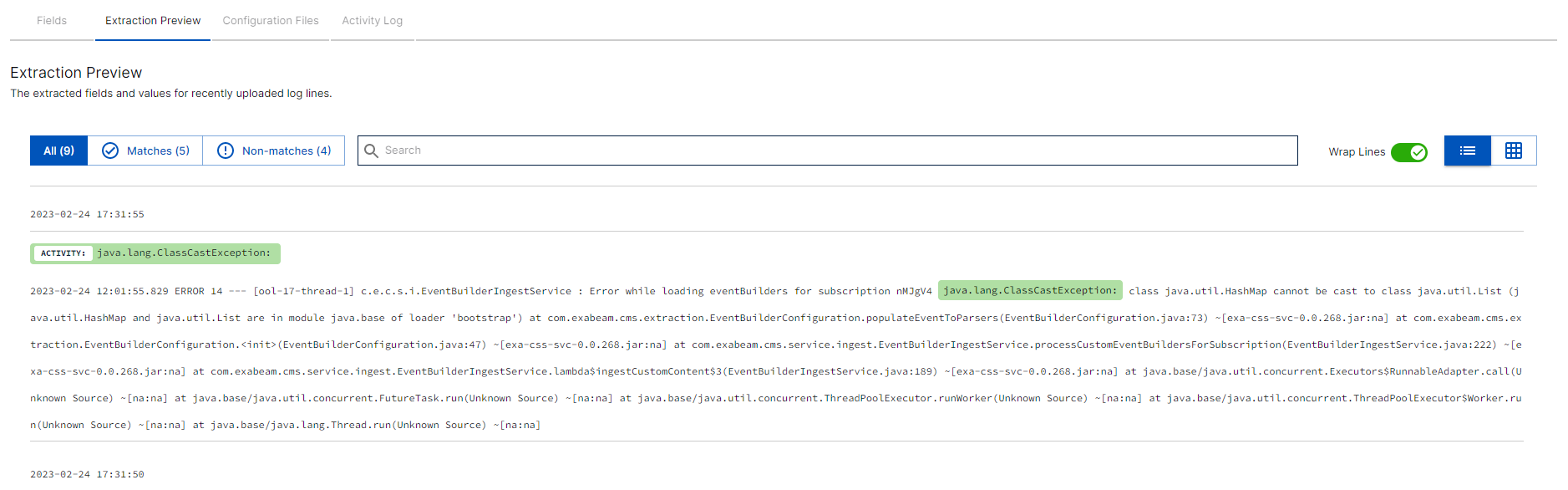
The Extraction Preview tab in the bottom panel of the Parser Details page shows all of the fields and values this parser extracted from recently uploaded log lines. The preview tab provides this extraction information without the new to open a specific parser and follow the edit workflow to find it.
You can use the options above the sample data to control how data is displayed. You can display all the sample log lines, or display them in subsets of matched or non-matching logs. You can choose to wrap the log lines or to display them in a list or table view. You can also use the search field to display only log lines that contain a specific field or value.
 |
If there are currently no logs to show for this parser, you can import new sample log data directly from this preview tab, without entering the parser edit workflow.
To import a new sample:
Click New log sample in the options at the top of the tab. A New Log Sample dialog box opens.
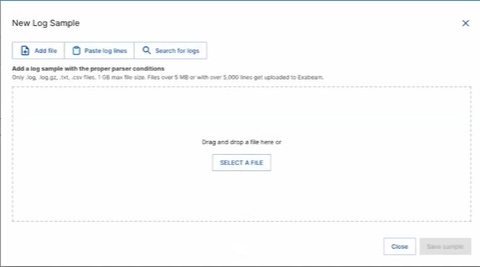
Use one of the following methods to find sample logs to import:
To choose a log file from your file system, click the Add file option and then either drag and drop a file or click Select a File and navigate to a file from your system. You can upload a
.gzor.tgzfile that is no more than 100 MB.To copy and paste logs, click the Paste log lines option and then paste the content into the text box. You can enter up to 100 lines.
To use logs recently parsed by the selected parser, click the Search for logs option and then click Search. The 100 most recently parsed logs, for the last 24 hours, are uploaded.
Click Save sample to view the extraction preview of the selected sample logs.