
- Log Stream Overview
- Parser Manager
- Parsers Overview
- View Parser Details
- Create a Custom Parser
- Import Sample Logs
- Define a Subset of the Sample Logs
- Add Conditions
- Add Basic Parser Information
- Extract Event Fields
- Extract Mapped JSON Fields
- Select JSON Fields from a List of Key/Value Pairs
- Select Tokenized JSON Fields from the Values in the Sample Log
- Manually Enter JSON Path Expressions
- Sample JSON Path Expressions for Manual Entry
- Reorder Mapped JSON Fields
- Review the Matching JSON Fields and Values
- Add Logic to JSON Field Extraction
- Expressions for JSON Parser Field Extractions and Enrichment Mapping
- Extract Fields Using Regular Expressions
- Reserved Fields
- Extract Mapped JSON Fields
- Add Event Builder Rules
- Review and Save Parser
- Manage Existing Parsers
- Tokenize Non-Standard Log Files
- Duplicate a Parser
- Enable or Disable Parsers
- Parser Updates
- Supported Vendors and Products
- Live Tail
- Enrichments
- Event Filtering
- Log Stream APIs
Navigate the Enrichments Tab
The Enrichments tab provides access to manage all of the enrichment rules in your environment. The tab includes the sections shown in the following image and described in the numbered points below.
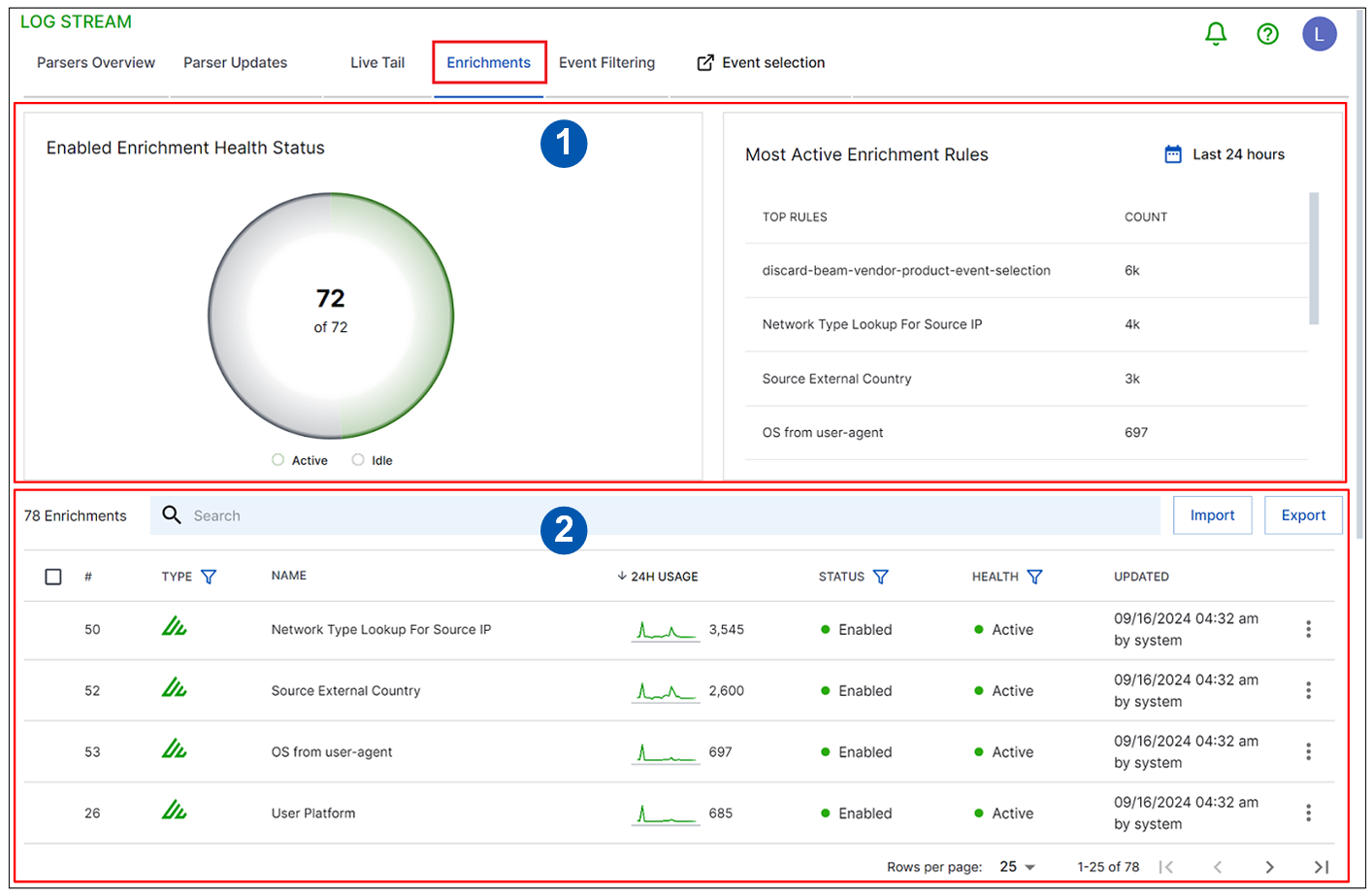 |
The charts in the top section of the Enrichments tab visualize the following usage data about your enrichment rules:
Enabled Enrichment Health Status – The pie chart in the upper left corner of the tab shows the current status of all the enabled enrichment rules in your environment. It shows the total number of rules that are in an enabled status. When you hover your cursor over different slices of the pie chart, a pop up tooltip shows how many of those enabled rules are active (within the last 24 hours) and how many are idle.
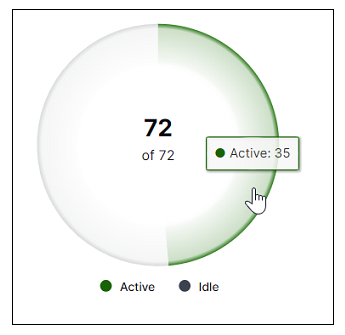
If you click on the active or idle parts of the pie chart, the list of enrichments shown in the rules table is filtered to display only the active or idle rules (corresponds to filtering by the Health column of the table).
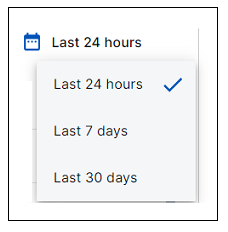
Most Active Enrichment Rules – This chart in the upper right corner of the tab show the enrichment rules that have been the most active over a given time range. By default, the chart is filtered to show top rules over the last 24 hours. You can change the time range to the last 7 or last 30 days.
The toolbar in the middle of the Enrichments tab allows you to interact with enrichment rules in the following ways:
Search – Enter a simple text search in the search bar to find specific enrichment rules in the list at the bottom of the tab.
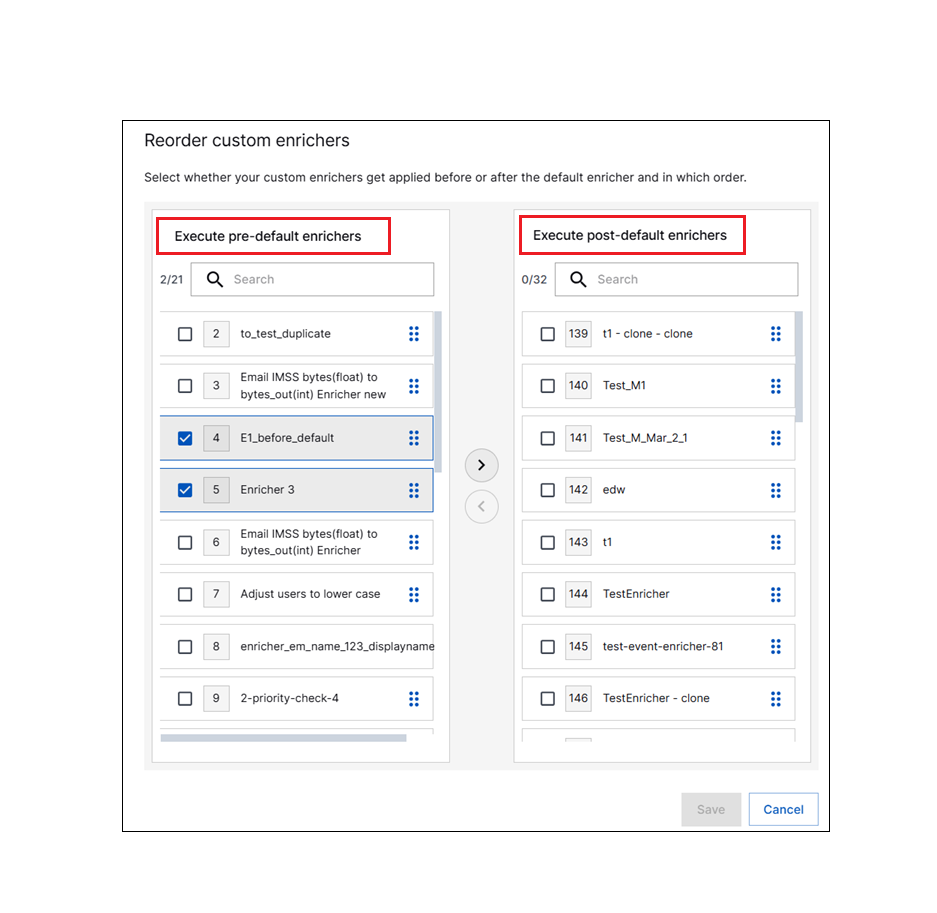
Reorder – Click to change the priority order in which the custom enrichment rules appear in the tab and will be applied to your data. A Reorder Custom Enrichers dialog box opens. The left column lists Pre-Default enrichment rules that run before the default rules and the right column lists Post-Default enrichment rules that run after the default rules. You can click the check boxes to select rules and use the left/right arrows in the middle to move the rules into the Pre-Default or Post-Default columns as needed. You can click and drag specific custom enrichers into the desired priority order within each column. Click Save to save the new order.
Import – Click Import icon (
 ) to import new or edited enrichment rules. When the Import Enricher dialog box opens, click Select File to navigate to a HOCON-compatible
 .conffile that you want to import. When you've selected a file, click Import Enricher. The.conffile is imported into Log Stream where the enrichment rule is listed as a custom rule.Note
Certain reserved fields are restricted from use for defining how enrichments can be mapped. If the enrichment rules you are importing include any of these restricted fields, an error message displays. For a list of those restricted fields, see Reserved Fields.
Export – Click the Export icon (
 ) to export all the enrichment rules. An Export Enrichments dialog box opens with the All enrichers option selected. Enter a name and click Export. The rules are exported in a
 .conffile.Tip
You can open the downloaded .conf file, edit the conditions and mapping, and import the file back into Log Stream where it will appear as a custom enrichment rule. Note that rule names must be unique.
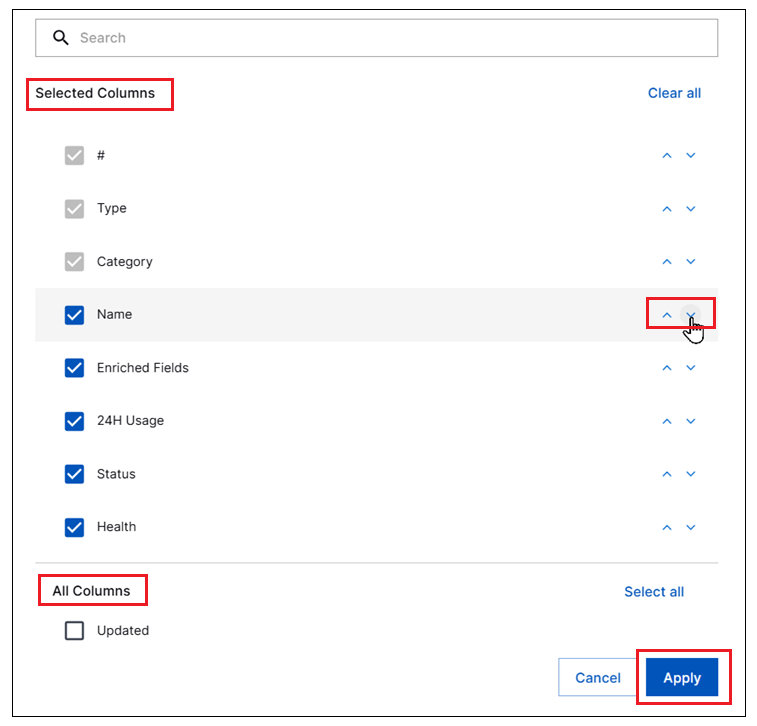
Columns – Click to open a column selection dialog box where you can hide columns from the enrichment rules list or change the display order of the columns visible in the list.
The first three columns (
#,Type,Category) cannot be hidden or moved. For other columns, use the check box to move columns between the Selected Columns and All Columns lists, or use the arrows to move individual columns into a different dispaly order. Only columns in the Selected Column list are visible in the parser list. Click Apply to save any changes.Note
Column order and show/hide selections do not persist beyond the current Log Stream session. You will need to reconfigure these selections when you log into Log Stream again.
New Enrichment – Click to create a new custom enrichment rule. A New Enrichment Rule dialog box opens. You can define the conditions that must be met for an enrichment action to take place and you can define what mapping functionality that enrichment action should perform. For more information, see Define an Enrichment Rule. New custom enrichment rules appear in the table with a custom rule icon (
 ).
).Note
You can define a maximum of 100 custom enrichment rules, whether you are creating new rules or duplicating existing rules. When you reach the maximum, the create and duplicate options become disabled. You can delete existing custom rules to make room to create others.
The table in the bottom section of the Enrichment tab lists all of the enrichment rules available in your environment. You can view the following columns of information about individual enrichment rules:
Type – Indicates the type of the enrichment rule. Click the filter icon (
 ) in the column heading to filter the type of rules displayed in the table. The following rule types are available:
Custom (
) – A user-created enrichment rule.Customized Default (
 ) – A default enrichment rule that you have customized.
Default (
 ) – An Exabeam-created enrichment rule.
Category – Indicates the category of the enrichment rule. Click the filter icon (
) in the column heading to filter the categories of rules displayed in the table. The following rule categories are available:Event Selection – These enrichment rules are used to control event routing and filtering, deciding which events to keep or discard.
General – These enrichment rules are used to add or modify event data.
Platform – These enrichment rules are applied to all incoming logs
Name – Shows the name of each enrichment rule. You can use the search bar above the table to find rules with a specific word or phrase in the name.
Enriched Fields – Indicates which field is being enriched by each enrichment rule. If multiple fields are enriched by a rule, the fields are presented in a comma-separated list.
Click the filter icon (
) in the column heading and select specific fields to filter the rules displayed in the table based on the fields they enrich. When you first click the filter icon, the entire list of enriched fields is displayed. You can scroll through to select specific fields or use the Search field at the top of the menu. As you type in the Search field, the list below filters in response to make selection easier. Click Apply to implement the column filter.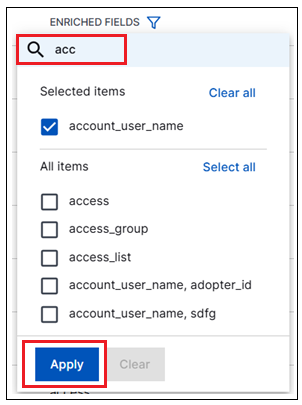
24H Usage – Provides a thumbnail visualization of the usage for each rule during the past 24 hours. It provides both an overall count and a small line chart of activity. For the most active rules in the table, the count matches the data in the Most Active Enrichment Rules chart in the top left of the Enrichment tab. In the thumbnail line chart for each rule, you can hover your cursor over the peaks to view the count for that specific point in the 24 hour period. You can also click the small arrow next to the column header to sort the table in ascending or descending order by this column.
Status – Indicates whether each enrichment rule is in an enabled or disabled status. You can click the filter icon (
) in the column heading to filter the display of rules in the table to show only enabled or disabled rules.Health – Indicates whether each enrichment rule is active or idle, based on the usage data for the last 24 hour period. You can click the filter icon (
) in the column heading to show only active or idle rules in the table.Updated – Shows the date and time when each enrichment rule was enabled, disabled, or modified, and by whom. You can click the small arrow next to the column header to sort the table in ascending or descending order by the dates and times in this column.