
- Get Started with Threat Detection Management
- Analytics Rules
- Analytics Rule Classifications
- Create an Analytics Rule
- Manage Analytics Rules
- Tune Analytics Rules
- Find Analytics Rules
- Share Analytics Rules
- Troubleshoot Analytics Rules
- Analytics Rules Syntax
- Advanced Analytics Rule Syntax vs. Analytics Rule Syntax
- Logical Expressions in Analytics Rule Syntax'
- String Operations Using Analytics Rule Syntax
- Integer Operations Using Analytics Rule Syntax
- Time Operations Using Analytics Rule Syntax
- Network Operations Using Analytics Rule Syntax
- Context Operations Using Analytics Rule Syntax
- Entity Operations Using Analytics Rule Syntax
- Correlation Rule Operations Using Analytics Rule Syntax
- Analytics Engine Status
- Correlation Rules
- Correlation Rule Sequences
- Correlation Rules Templates
- Create Correlation Rules
- Create a Correlation Rule Using the Exabeam Nova Rule Creator
- Create a Correlation Rule from Scratch Using the Manual Rule Creator
- Create a Correlation Rule from a Template
- Create a Correlation Rule from Search
- Group by Field in Correlation Rules
- Detect Absent Events or Fields Using Correlation Rules
- Granular Suppression
- Correlation Rule Evaluation Delay
- Manage Correlation Rules
- Find Correlation Rules
- Share Correlation Rules
- View Correlation Rules Metrics
- Threat Scoring
- Get Notified About Threat Detection Management
Update Analytics Rules
Review and accept new pre-built analytics rules, pre-built analytics rules deletions, and updates to existing pre-built analytics rules.
To ensure you have the latest threat detection capabilities, Threat Detection Management regularly updates your pre-built analytics rules with the latest threat research, automatically adds new pre-built rules in a disabled state, and deletes obsolete pre-built rules. When you create, delete, enable, or disable an analytics rule, those changes are also added to the batch of pending updates. To apply these changes to your environment, you must accept the changes.
You can accept pre-built rule updates to multiple enabled pre-built rules or disabled pre-built rules in bulk without reviewing the changes first, or for a more cautious approach, accept changes for an individual pre-built rule only.
Apply Updates to an Individual Pre-Built Rule
Selectively review and apply changes to individual pre-built rules.
To find pre-built analytics rules with pending changes, filter analytics rules by Update.
To review what's changed in a rule, click View changes.
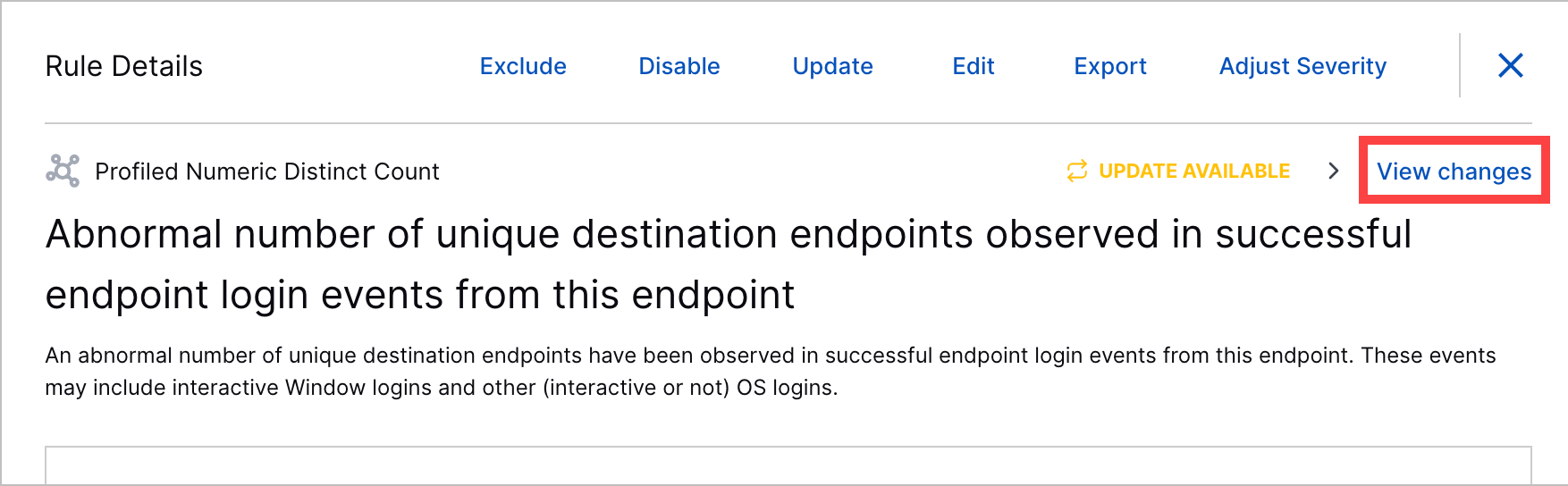
In Update Changes, view:
Property – The analytics rule field that is changed with the update.
Current Value – The current value of the analytics rule field.
New Value – The value of the analytics rule field after the update.
To apply the change:
In Update Changes, click Update.
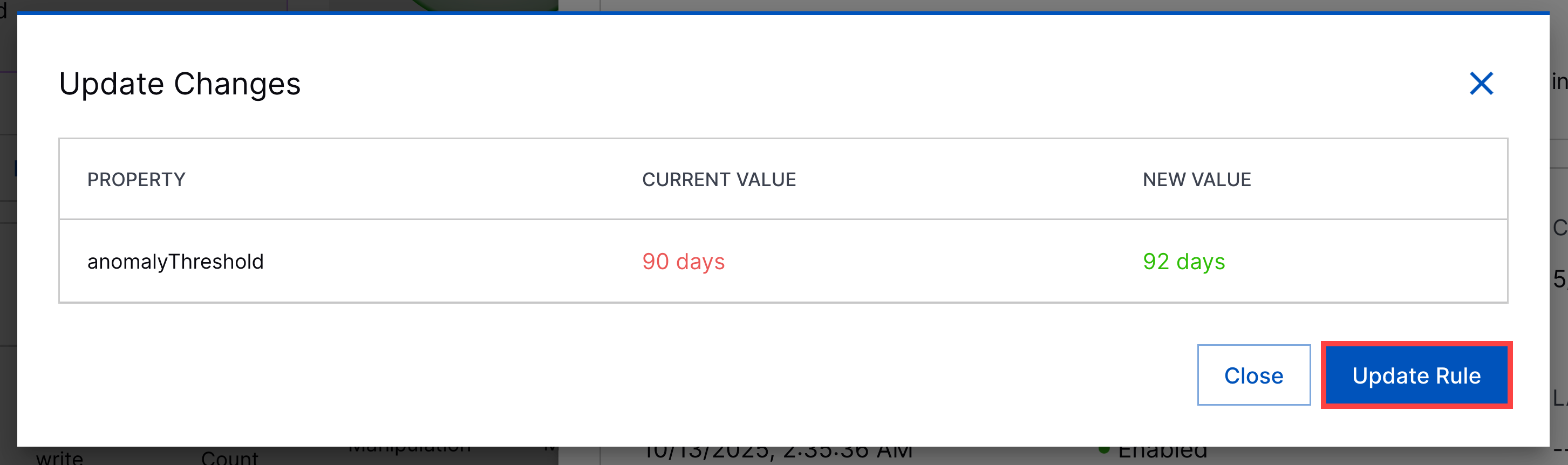
In the rule details, click Update.
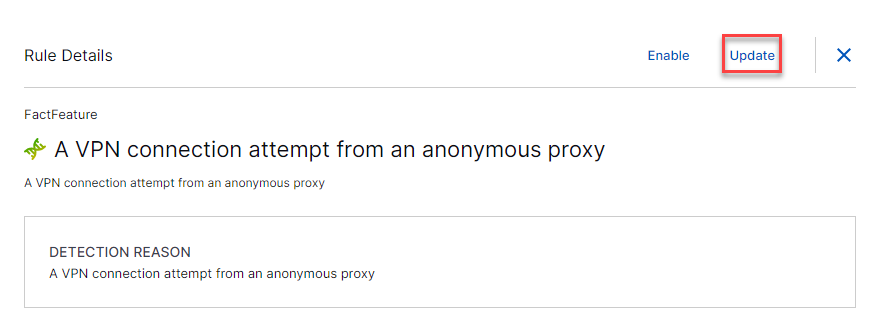
In the Analytics Rules tab, click the More menu
 for the rule, right-click the rule, or select the checkbox for the rule, then select Update.
Apply Updates to Enabled Rules in Bulk
Review and accept pending changes to multiple enabled rules at once.
Under Updates, view the total number of enabled rules with pending changes.
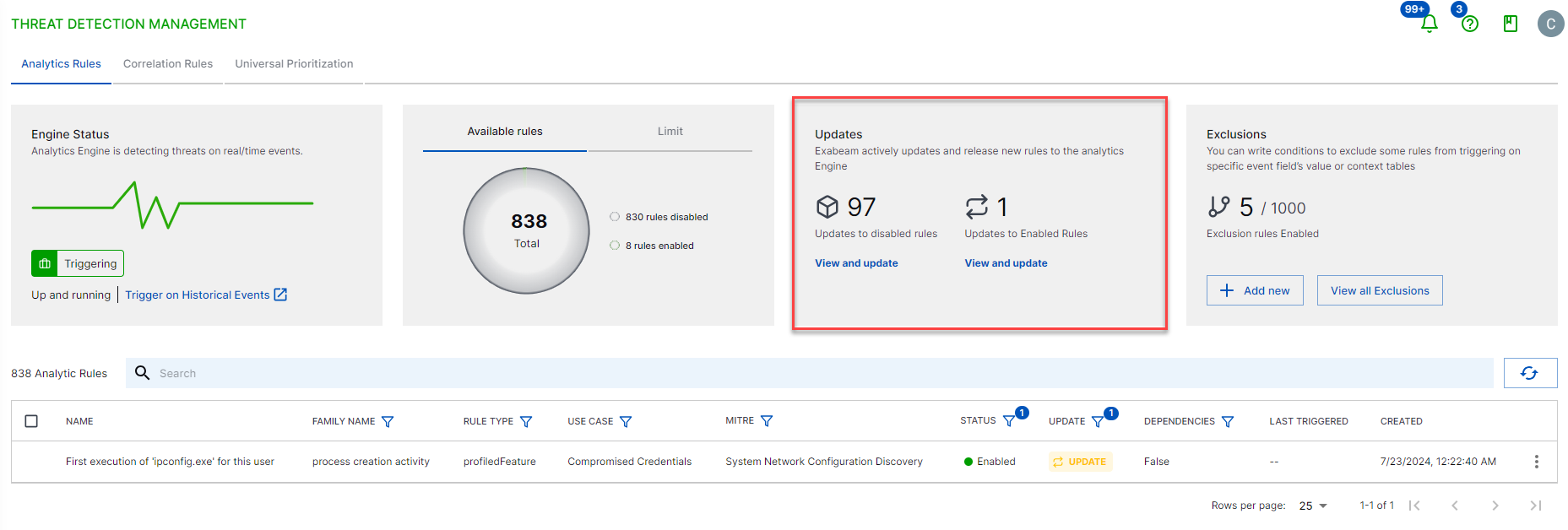
You can't review what's changed in detail. To review changes in detail, you must review the changes for each individual rule.
Click View and update.
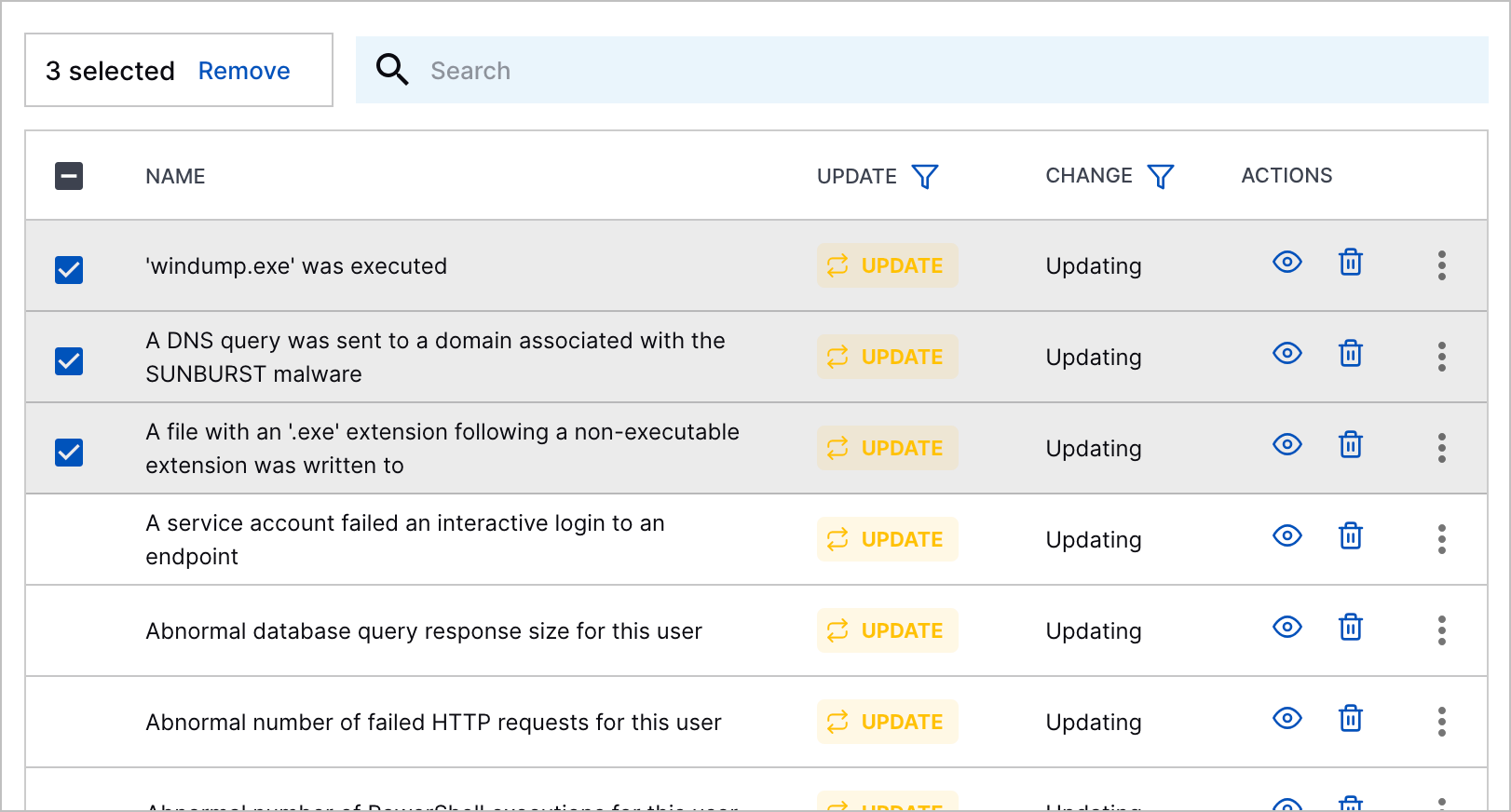
Review all analytics rules with pending changes:
Name – The name of the analytics rule with pending changes.
Min Training Required – The number of days the analytics rule must train on live data before it begins triggering.
Update – The nature of the change:
Update – The change modifies the analytics rule.
Obsolete – The change removes the analytics rule.
Testing – The change puts the analytics rule in test mode.
Change – The nature of the change. Updating indicates that the change modifies the analytics rule. Deleting indicates that the change deletes the analytics rule.
Actions – View analytics rule details or delete the change. To view analytics rule details, click
 . To delete the change, click
  .
.
To find specific analytics rules, filter the rules by Update or Change columns.
Select the analytics rules to which you're applying pending changes:
To select all analytics rules, click the checkbox in the header row.

To select specific analytics rules, click the checkbox for each rule.
Determine whether the analytics engine re-trains on past events using the analytics rule changes:
To apply analytics rule changes without re-training the analytics engine on past events, select Real-time training.
If an analytics rule has a training period, it trains on live data for the specified period before it begins triggering. If an analytics rule doesn't have a training period, it doesn't train on live data and is ready to trigger immediately after you apply the changes.
This option minimizes disruptions to other Exabeam applications, ensures the analytics engine continues to run in real time, and ensures you don't use any of your entitled training days. Keep in mind that applying changes without training increases the risk of false positives and limits the analytics engine from adapting to evolving patterns in entity behavior.
To re-train the analytics engine on past events with the analytics rule changes, select Re-train on historical data. By default, the analytics engine begins training using the analytics rule changes on the past 21 days of event data. After the analytics engine finishes training, analytics rules continue to trigger on incoming events in real-time.
To change the start date of events the analytics engine uses to re-train:
Click Advanced Settings.
Under Training Start Date, click the date field, then select a date using the calendar. You can re-train the analytics engine on up to 30 days of events, with a recommended minimum of 14 days of events.
Click Confirm.
Click Apply Rule Changes. If you selected Real-time training and the analytics rule has a required training period, its status is changed to Training and it can't trigger. If you selected Apply Changes and Re-train, the analytics engine temporarily stops processing incoming events to re-train on past events using the analytics rule changes.
Apply Updates to Disabled Rules in Bulk
Review and accept pending changes to multiple disabled rules at once.
Under Updates, view the total number of disabled pre-built rules with pending updates.
You can't review what's changed in detail. To review changes in detail, you must review the changes for each individual rule.
Click Update. All pending changes for disabled rules are automatically applied.