
- Dashboards
- Navigation Overview
- User Management
- View and Interact with an Open Dashboard
- View and Interact with an Open Visualization
- Configure and Manage Dashboards
- Create a Dashboard
- Add a Visualization to a Dashboard
- Add a Text Tile
- Modify a Dashboard Layout
- Add Dashboard Filters
- Manage Automatic Refresh Rates
- Create a Scheduled Report
- Make a Dashboard Public
- Export and Import Dashboards
- Edit Dashboard Filters
- Edit Dashboard Details
- Duplicate a Dashboard
- Delete a Dashboard
- Configure and Manage Visualizations
- Create a Visualization Using the Basic Method
- Auto-Create a Visualization from a Natural Language Prompt
- Create a Visualization from a Search Query
- Add Visualizations from the Library to a Dashboard
- Modify a Visualization
- Configure Visualization Query Filters
- Include Context Filtering in Visualizations
- Make a Visualization Public
- Export and Import Visualizations
- Duplicate a Visualization
- Remove a Visualization from a Dashboard
- Delete Visualizations from the Library
- Configure and Manage Scheduled Reports
- Pre-Built Dashboards
- Advanced Analytics Dashboards
- AI/LLM Dashboards
- Alert Dashboards
- Case Manager Dashboards
- Compliance Dashboards
- Correlation Rules Dashboards
- Event Store Dashboards
- Access Grant and Revoke Activity
- Account Logout Summary
- Account Management Activity
- Application Security Event Summary
- Authenticated User Accounts on Hosts
- AWS CloudTrail Summary
- Data Loss Prevention Activity – Host-Based
- Data Loss Prevention Activity – User-Based
- Data Loss Prevention Activity Summary
- Default Account Access
- Default Credential Usage and Change Activity
- Denied Web Access Activity
- Disabled User Account Summary
- Discovered Attacks by Source and Destination
- Endpoint Detection and Response
- Failed Application Logon Activity
- Failed Audit Logs Summary
- Failed Host Login Attempt Counts by Users
- Failed VPN Login Attempts and Remote Session Timeouts
- Firewall Activity
- Firewall and Router Device Interfaces
- Insecure Authentication Attempts
- IOC Statistics
- Log Delay Insights
- Microsoft 365 Summary
- Microsoft Windows Overview
- Network Applications by Traffic Volume
- Policy Activity Summary
- Ports Usage Trend
- Privileged Access
- Privileged Access – User-Based
- Project Collateral
- Protocols by Network Traffic
- Remote Session Overview
- Security Alert Summary – Impacted Hosts
- Security Alert Summary – Origin Hosts
- Security Alert Summary – Users
- Successful Application Logon Activity
- Successful Database Login Activity
- Successful Physical Access
- Top Attackers
- User Account Creation Summary
- User Account Lockout Activity
- Vendor Authentication Activity
- Windows Audit Failure Summary by Hosts
- Windows Audit Failure Summary by Users
- Windows User Privilege Elevation
- Zscaler HTTP Dashboard
- Security Operations Center Management Dashboards
- Threat Center Dashboards
- Pre-Built Visualizations
- Agentic AI - Result
- Agentic AI - Violations
- Agentic AI by App ID
- Agentic AI Usage by Host
- Agentic AI Users - Blicked/Allowed
- Anomalies - Use Case & MITRE Coverage
- Anomalies by Rule Name
- Anomalies by Use Case
- Anomalies Count Over Time
- Anomaly Distribution by MITRE Tactic & Score
- Application Count
- Closed Incidents
- Correlation Rules by Severity
- Correlation Rules Triggered Over Time
- Detected Anomalies
- Host-Based DLP Alerts Count
- Incidents Created
- Incident Summary by Incident Type
- Number of Hosts with DLP Alerts
- SOC Incident Distribution
- Top 5 Host-Based DLP Alert Categories
- Top 5 Protocols in Host-Based DLP Alerts
- Top 10 Host-Based DLP Alert Types
- Top 10 Hosts with DLP Alerts
- Top Activities per Top 10 Applications
- Top Users per Top 10 Applications
- Trend of Application Security Events
Create a Visualization Using the Basic Method
Visualizations are stored in a visualization library and can be used in multiple dashboards. You can create new visualizations either as independent entities, which can later be added to a dashboard, or as part of an existing dashboard.
Note
For examples of the different types of visualizations you can add, see Chart Types.
There are multiple ways to create a custom visualization in the Dashboards application. This topic describes using the Basic method to manually select data fields, metrics, and filters. Alternately, you can auto-create a visualization from a natural language prompt, duplicate an existing visualization and then modify it, or generate a visualization from a Search query.
Overview of the Create a Custom Visualization Page
Create a Custom Visualization is an authoring page that provides a single pane for building and previewing a custom visualization to your exact specification. On the left side of the page, you can make decisions about which data fields to display and how to measure them, how to filter the data display, and what charts to use. As you make decisions on the left to build your visualization, you can preview the results on the right, viewing either by the data or the chart, or by both.
The Create a Custom Visualization authoring page includes several main sections, as shown in the following image and described in the numbered points below.
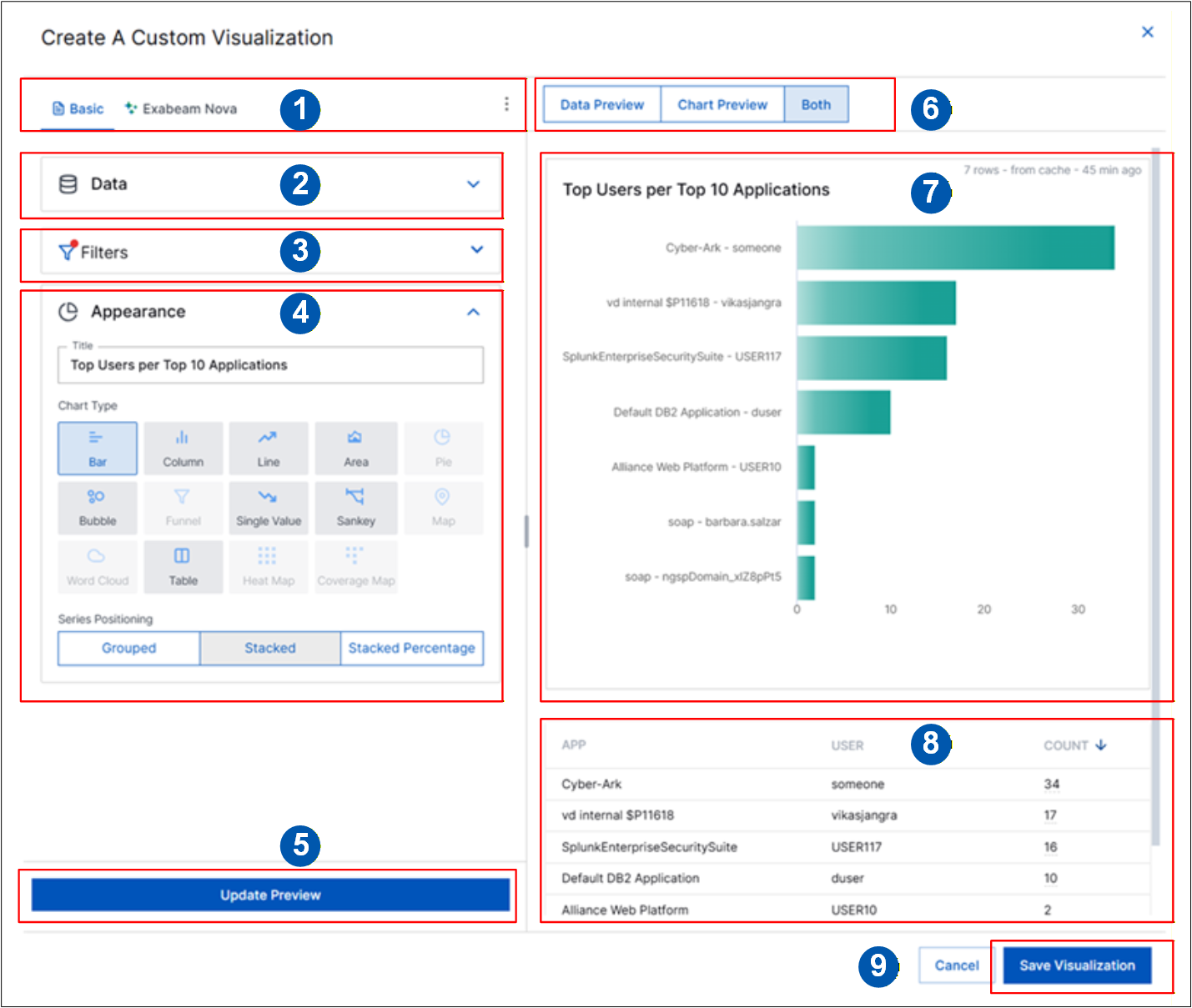 |
Use the tabs at the top of the page to select the Basic authoring method. At the end of the visualization creation process, you can also click the options menu (
 ) and select View SQL. A dialog box opens and displays an SQL version of the visualization that you can view or copy.
Expand the Data panel to select the data Fields (X-axis) you want to include in your visualization and the Metrics (Y-axis) that will provide the numeric calculations in your visualization.
Expand the Filters panel to configure the filters that will specify how you want to drill into the data you are visualizing. This panel includes both any required filters, based on the type of data included, and query filters you define.
Expand the Appearance panel to add a title to your custom visualization and to select a chart type.
Click Update Preview to preview what the visualization you're building looks like. You can click Update Preview after any changes to the data, filters, or appearance panels to see how the changes affect the data and chart results.
Use the options to control how you preview the visualization results. Options include Data Preview, Chart Preview, or Both.
This panel previews what the chart will look like in your custom visualization.
This panel previews a table of the data included in the visualization you're building.
Click Save Visualization when you're satisfied with your configuration and want to save the new visualization.
For more detailed step-by-step information, see Basic Method to Create a Custom Visualization below.
Basic Method to Create a Custom Visualization
Follow the steps below to create a custom visualization:
Enter the visualization creation process – You can start creating a custom visualization either as a stand-alone entity (form the Visualization tab) or as part of an existing dashboard. To get started, enter the creation process in one of the following ways:
Navigate to the Visualizations tab and click New Visualization in the top right corner. A Create New Visualization dropdown menu is displayed.

From inside an already open dashboard, click Edit in the top right to enter the edit mode. Then click Add Visualization at the top. A Create New Visualization dropdown menu is displayed.

From the Create New Visualization dropdown menu, select Create New or one of the chart-specific options. The chart-specific options pre-select the chart type for the new visualization and provide insight into the data fields and metrics you need to include.
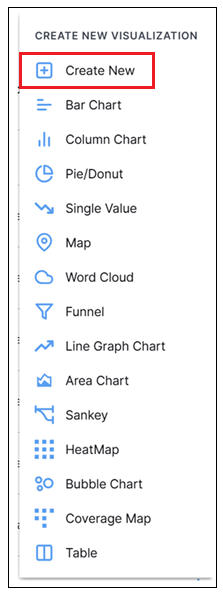
When you have selected an option, the Create a Custom Visualization window opens.
Note
When the Create a Custom Visualization window opens, it's populated with the following default attribute selections: Field =
user, Metric =count, and Chart Type =bar chart.Select the Basic method for creating the visualization – In the Create a Custom Visualization window, there are two main methods for building a custom visualization, represented by two tabs in the top left of the page:
Basic – Select this method to manually configure the visualization. The remaining steps in this procedure walk you through configuring the Data, Filters, and Appearance panels.
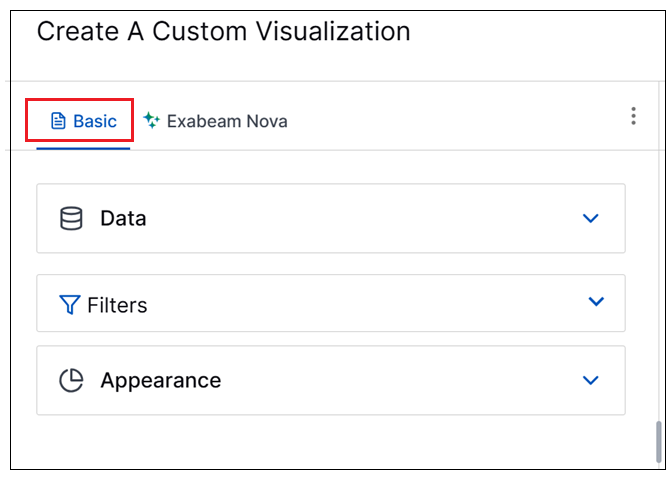
Exabeam Nova – This method is part of a set of AI-driven capabilities that let you use a natural language prompt to quickly auto-generate a custom visualization. For information about using the natural language prompt, see Auto-Create a Visualization from a Natural Language Prompt.
Note
This auto-create option is currently available to create visualizations for the following data models only:
Event
Alerts (You must be using Threat Center to access the Alerts data model)
Anomaly Fields
Add Data Fields – In the Data panel on the left, do the following to select the data fields you want to visualize (the X axis of the display).
Click the expand arrow (
 ) to open the Data panel, if necessary.
In the Fields (X-axis) section, click the expand arrow (
) to open a Data Categories menu. You can select fields from any available data category. The categories you see may depend on the Exabeam products in your environment. When you've selected a data category, the menu shows a set of recommended fields and any other sets of fields available in the selected data category. When you hover over an available field, a tooltip is displayed that includes the field's Common Information Model name and a description. You can also use the Search field to help you find a specific field. 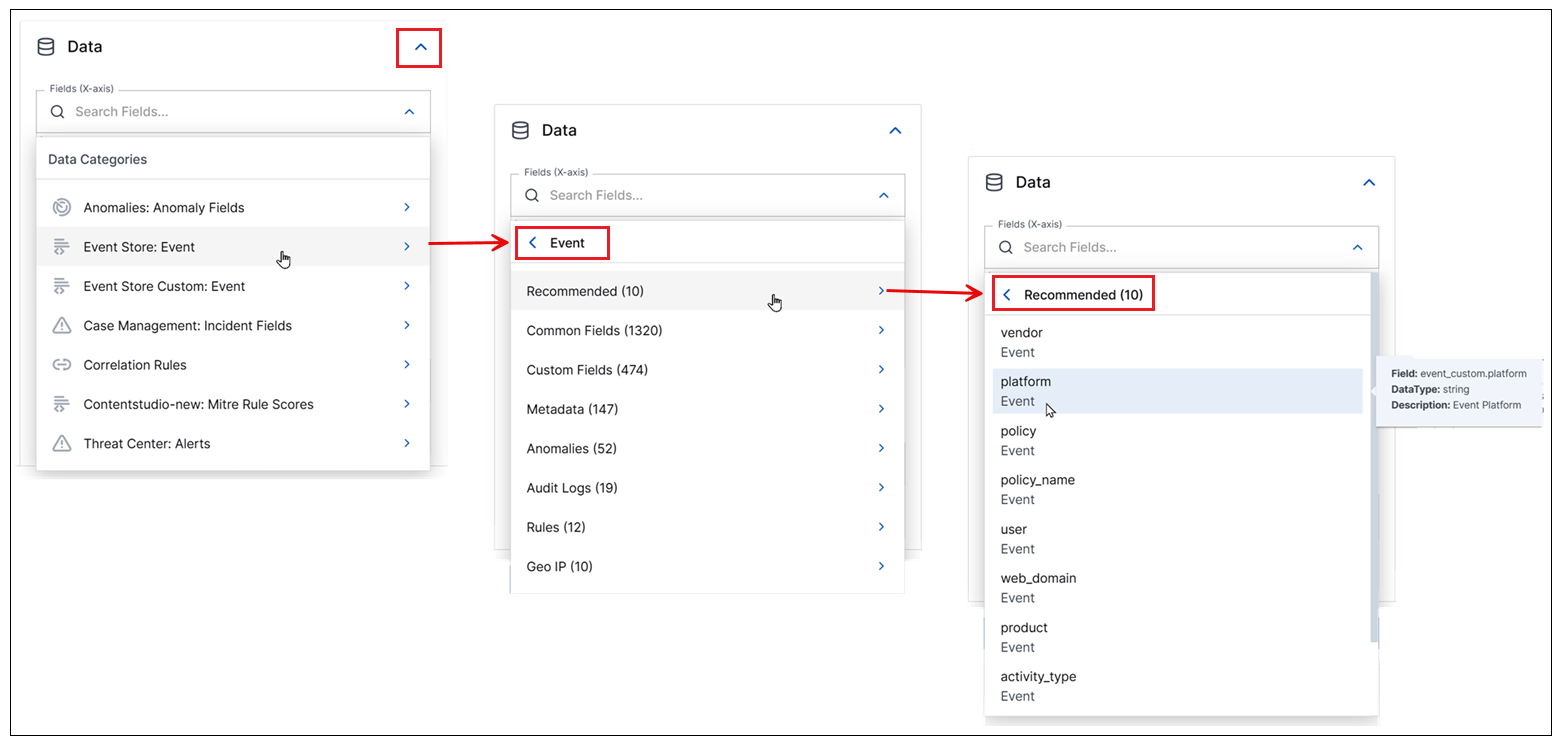
Tip
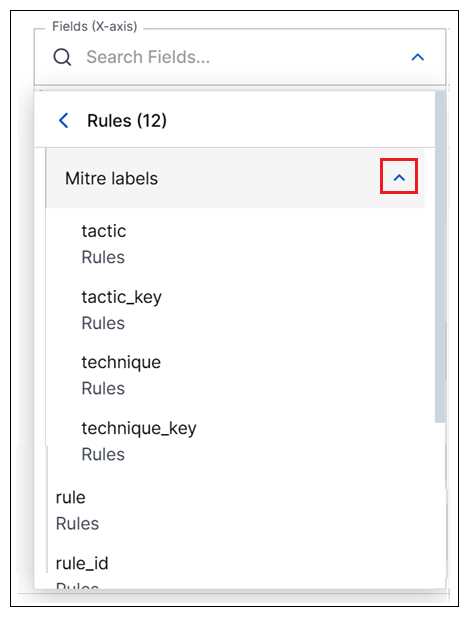
In some data sub-categories, such as Rules and Geo IP, additional expandable sub-categories are available. For example, under Rules, you can find Mitre labels, which can be expanded to show additional more specific fields such as tactic and technique.
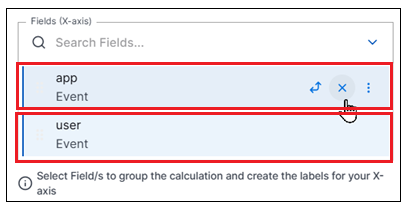
Click on a field to select it for the visualization. You can add multiple fields based on what you want to visualize. Each selected field is added to the Data section. To reorder the selected fields, click and drag the fields into a different order.
Tip
Select only the fields you want to display in the visualization. If you want to filter on a fields that you do not want to display, don't select it as a field. Instead set a filter, as shown in Configure Filters below.
When a field has been added to the Data panel, you can click the pivot icon (
 ) to designate the selected field as a pivot field in the visualization. To remove the pivot from a field, click the pivot icon again.
If you want to create a custom metric from one of your selected data fields, click the options icon (
) and select one of the available aggregation functions: Count distinct, List of unique values, Minimum, Maximum, Sum, Average. The custom metric is added to the Metrics (Y-axis) section of the Data panel.Note
Minimum, Maximum, Sum, and Average are available only for numeric fields, such as Rule Count or Attachment Count.
If you want to create a custom data group from one of your selected data fields, click the options icon (
) and select Group. The Group By dialog box opens. Add a Custom Field Name for the new group. In the Groups section, define the conditions you want to use to group the data. For example, in the image below, the email_addressdimension is being grouped by personal vs. work email addresses. Any remaining activity will be grouped under other. When you've defined the groups, click Save. The custom data group is added to the Fields (X-axis) section of the Data panel.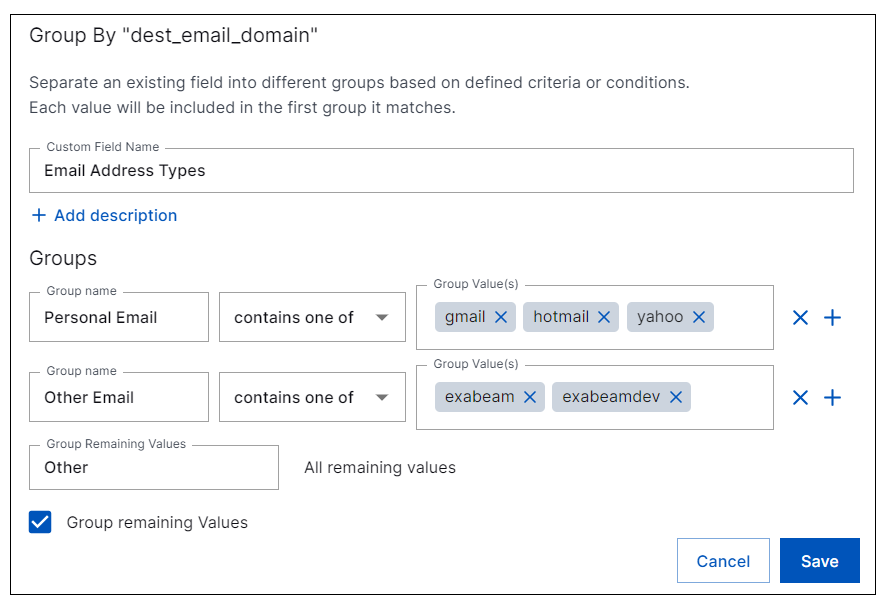
To remove a selected field from the visualization, click the delete icon (
 ).
).
Add Metrics – In the Data panel on the left, do the following to select the metrics that calculate the numerical values along the Y axis of the visualization.
In the Metrics (Y-axis) section, click the expand arrow (
) to open a Data Categories menu. You can select metrics from any available data category. The categories you see may depend on the Exabeam products in your environment. When you've selected a data category, the menu shows a set of recommended fields and sets of any other metrics available in the selected data category. When you hover over an available metric, a tooltip is displayed that includes the metric's Common Information Model field name and a description. You can also use the Search field to help you find a specific metric. 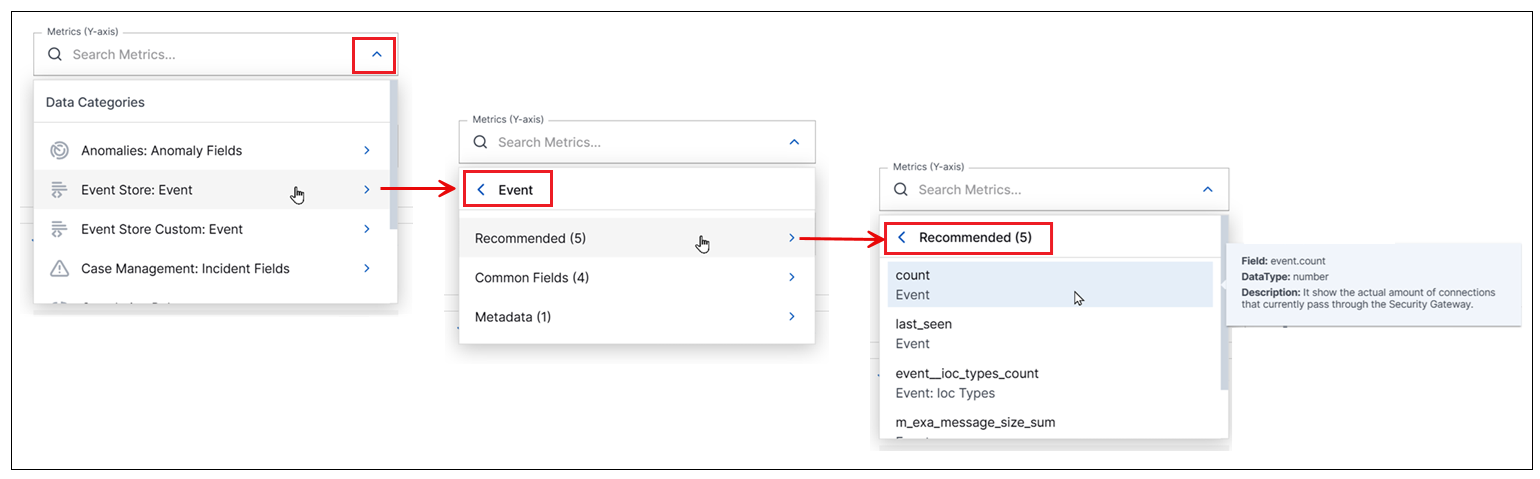
Click on a metric to select it for the visualization.
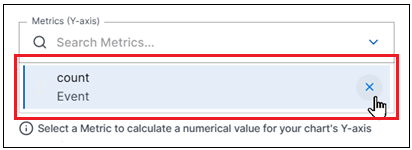
To remove a selected metric from the visualization, click the delete icon (
).
Add a Results Count Limit – When you have selected fields and metrics, you can select a count limit for the number of results to be displayed in the visualization. The maximum number of results is 5,000.
Configure Filters – To add filters to the visualization, click the arrow (
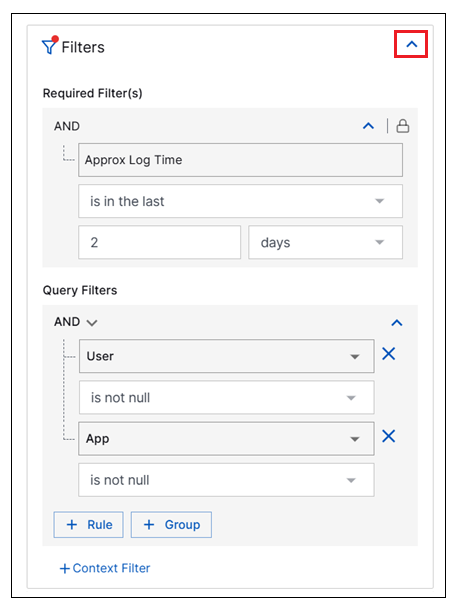
), if necessary, to expand the Filters panel on the left. The expanded Filters panel may contain two sections: The first is a set of Required Filters that are included automatically based on the data category you select fields from. For example, if you selectedRequired Filters – These are filters that are included automatically based on the data category you selected fields and metrics from in the Data panel. For example, if you select fields from the Events data category, the Approx Log Time field is automatically included as a filter set for 2 days. You can change the filter but not delete it. Other data categories do not include this log time filter by default, but you can add it.
Query Filters – These are filters that you can configure yourself to tailor the information displayed in the new visualization. You can configure a time range filter to show only data from a specific time period. You can configure other filters, or combinations of filters, to specify aspects of fields included in the visualization, like certain types of users or activities. Depending on how complex your filter needs to be, you can group filter conditions together with AND or OR operators.
For detailed information about creating filters or using context filters, see Configure Visualization Query Filters.
Add a Title – In the Appearance panel on the left, click in the Title field and replace the placeholder text with a descriptive title, as in the following example:

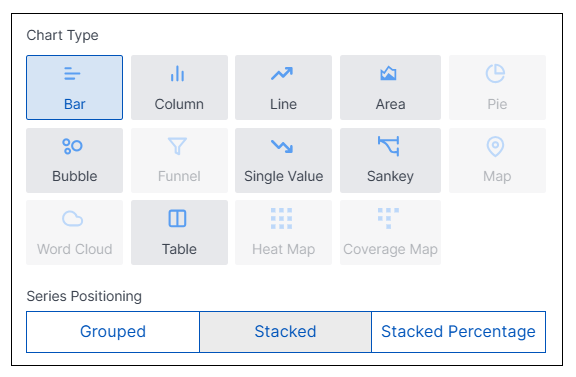
Add a Chart Type – In the Appearance panel on the left, select a Chart Type that is appropriate for the data you are visualizing. Keep in mind the following when working with charts:
You may not need to select a chart type if you started creating the visualization by selecting one of the chart-specific create options.
It can be helpful to click through the different chart types to preview how they appear. If the data you have selected is not compatible with a specific chart, a message is displayed to indicate the type of fields and metrics needed to use it.
For a map chart, the visualization must include a Country Code field.
For bar, column, line, and area charts, you can opt to tailor the chart appearance and the data displayed using the options in the table below.
Option
Applicable Chart Types
Description
Series Positioning
Bar, Column
This option configures how data is displayed along the x-axis. Settings include:
Grouped – Bars or columns are placed next to each other along the x-axis.
Stacked – Values are stacked inside the bars and columns and behave like an area chart.
Stacked Percentage – Bars and columns are displayed at 100% to better visualize the distribution of the stacked values.
Scale Type
Bar, Column, Line, Area
This option controls how data is displayed along the x-axis and y-axis to improve data readability, especially when there is a wide difference between the smallest and largest data values. Settings include:
Linear – Retains the original scale of the data values.
Logarithmic – Controls the values along the y-axis to make the data at the low end more visible.
Missing Data
Line, Area
This option configures how dates with missing data are handled in the chart display. Settings include:
Linear Interpolation – A continuous data line or area is shown between points on either side of the missing date.
Line to Zero – The missing date shows a data point on the 0 line.
Line Breaks – The missing date shows as a break in the line or area data.
Results Count
Bar, Column, Line, Area
This option controls how many results are displayed in the chart, which can make the data more readable. Setting include:
Adapt to Fit – Retains all the results and tries to adapt the display to fit all of them into the chart. If unable to fit all the results, an automatic limit is applied and a message shows what number of the total results are displayed.
Limit to – Allows you to choose a number of results to limit how much data is displayed in the chart.
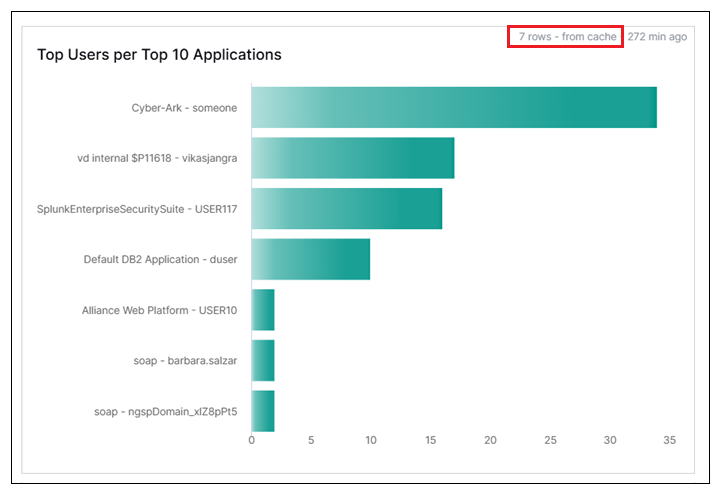
Update the Preview – Click Update Preview at the bottom of the left set of panels. A data table is generated and a preview of the visualization is displayed on the right side of the page. You can choose to view only the data table, only the chart, or both the table and the chart. The number of rows returned in the visualization is listed in the top right corner above either the chart or the data table.
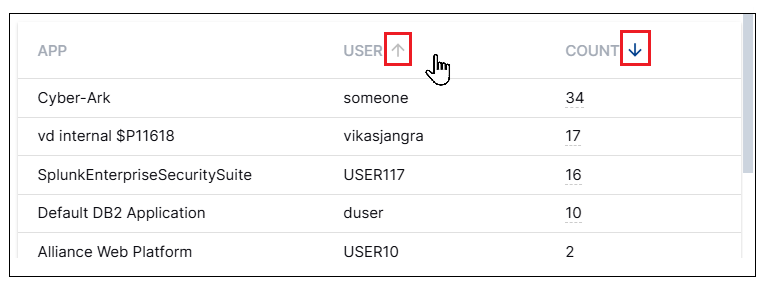
Configure the data table – To control the way data appears in a visualization, you can sort the data in any column in the data table. Click the column header to toggle between ascending and descending order.
Save the visualization – To complete the visualization, do one of the following, depending on where you started creating it:
Creating from the Visualizations Tab – Click Save Visualization. The visualization is created and added to the library. You can access it for viewing and editing from the Visualization tab. If you want to be able to add the new visualization to one or more dashboards at a later time, you will first need to make it public. See Make a Visualization Public.
Creating from within a Dashboard – Click Ave Visualization. The visualization is created and added to the dashboard where you started creating it. If you would like to add it to the visualization library, click the options icon (
) of the visualization tile on the dashboard and select Add to Library. A library icon ( ) appears on the visualization tile next to the title.