- Dashboards
- Navigation Overview
- User Management
- View and Interact with an Open Dashboard
- View and Interact with an Open Visualization
- Configure and Manage Dashboards
- Create a Dashboard
- Add a Visualization to a Dashboard
- Add a Text Tile
- Modify a Dashboard Layout
- Add Dashboard Filters
- Manage Automatic Refresh Rates
- Create a Scheduled Report
- Make a Dashboard Public
- Export and Import Dashboards
- Edit Dashboard Filters
- Edit Dashboard Details
- Duplicate a Dashboard
- Delete a Dashboard
- Configure and Manage Visualizations
- Create a Visualization Using the Basic Method
- Auto-Create a Visualization from a Natural Language Prompt
- Create a Visualization from a Search Query
- Add Visualizations from the Library to a Dashboard
- Modify a Visualization
- Configure Visualization Query Filters
- Include Context Filtering in Visualizations
- Make a Visualization Public
- Export and Import Visualizations
- Duplicate a Visualization
- Remove a Visualization from a Dashboard
- Delete Visualizations from the Library
- Configure and Manage Scheduled Reports
- Pre-Built Dashboards
- Advanced Analytics Dashboards
- AI/LLM Dashboards
- Alert Dashboards
- Case Manager Dashboards
- Compliance Dashboards
- Correlation Rules Dashboards
- Event Store Dashboards
- Access Grant and Revoke Activity
- Account Logout Summary
- Account Management Activity
- Application Security Event Summary
- Authenticated User Accounts on Hosts
- AWS CloudTrail Summary
- Data Loss Prevention Activity – Host-Based
- Data Loss Prevention Activity – User-Based
- Data Loss Prevention Activity Summary
- Default Account Access
- Default Credential Usage and Change Activity
- Denied Web Access Activity
- Disabled User Account Summary
- Discovered Attacks by Source and Destination
- Endpoint Detection and Response
- Failed Application Logon Activity
- Failed Audit Logs Summary
- Failed Host Login Attempt Counts by Users
- Failed VPN Login Attempts and Remote Session Timeouts
- Firewall Activity
- Firewall and Router Device Interfaces
- Insecure Authentication Attempts
- IOC Statistics
- Log Delay Insights
- Microsoft 365 Summary
- Microsoft Windows Overview
- Network Applications by Traffic Volume
- Policy Activity Summary
- Ports Usage Trend
- Privileged Access
- Privileged Access – User-Based
- Project Collateral
- Protocols by Network Traffic
- Remote Session Overview
- Security Alert Summary – Impacted Hosts
- Security Alert Summary – Origin Hosts
- Security Alert Summary – Users
- Successful Application Logon Activity
- Successful Database Login Activity
- Successful Physical Access
- Top Attackers
- User Account Creation Summary
- User Account Lockout Activity
- Vendor Authentication Activity
- Windows Audit Failure Summary by Hosts
- Windows Audit Failure Summary by Users
- Windows User Privilege Elevation
- Zscaler HTTP Dashboard
- Security Operations Center Management Dashboards
- Threat Center Dashboards
- Pre-Built Visualizations
- Agentic AI - Result
- Agentic AI - Violations
- Agentic AI by App ID
- Agentic AI Usage by Host
- Agentic AI Users - Blicked/Allowed
- Anomalies - Use Case & MITRE Coverage
- Anomalies by Rule Name
- Anomalies by Use Case
- Anomalies Count Over Time
- Anomaly Distribution by MITRE Tactic & Score
- Application Count
- Closed Incidents
- Correlation Rules by Severity
- Correlation Rules Triggered Over Time
- Detected Anomalies
- Host-Based DLP Alerts Count
- Incidents Created
- Incident Summary by Incident Type
- Number of Hosts with DLP Alerts
- SOC Incident Distribution
- Top 5 Host-Based DLP Alert Categories
- Top 5 Protocols in Host-Based DLP Alerts
- Top 10 Host-Based DLP Alert Types
- Top 10 Hosts with DLP Alerts
- Top Activities per Top 10 Applications
- Top Users per Top 10 Applications
- Trend of Application Security Events
Agentic AI Security
This dashboard provides an overview of AI agent trends and behaviors in your environment. It visualizes data about the number and types of AI agent operations occurring in your environment, within the filtered time range. The individual visualizations filter the data from different perspectives to monitor agent-related risks. The dashboard as a whole can make information about your security posture available for reporting to executives, auditors, and other stakeholders.
If you want to put together a custom dashboard, several of the visualizations are also available as stand-alone visualizations that you can use in your own new dashboard. Alternately, you can copy this dashboard and customize it to filter for AI agent behavior from other perspectives.
Time Range Filter
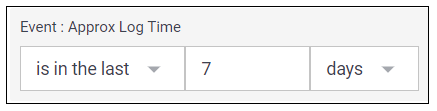
The Event : Approx Log Time filter sets the time range for the event data. The default setting is in the last 7 days. You can update this filter with a wide range of customizable settings.
To update the time range filter, click the arrow ( ) on the right, under the Edit button, to expand the filters panel. In the Event : Approx Log Time filter, select an operator from the first drop down menu and then enter or select values in the subsequent fields, depending on the operator you selected. To save your filter changes, click Apply on the right side of the filter panel. The updated filter is applied to the visualization.
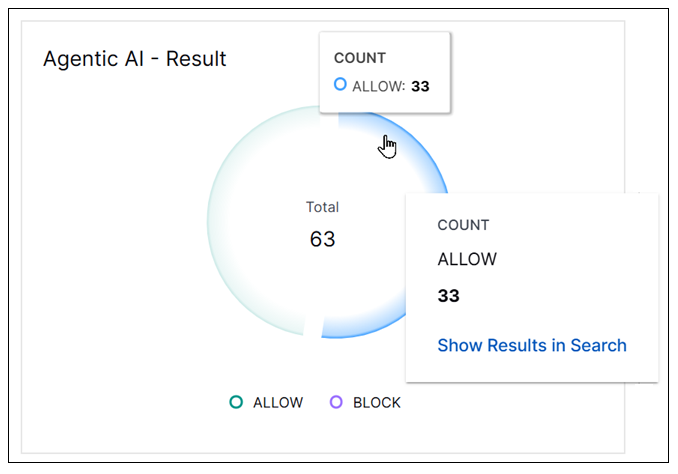
Agentic AI - Result
This pie chart shows the total number of AI prompt events in your environment, during the filtered time range, and illustrates what proportions of those prompts were allowed or blocked. To view the represented values, hover your cursor over the graph slices. To drill down into a value and view the underlying events, click a graph slice and select the Show Results in Search option. The Search application opens and a query is populated in the search bar for you to run.
Tip
This visualization is also available as a stand-alone, pre-built visualization for use in other dashboards. You can view it on the Visualizations tab and when creating or editing a custom dashboard, you can select it from the Visualizations library.
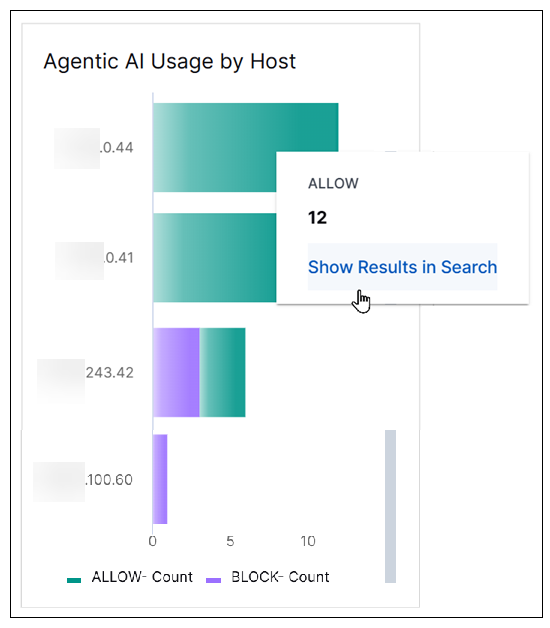
Agentic AI Usage by Host
This bar chart breaks down the count of AI prompt events in your environment, during the filtered time range, by both the source host and whether the prompts were allowed or blocked. To view the represented values, hover your cursor over the bars in the chart. To drill down into a value and view the underlying events, click a bar and select the Show Results in Search option. The Search application opens and a query is populated in the search bar for you to run.
Tip
This visualization is also available as a stand-alone, pre-built visualization for use in other dashboards. You can view it on the Visualizations tab and when creating or editing a custom dashboard, you can select it from the Visualizations library.
Agentic AI - Violations by User
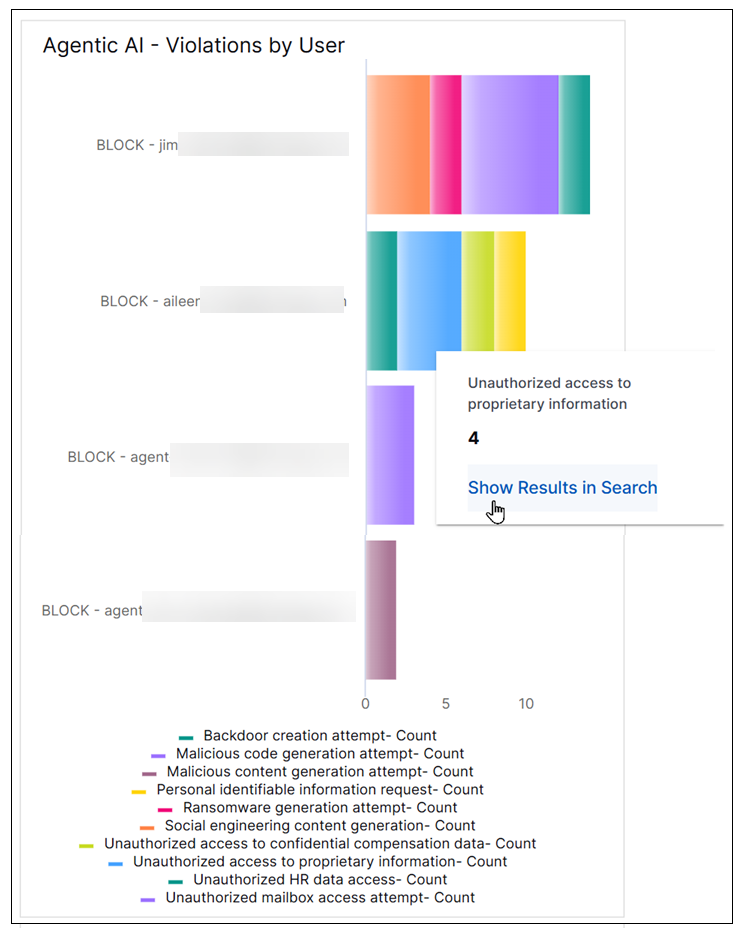
This bar chart displays the count of AI violations (represented by blocked prompt events) in your environment, during the filtered time range. Each bar in the chart represents a user and is color coded to show the different reasons for which that user's AI prompts were blocked. To view the represented values, hover your cursor over the bars in the chart. To drill down into a value and view the underlying events, click a bar and select the Show Results in Search option. The Search application opens and a query is populated in the search bar for you to run.
Agentic AI Users - Blocked/Allowed
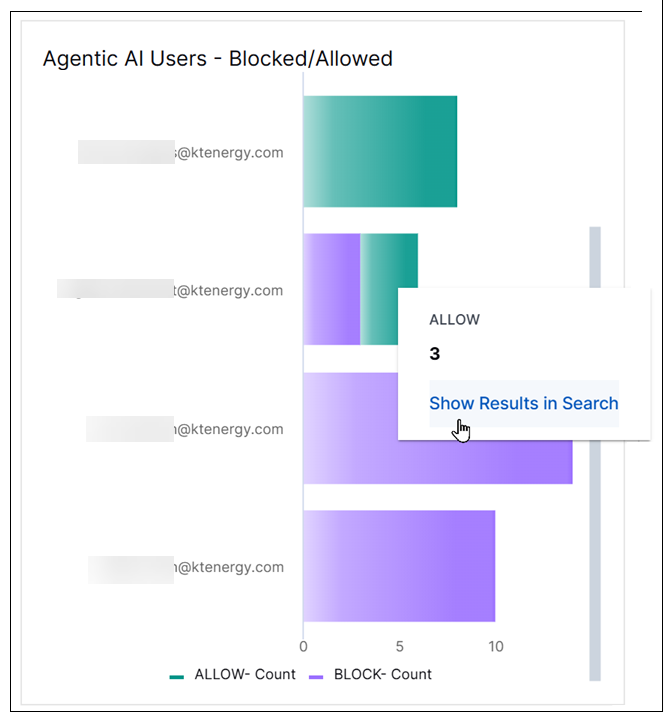
This bar chart breaks down the count of AI prompt events in your environment, during the filtered time range, by both the user email addresses and whether the prompts were allowed or blocked. To view the represented values, hover your cursor over the bars in the chart. To drill down into a value and view the underlying events, click a bar and select the Show Results in Search option. The Search application opens and a query is populated in the search bar for you to run.
Tip
This visualization is also available as a stand-alone, pre-built visualization for use in other dashboards. You can view it on the Visualizations tab and when creating or editing a custom dashboard, you can select it from the Visualizations library.
Agentic AI by App ID
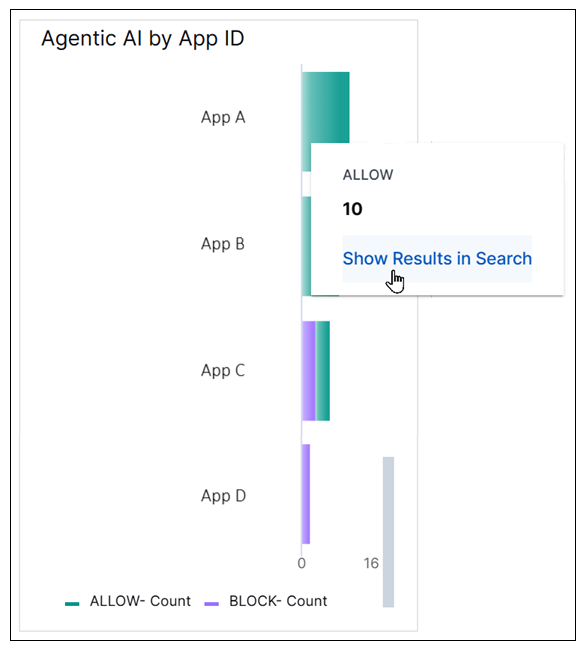
This bar chart breaks down the count of AI prompt events in your environment, during the filtered time range, by both the application ID and whether the prompts were allowed or blocked. To view the represented values, hover your cursor over the bars in the chart. To drill down into a value and view the underlying events, click a bar and select the Show Results in Search option. The Search application opens and a query is populated in the search bar for you to run.
Tip
This visualization is also available as a stand-alone, pre-built visualization for use in other dashboards. You can view it on the Visualizations tab and when creating or editing a custom dashboard, you can select it from the Visualizations library.
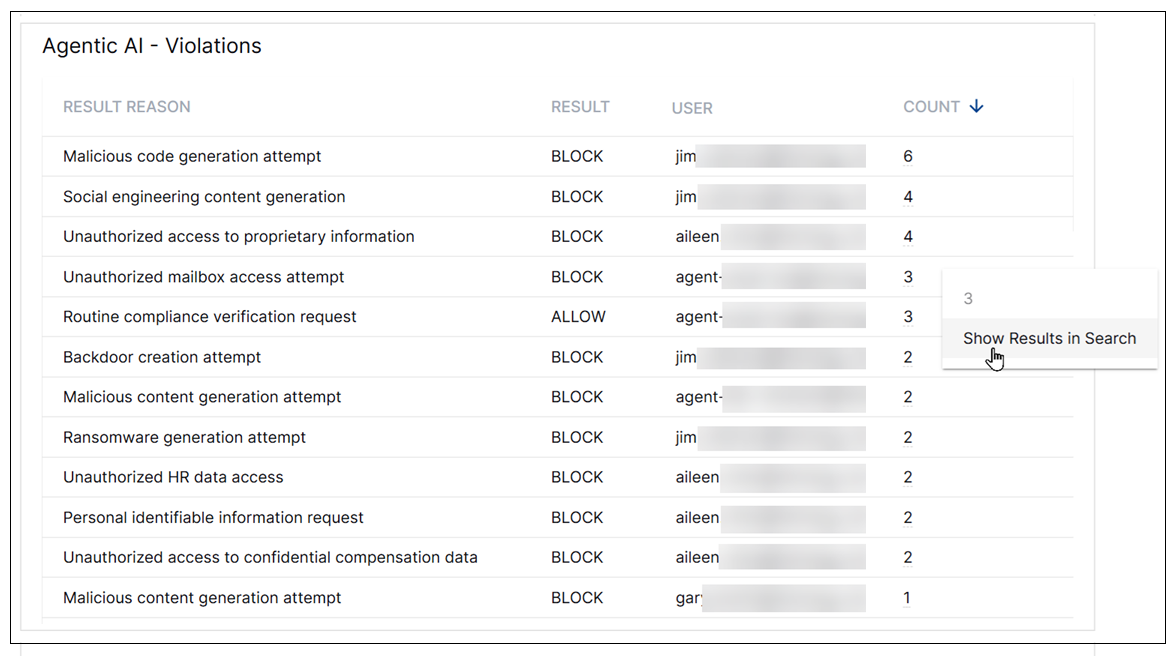
Agentic AI - Violations
This table lists the count of AI violations in your environment, during the filtered time range. The data is filtered by the AI prompt violation reasons, whether the AI prompts were blocked or allowed, and the users responsible for the prompts. To sort the table by a specific column, click the column heading and toggle the arrow to sort in ascending ( ) or descending (
 ) order. To drill down into a value in the Count column and view the underlying events, click a count value and select the Show Results in Search option. The Search application opens and a query is populated in the search bar for you to run.
Tip
This visualization is also available as a stand-alone, pre-built visualization for use in other dashboards. You can view it on the Visualizations tab and when creating or editing a custom dashboard, you can select it from the Visualizations library.