
- Dashboards
- Navigation Overview
- User Management
- View and Interact with an Open Dashboard
- View and Interact with an Open Visualization
- Configure and Manage Dashboards
- Create a Dashboard
- Add a Visualization to a Dashboard
- Add a Text Tile
- Modify a Dashboard Layout
- Add Dashboard Filters
- Manage Automatic Refresh Rates
- Create a Scheduled Report
- Make a Dashboard Public
- Export and Import Dashboards
- Edit Dashboard Filters
- Edit Dashboard Details
- Duplicate a Dashboard
- Delete a Dashboard
- Configure and Manage Visualizations
- Create a Visualization Using the Basic Method
- Auto-Create a Visualization from a Natural Language Prompt
- Create a Visualization from a Search Query
- Add Visualizations from the Library to a Dashboard
- Modify a Visualization
- Configure Visualization Query Filters
- Include Context Filtering in Visualizations
- Make a Visualization Public
- Export and Import Visualizations
- Duplicate a Visualization
- Remove a Visualization from a Dashboard
- Delete Visualizations from the Library
- Configure and Manage Scheduled Reports
- Pre-Built Dashboards
- Advanced Analytics Dashboards
- AI/LLM Dashboards
- Alert Dashboards
- Case Manager Dashboards
- Compliance Dashboards
- Correlation Rules Dashboards
- Event Store Dashboards
- Access Grant and Revoke Activity
- Account Logout Summary
- Account Management Activity
- Application Security Event Summary
- Authenticated User Accounts on Hosts
- AWS CloudTrail Summary
- Data Loss Prevention Activity – Host-Based
- Data Loss Prevention Activity – User-Based
- Data Loss Prevention Activity Summary
- Default Account Access
- Default Credential Usage and Change Activity
- Denied Web Access Activity
- Disabled User Account Summary
- Discovered Attacks by Source and Destination
- Endpoint Detection and Response
- Failed Application Logon Activity
- Failed Audit Logs Summary
- Failed Host Login Attempt Counts by Users
- Failed VPN Login Attempts and Remote Session Timeouts
- Firewall Activity
- Firewall and Router Device Interfaces
- Insecure Authentication Attempts
- IOC Statistics
- Log Delay Insights
- Microsoft 365 Summary
- Microsoft Windows Overview
- Network Applications by Traffic Volume
- Policy Activity Summary
- Ports Usage Trend
- Privileged Access
- Privileged Access – User-Based
- Project Collateral
- Protocols by Network Traffic
- Remote Session Overview
- Security Alert Summary – Impacted Hosts
- Security Alert Summary – Origin Hosts
- Security Alert Summary – Users
- Successful Application Logon Activity
- Successful Database Login Activity
- Successful Physical Access
- Top Attackers
- User Account Creation Summary
- User Account Lockout Activity
- Vendor Authentication Activity
- Windows Audit Failure Summary by Hosts
- Windows Audit Failure Summary by Users
- Windows User Privilege Elevation
- Zscaler HTTP Dashboard
- Security Operations Center Management Dashboards
- Threat Center Dashboards
- Pre-Built Visualizations
- Agentic AI - Result
- Agentic AI - Violations
- Agentic AI by App ID
- Agentic AI Usage by Host
- Agentic AI Users - Blicked/Allowed
- Anomalies - Use Case & MITRE Coverage
- Anomalies by Rule Name
- Anomalies by Use Case
- Anomalies Count Over Time
- Anomaly Distribution by MITRE Tactic & Score
- Application Count
- Closed Incidents
- Correlation Rules by Severity
- Correlation Rules Triggered Over Time
- Detected Anomalies
- Host-Based DLP Alerts Count
- Incidents Created
- Incident Summary by Incident Type
- Number of Hosts with DLP Alerts
- SOC Incident Distribution
- Top 5 Host-Based DLP Alert Categories
- Top 5 Protocols in Host-Based DLP Alerts
- Top 10 Host-Based DLP Alert Types
- Top 10 Hosts with DLP Alerts
- Top Activities per Top 10 Applications
- Top Users per Top 10 Applications
- Trend of Application Security Events
The Home Tab
The Home tab provides quick easy access to your most essential or frequently-used dashboard. It serves as the landing page you see first whenever you open the Dashboards application. The Home tab is always available from the top of the Dashboards window. After you designate a specific dashboard as the Home tab default, you have one-click access to return to it from any other tab in the application.
Before you select a specific dashboard to be the default view, the Home tab displays a list of all the dashboards available in your environment. The list is divided into two sections. First is a list of favorites (if you have any designated) and then a list of all the remaining dashboards follows. You can select any pre-built Exabeam dashboard, custom dashboard, or draft dashboard as the default view for the Home tab. To find the desired dashboard, scroll through the list or use the search field.
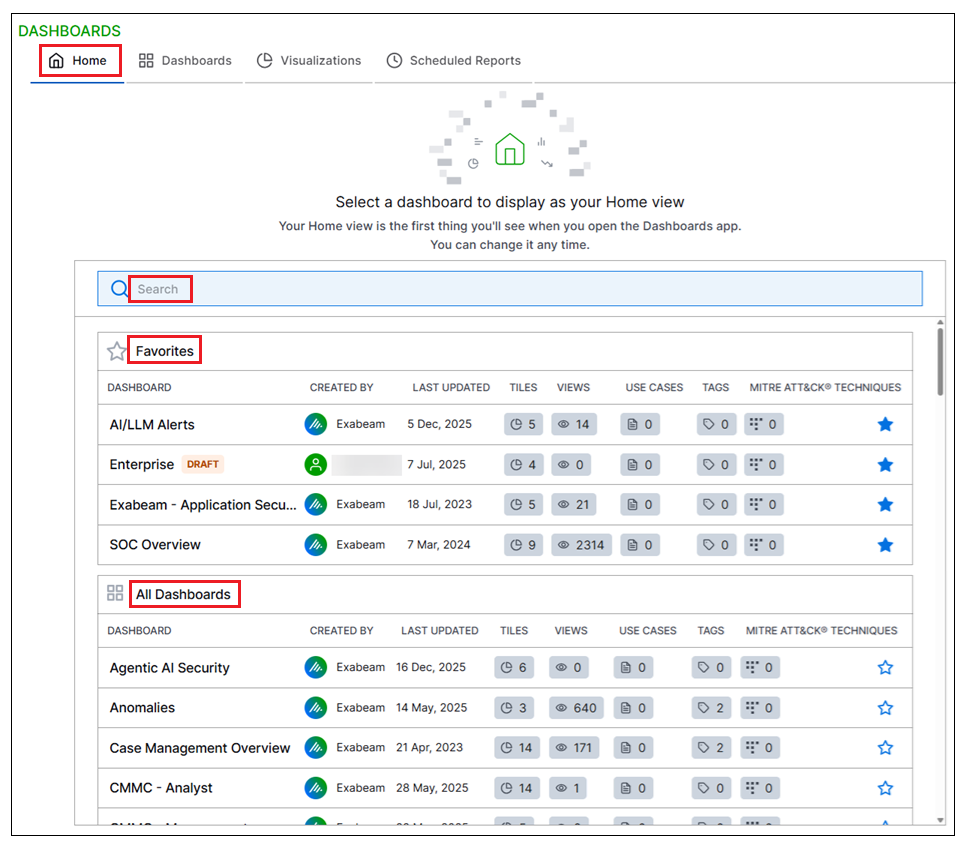 |
Setting or Removing a Home Dashboard
Set a Home Dashboard – To designate a dashboard as the default view on the Home tab, simply click on the desired dashboard in the list. A message pops up at the top of the screen confirming the home view setting and the selected dashboard opens in the Home tab. A Home symbol is displayed next to the Select Dashboard field.
Tip
You can also set a new Home dashboard from any other dashboard you open. With the desired dashboard open, the Options menu and select Set dashboard as Home.
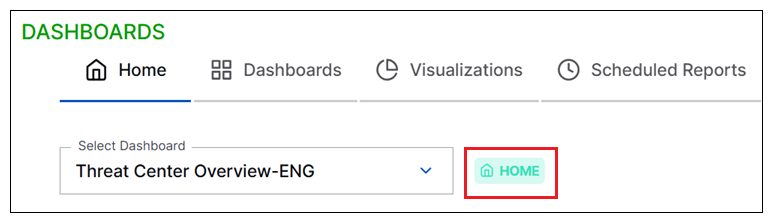
Remove a Home Dashboard – To remove the home designation from a dashboard, open the currently selected Home dashboard. In the top right corner, click the Options menu and select Remove dashboard as home. The home designation is removed from the current dashboard and the Home tab display returns to the selection list where you can choose another dashboard to serve as the Home tab default.
Working with the Home Dashboard
When a dashboard is designated as the default view for your Home tab, you can interact with it in the same ways you interact with any other open dashboard, with a few extras:
The Home dashboard is always available whenever you click the Home tab.
The Home dashboard is identifiable by a Home symbol, both when the dashboard is open or when it appears in a selection list.
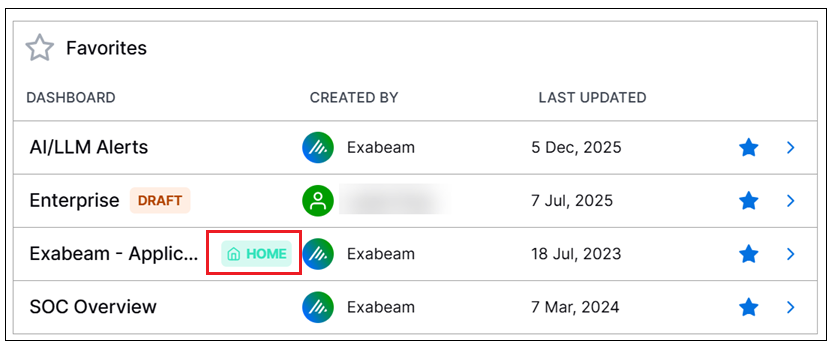
You can quickly switch in and out of other dashboards without ever leaving the Home tab. Just use the Select Dashboard field, on the Home tab, to select another dashboard for viewing. The selected dashboard opens in the Home tab without becoming selected as the new default. To redisplay the default dashboard, click the Home icon next to the selection field.

For more information about working with a dashboard, seeView and Interact with an Open Dashboard.