
- Get Started with Threat Center
- Threat Center
- Threat Center Permissions
- Threat Center Alerts: Read
- Threat Center Alerts: Read, Write, and Delete
- Threat Center Cases: Read
- Threat Center Cases: Read, Write, and Delete
- Threat Center Detection Grouping Rules: Read
- Threat Center Detection Grouping Rules: Read, Write, and Delete
- Threat Center Watchlist: Read
- Threat Center Watchlist: Read, Write, and Delete
- Threat Center Cases
- Threat Center Alerts
- Threat Center Detections
- Threat Center Risk Score
- Configure Threat Center
- Monitor Entities of Interest in Threat Center
- Work on Cases
- Work on Alerts
- Edit and Collaborate in Threat Center
- Use Automation Tools in Threat Center
- Find Cases and Alerts
- View Case and Alert Metrics
- Get Notified About Threat Center
- Threat Center APIs
Manually Associate Entities with Cases
To add additional investigation context to a case, manually add entities to and remove entities from cases.
When Threat Center groups detections into cases or alerts, it automatically associates Attack Surface Insights entities from the detections with the case or alert. However, to keep cases updated with your investigation findings and external knowledge, you may want to manually associate entities with cases.
You can only add and remove entities that aren't already automatically associated with the case via its detections.
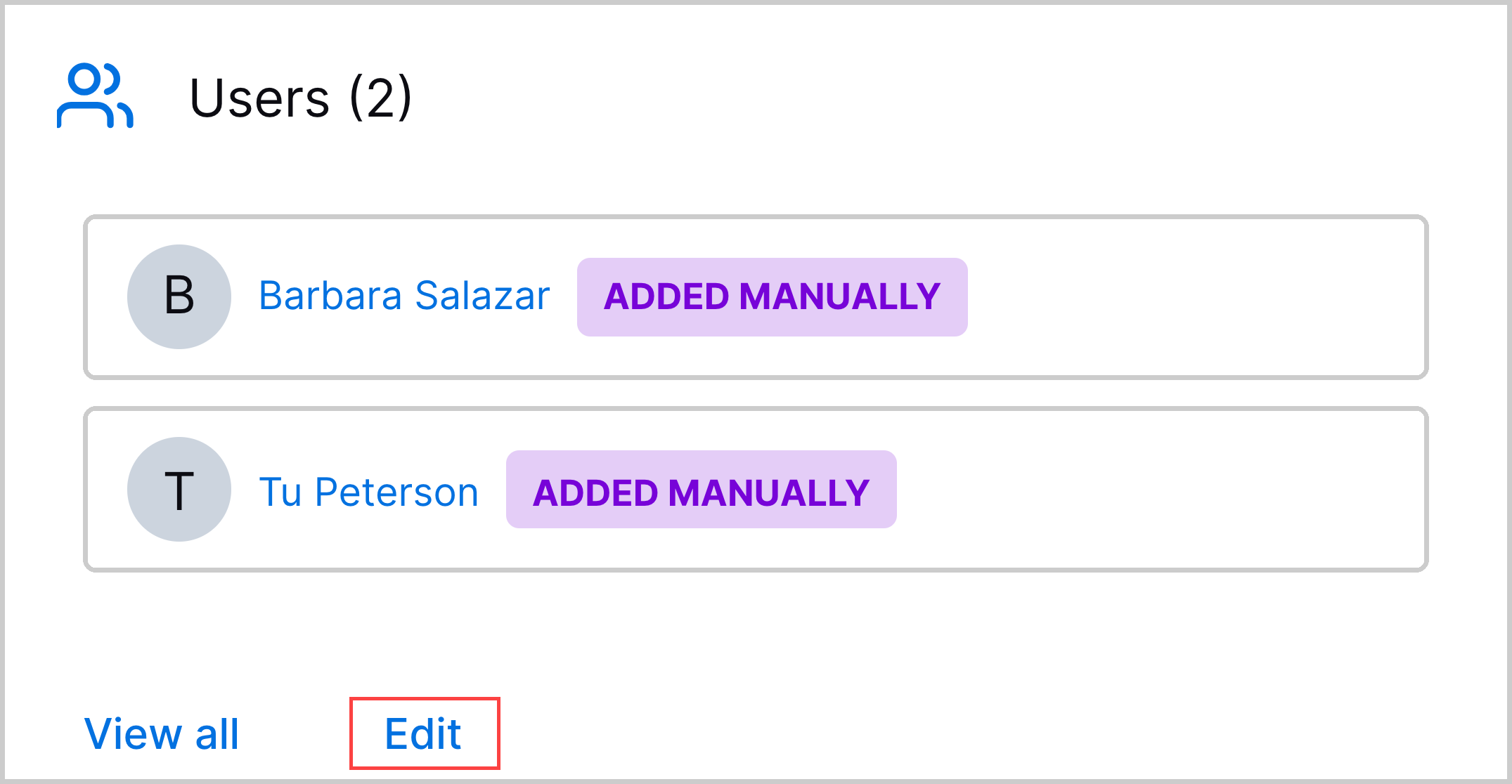
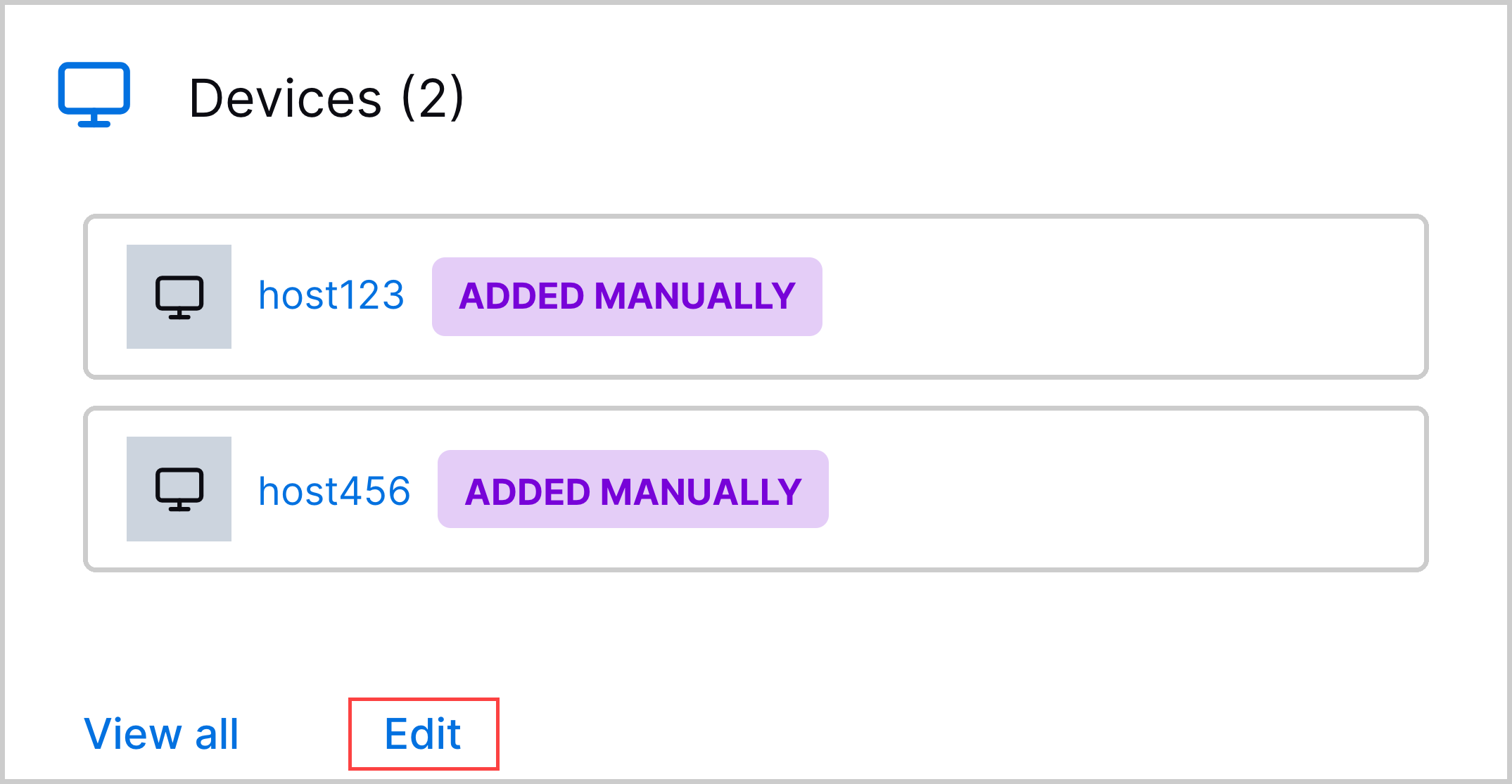
Entities that are manually added to a case are labeled as Manually Added in the Overview tab, under Users and Devices.
Entities that are manually added to a case don't appear in watchlists. Watchlists only include entities used to group detections.
When you add or remove an entity from a case, it is recorded in the case history.
Manually Add an Entity to a Case
Manually associate an Attack Surface Insights entity with a case.
Manually Remove an Entity from a Case
Remove a manually added Attack Surface Insights entity from a case.
Manually Add an Entity to a Case
Manually associate an Attack Surface Insights entity with a case.
In the case Overview tab:
Click Edit Details.
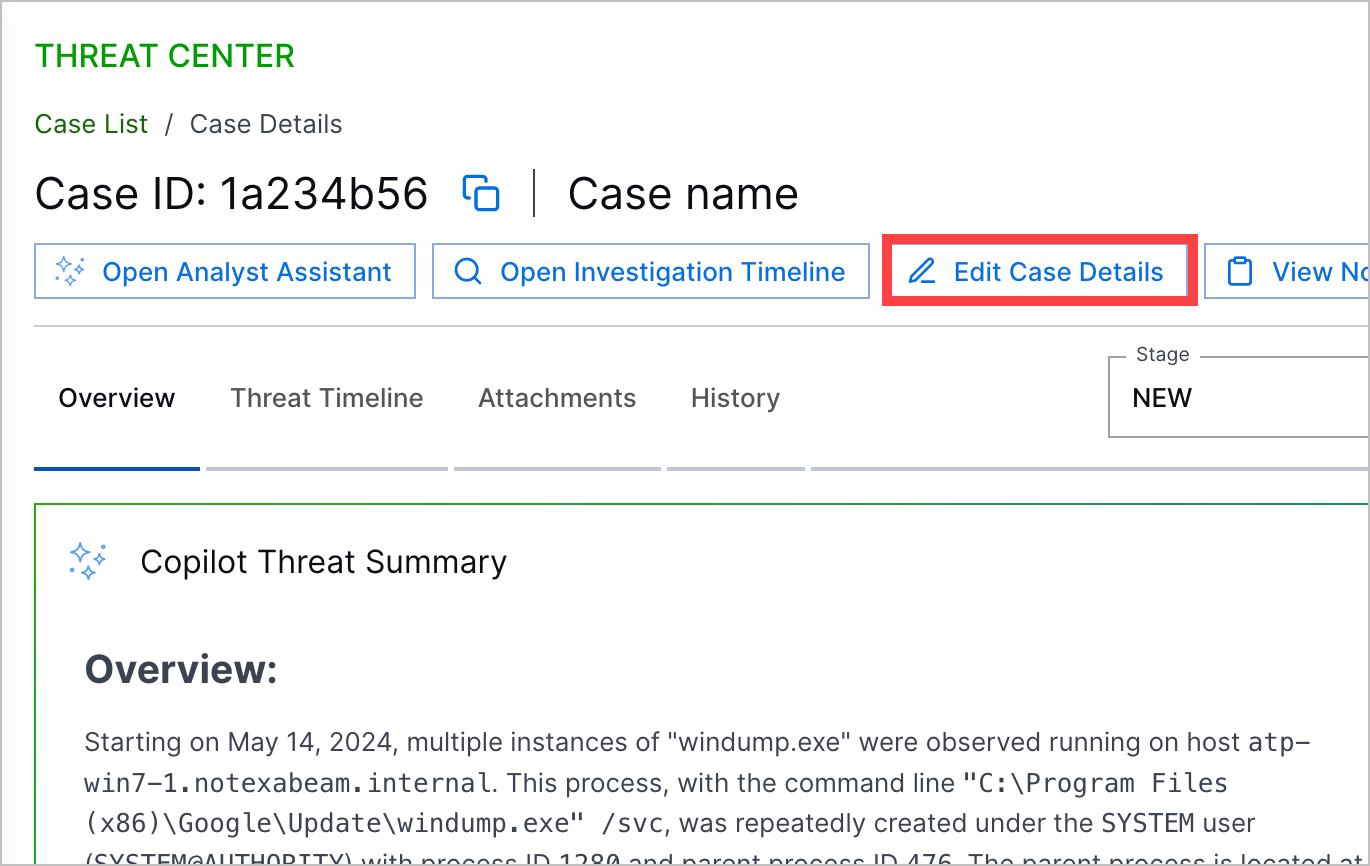
Under Users, click Edit.
Under Devices. click Edit.
Add user and device entities:
Add a user entity under Users:
Click + Add User.
Enter a search for a full name, username, or email address.
For a user entity, click Add. You can't add an entity that is already associated with the case.
(Optional) Under Reason for adding (optional), enter an explanation for why you're adding the entities to the case. The reason is shown in the case history for this action.
Click Add to Case.
Add a device entity under Devices:
Click + Add Device.
Enter a search for a hostname, IP address, or MAC address.
For a device entity, click Add. You can't add an entity that is already associated with the case.
(Optional) Under Reason for adding (optional), enter an explanation for why you're adding the entities to the case. The reason is shown in the case history for this action.
Click Add to Case.
Click Update.
This action is recorded in the case history.
Manually Remove an Entity from a Case
Remove a manually added Attack Surface Insights entity from a case.
You can only remove entities you've manually added to the case. You can't remove entities automatically associated with the case via its detections.
In the case Overview tab:
Click Edit Details.
Under Users, click Edit.
Under Devices. click Edit.
Under Users or Devices, hover over the entity, then click Remove.
(Optional) In Reason for removing (optional), enter a reason for why you're removing the entity from the case. The reason is shown in the case history for this action.
Click Update.
This action is recorded in the case history.