
- Get Started with Threat Center
- Threat Center
- Threat Center Permissions
- Threat Center Alerts: Read
- Threat Center Alerts: Read, Write, and Delete
- Threat Center Cases: Read
- Threat Center Cases: Read, Write, and Delete
- Threat Center Detection Grouping Rules: Read
- Threat Center Detection Grouping Rules: Read, Write, and Delete
- Threat Center Watchlist: Read
- Threat Center Watchlist: Read, Write, and Delete
- Threat Center Cases
- Threat Center Alerts
- Threat Center Detections
- Threat Center Risk Score
- Configure Threat Center
- Monitor Entities of Interest in Threat Center
- Work on Cases
- Work on Alerts
- Edit and Collaborate in Threat Center
- Use Automation Tools in Threat Center
- Find Cases and Alerts
- View Case and Alert Metrics
- Get Notified About Threat Center
- Threat Center APIs
1. Find alerts of interest
To find alerts that have likely not been triaged, search for alerts without an associated case. If you don't have the read permission for Threat Center cases, you only see alerts without an associated case.
By default, alerts are sorted by risk score, from highest to lowest. You can manually sort or filter alerts.
To hide dismissed alerts, toggle Hide Dismissed on.
 |
2. Review alerts of interest
Get an overview of alerts of interest:
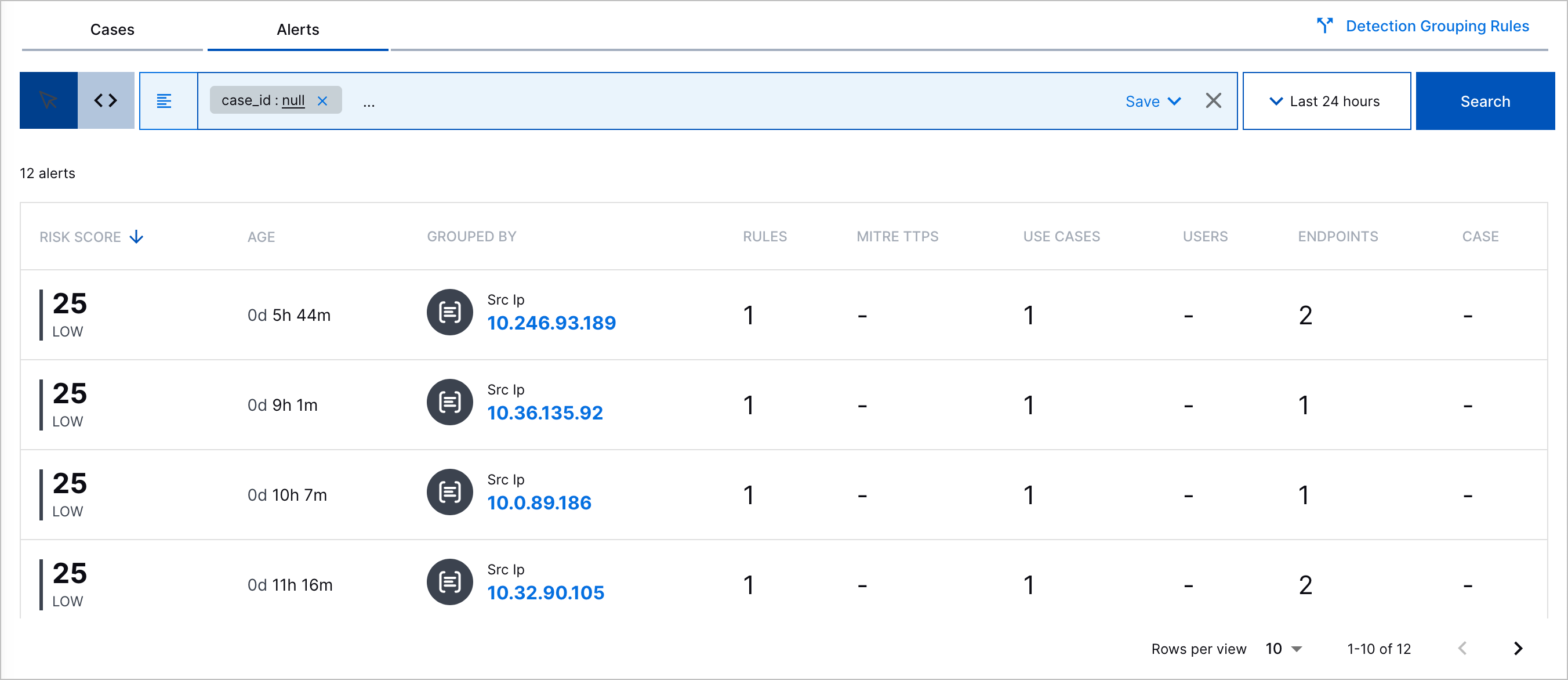
Risk Score – The alert risk score and associated priority: critical, high, medium, or low.
Created – The date and time the alert was created and the time elapsed since the alert was created.
Grouped By – The attribute by which detections are grouped. If the detections are grouped by entity, to view the entity details, click the entity. If you receive an error, the entity may have been deleted.

Scope – The number of objects associated with the alert:
The number of triggered analytics, correlation, or Advanced Analytics rules associated with related detections
The number of MITRE ATT&CK® tactics and techniques the alert best describes[6]
The number of Exabeam use cases the alert best describes
The number of users associated with related detections
The number of source and destination hosts associated with related detections.
 – Navigate to all related detections in the Search timeline view.
3. Select a specific alert of interest
To view more information about a specific alert, select the alert.
If the alert has an associated case, you're redirected to the case so you can respond to it.
4. Get an overview of a specific alert
In the Overview tab, get an overview of the alert:
Exabeam Nova Investigation Summary – An AI-generated summary of the alert and recommended next steps. This summary is updated every time detections are added to the alert.
To create the summary, Exabeam Nova considers detection details, triggered rules and triggered rule fields, Attack Surface Insights entity details, and an insider threat framework of how Exabeam detects potential insider threats using behavioral detections.
To immediately generate a new summary from Exabeam Nova, click View full summary. Exabeam Nova automatically opens a session with the prompt, Get summary for alert id - '<alert ID>'.
Risk Score – The risk score and associated priority.
User Description – The alert description.
Grouped By – The attribute by which detections are grouped and their tags. If the detections are grouped by entity, to view the entity details, click View Details.
Timeframe – Important markers of time associated with the alert, including:
First Detection – The date and time the first detection was added to the alert.
Duration – The days, hours, and minutes elapsed between when the first and last detection was added to the alert.
Users – Users associated with related detections. If the user is an Attack Surface Insights user entity, you can click on it to view more information.
Devices – The source and destination host devices associated with related detections. If the device is an Attack Surface Insights device entity, you can click on it to view more information.
Rules Triggered – All triggered rules, the number of times they triggered, and their severity.
 indicates the rule is an analytics rule.
  indicates the rule is a correlation rule.
  indicates the rule is a phishing rule.
  indicates the rule is an Advanced Analytics rule.
To view every instance of when the rule triggered and the
rule_reasonordetectionReason, click for a rule.
To organize triggered rules by detection, toggle Group by detection on. The detections are sorted in chronological order, from earliest to most recent. The number at the top of each detection group is the detection rarity score.
To view the rule definition, click
 for a specific triggered rule instance.
To sort the list by severity or most triggered, next to Sort by, click select Highest severity or Triggered most.
MITRE TTP(s) – The ATT&CK tactics and techniques that best describe the alert.
Use Cases – The Exabeam use cases that best describe the alert.
5. Understand the alert historical context
Under the Threat Timeline tab, understand the historical context around the alert. View a timeline of grouped detections, up to 100 associated parsed events, and key response moments, including when the alert was created.
To continue your investigation and view the event in Search, click Open in Search.
To view all detection details, including the assigned risk score, ATT&CK tactics and techniques, Exabeam use cases, tags, and event fields associated with the detection, click View All.
To view all parsed event fields, click View All Fields.
For analytics rule detections, to review more information about the analytics rule that created the detection, click Rule Definition, then view:
The triggered analytics rule name and description
Detection reason– The reason why the event triggered the analytics rule.
Author– Who created the analytics rule. If the analytics rule is pre-built, the author is Exabeam.
Created– The date and time the analytics rule was created.
Last modified– The date and time the analytics rule was last modified.
Status– Whether the analytics rule is enabled or disabled.
Tags– Tags associated with the analytics rule.
Use Cases Coverage– Exabeam use cases associated with the analytics rule.
MITRE ATT&CK Coverage– ATT&CK tactics and techniques associated with the analytics rule.
The entire triggered analytics rule definition.
For Advanced Analytics detections, to review all events for the user or asset in the Advanced Analytics Smart Timeline™, click View Timeline in Advanced Analytics.
For correlation rule detections, to review more information about the correlation rule that created the detection, click Rule Definition, then view:
Name – The correlation rule name.
Author – Who created the correlation rule.
Severity – The rule severity: None, Low, Medium, High or Critical.
Use Case – The Exabeam use case most relevant to the rule.
MITRE Properties – The ATT&CK techniques most relevant to the rule.
Tags – Tags associated with the rule.
Repeating Triggers – The field values by which the rule is suppressed if the rule is over-triggered.
Things to do as you triage an alert
As you triage an alert, you can:
Update the alert attributes, like name, description, priority, related ATT&CK tactic and techniques, related Exabeam use cases, or tags, with the latest information.
Get answers to any question about the alert or related entities using Exabeam Nova.
Deepen your triage in Search and view all detections related to the alert. To navigate directly to detections in the Search timeline view, click Open in Search.

6. Conclude the triage process
To conclude the triage process:
To respond to the alert, convert the alert to a case.
To Indicate an alert has been reviewed and your teammates don't need to review the alert again, dismiss the alert.
To indicate the alert needs to be reviewed again later, mark it as unread.
[6] MITRE ATT&CK and ATT&CK are trademarks of The MITRE Corporation ("MITRE"). Exabeam is not affiliated with or sponsored or endorsed by MITRE. Nothing herein is a representation of the views or opinions of MITRE or its personnel.