
- Get Started with Threat Center
- Threat Center
- Threat Center Permissions
- Threat Center Alerts: Read
- Threat Center Alerts: Read, Write, and Delete
- Threat Center Cases: Read
- Threat Center Cases: Read, Write, and Delete
- Threat Center Detection Grouping Rules: Read
- Threat Center Detection Grouping Rules: Read, Write, and Delete
- Threat Center Watchlist: Read
- Threat Center Watchlist: Read, Write, and Delete
- Threat Center Cases
- Threat Center Alerts
- Threat Center Detections
- Threat Center Risk Score
- Configure Threat Center
- Monitor Entities of Interest in Threat Center
- Work on Cases
- Work on Alerts
- Edit and Collaborate in Threat Center
- Use Automation Tools in Threat Center
- Find Cases and Alerts
- View Case and Alert Metrics
- Get Notified About Threat Center
- Threat Center APIs
View Related Cases
To reconstruct the full scope of a security threat and track anomalous activity across objects, view other cases related to the current case.
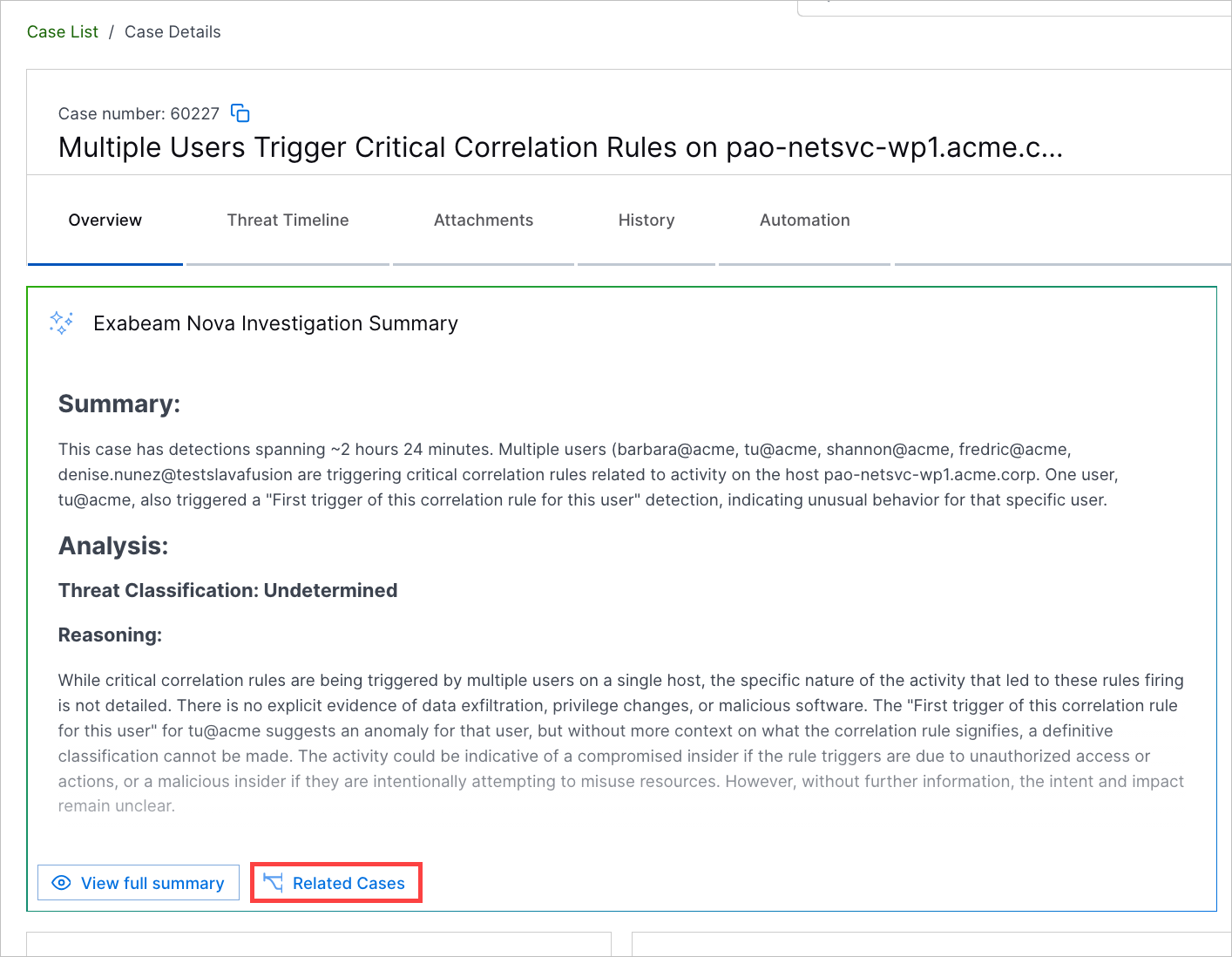
For cases that have an Exabeam Nova Investigation Summary, Exabeam Nova finds up to 10 other cases from the past two weeks and the following two weeks after the case was created that share the exact same objects: usernames, hostnames, IP addresses, or domains. To streamline your investigation, Exabeam Nova only displays the top 10 most relevant related cases, even though additional related cases may exist.
Note
It may take up to one hour after Exabeam Nova generates the Exabeam Nova Investigation Summary before you can view any related cases.
Before viewing related cases, you may want to understand the process Exabeam Nova uses to identify related cases.
To navigate to related cases:
Under Exabeam Nova Investigation Summary. click Related Cases.
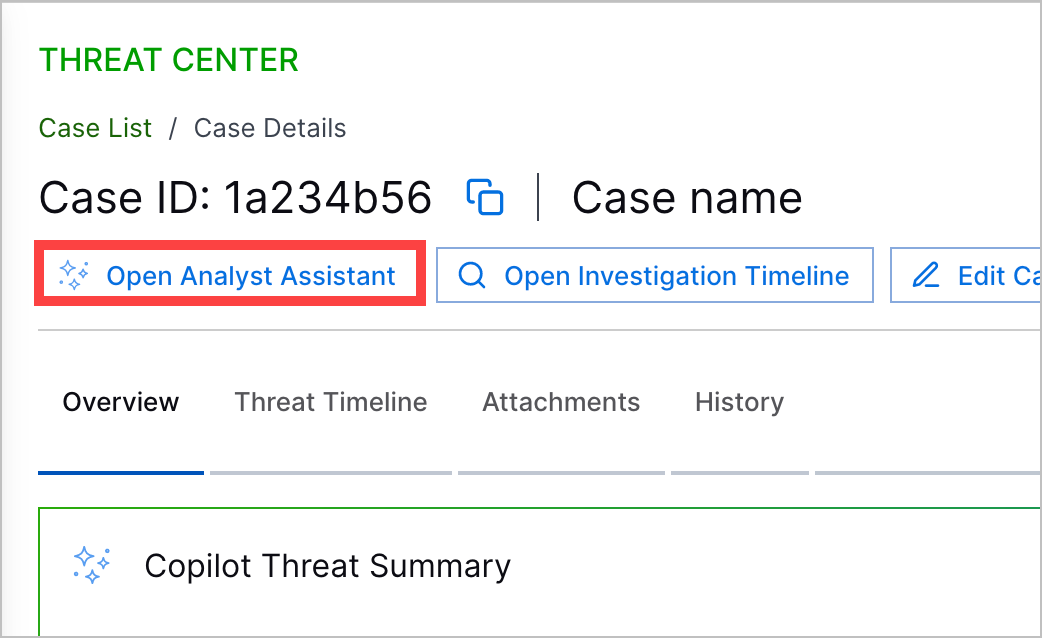
Click Exabeam Nova, then navigate to the Related Cases tab.
For related cases, you can:
View Related Cases Summary
Under Summary, view an Exabeam Nova-generated summary of the related cases and why they are considered related to the current case.
Under Shared Objects in All Cases. view all the objects that are common among the cases. These are all shared objects, not just the ones Exabeam Nova used to link related cases together.
View Related Cases List
Under List. view a list of the related cases:
Severity – The risk score and severity of the related case: Critical, High, Medium, or Low.
Case Title – The ID and name of the related case.
Common Objects – The number of objects the related case shares with the current case. To view the specific objects, hover over the column value.
Stage – The stage of the related case.
To navigate to a related case, click its case ID.
To find a specific related case, you can filter and search the list.
Filter Related Cases List
You can filter the related cases list by stage and severity.
To filter the list by stage, click Stage, then select the stage the cases should be in.
To filter the list by severity, click Severity, then select the severity the cases should have.
Search Related Cases List
You can search the related cases list by case ID, case name, and severity.
To search the list, in Type to search, enter a query.
View Related Cases Timeline
Under Timeline, view a timeline of the related cases relative to the current case.
The current case is labeled Current Case.
Cases created before the current case are labeled Pre-step case.
Cases created after the current case are labeled Post-stop case.
How Related Cases Works
Learn how Exabeam Nova identifies related cases.
To identify related cases, Exabeam Nova:
1. Extract current case data
From the current case, Exabeam Nova uses the Exabeam Nova Investigation Summary to extract key information about the case detections, including:
The case ID and associated alert ID
Key timestamps, like when detections were added or updated
User activity
IP addresses, host names, and domains
The threat category and detection type
2. Find shared objects
Exabeam Nova searches for cases created two weeks before and two weeks after the current case was created for the following common objects:
Usernames
Hostnames
IP addresses
Domains
Objects must be an exact match for cases to be considered related.
Cases that share a system or service account username must also share a hostname or IP address to be considered related.
3. Determine threat progression
Exabeam Nova compares case timestamps to classify cases as:
Pre-steps – The case occurred before the current case.
Post-steps – The case occurred after the current case.
Exabeam Nova uses this information to create a timeline of related cases relative to the current case.