
- Site Collector Overview
- Get Started with Site Collectors
- Install Site Collector
- Set Up Collectors
- Sign Up for the Early Access Program: Site Collectors
- Choose the Right Collector based on Data Sources
- Set Up Archive Windows Collector
- Set Up Archive Linux Collector
- Set Up DAA Windows Collector
- Set Up EStreamer Collector
- Set Up Fortinet Collector
- Set Up IBM Security QRadar Collector
- Set Up Kafka Collector
- Set Up Splunk Collector
- Set Up Linux File Collector
- Set Up Microsoft SQL Collector
- Set Up MySQL Collector
- Set Up Oracle Collector
- Set Up Syslog Collector
- Set Up Windows Active Directory Collector
- Set Up Windows Event Log Collector
- Set Up Windows File Collector
- Manage Site Collectors
- Apply Antivirus Exclusions
- Migrate to the New-Scale Site Collectors Service
- Modify Collector Configuration
- Modify a Site Collector Instance
- Manage Templates
- Monitor Log Sources
- Add Filters to Set Egress Log Filtering Conditions
- New Site Collector Management Service NGSCD
- Regenerate Certificates for Collectors
- Upgrade the Site Collector
- Upgrade the Site Collector Specifications
- Vulnerability Remediation Policy
- Site Collector Monitoring
- Troubleshoot the Site Collector
- Pre-checks failed during Site Collector installation and upgrade
- Site Collector UI shows the status INSTALLATION_ERROR
- Download Support Packages for Troubleshooting
- How to reboot the Virtual Machine (VM) successfully to apply security updates?
- What information must be added while creating a support ticket to resolve an issue?
- Site Collector UI is not displaying the heartbeats
- Splunk Collector can't be set up
- Splunk Collector is set up however, logs are not reaching DL/AA
- Only a few of the installed Splunk Collectors are processing logs or EPS has dropped by 50% as compared to last hour
- The Windows Active Directory Collector (formerly known as LDAP Collector) is set up, however, the context data is not reaching DL/AA
- The Windows Active Directory Collector (formerly known as LDAP Collector) is stuck in the ‘Update’ mode after deployment
- Installation is initiated; however, the collector shows the status as ‘Setting Up’ for some time
- Data Lake and Advanced Analytics Does Not Show Context Data
- Context Data from Windows Active Directory Collector is Segmented
- Minifi Permission Denied - Logback.xml File Missing and Config File Update - Failed Error Occurred while Installing the Windows Event Log Collector
- Where should I upload proxy certificates if I am running proxy with TLS interception?
- How to upgrade Linux collector instance?
Set Up DAA Windows Collector
Set up the Direct Access Agent (DAA) Windows Collector to collect Windows event logs natively from your Windows server and push the logs to New-Scale Security Operations Platform. The collector requires only virtual Site Collector to complete installation and provides flexible template configuration capabilities to collect Windows events.
The Direct Access Agent (DAA) Windows Collector enables standalone installation without a physical Site Collector. Managed via secure, reusable HTTPS flows, the DAA Windows collector maintains parity with standard collectors for installation. The Early Access release focuses on Windows event log collection ensuring consistent monitoring and management across the platform.
The Direct Access Agent (DAA) Windows Collector offers the following key capabilities.
Native Log Collection – Collects Windows Event Log data using native Windows Event Log API.
Event Filtering – Filters events by channel, Event ID ranges, and XPath queries.
Data Enrichment – Enriches events with metadata and transforms them into JSON for compatibility.
Efficient Data Upload – Batches and compresses data objects before uploading directly to Google Cloud Storage (GCS).
Monitoring – Sends heartbeat telemetry and performance metrics to GCP Pub/Sub
Upgrades – Supports upgrades via CLI.
Use the following steps to to set up a DAA Windows Collector.
Log in to the New-Scale Security Operations Platform with your registered credentials.
Navigate to Collectors > Site Collectors.
Create a new virtual Site Collector using the following steps.
On the Site Collector Instances page, click New Site Collector.
Select a Site Collector Type: Virtual - For Direct Access Agent Collector Types.
Click Confirm.
In a new window, specify a name for the New Virtual Site Collector Instance.
Click Apply.
The Site Collector Instances page displays the virtual Site Collector instance that you created.
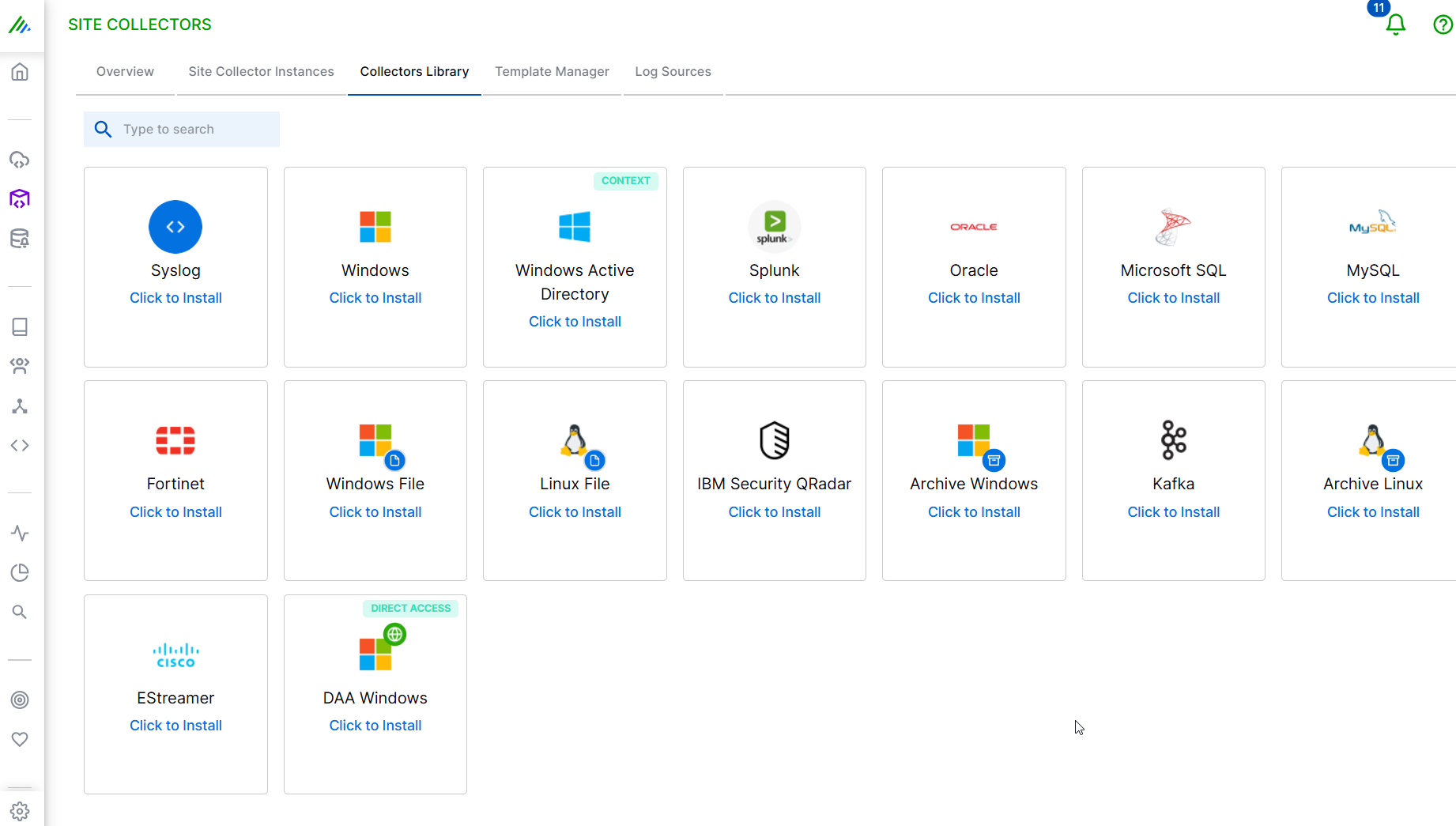
On the Site Collector page, click the Collectors Library tab, then click DAA Windows.
In the Definition section, enter the required information as follows.
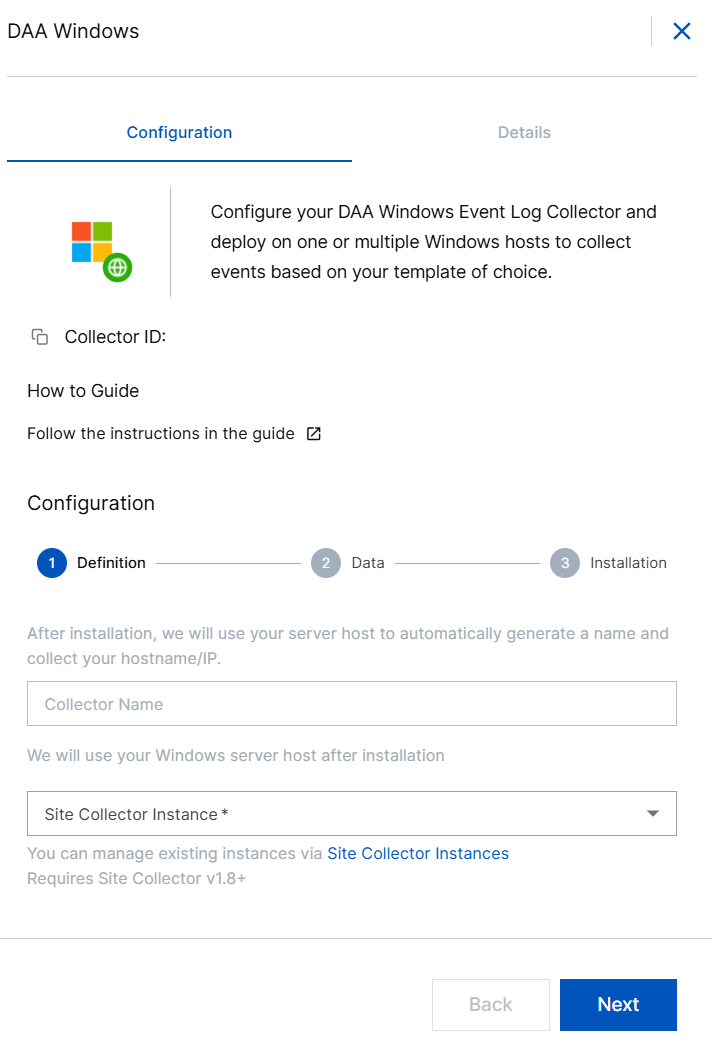
Collector Name – Site Collector generates a name for the DAA Windows collector based on your hostname. You can edit the collector name based on your preference.
Site Collector Instance – Select the virtual Site Collector instance on which you want to set up the DAA Windows Collector. The DAA Windows Collector can be installed only on virtual Site Collector instance.
Click Next.
In the Data section, set up the Windows template while configuring the collector. After you create a template, you can reuse the template for other collector instances or create a new template each time you set up a new DAA Windows Collector.
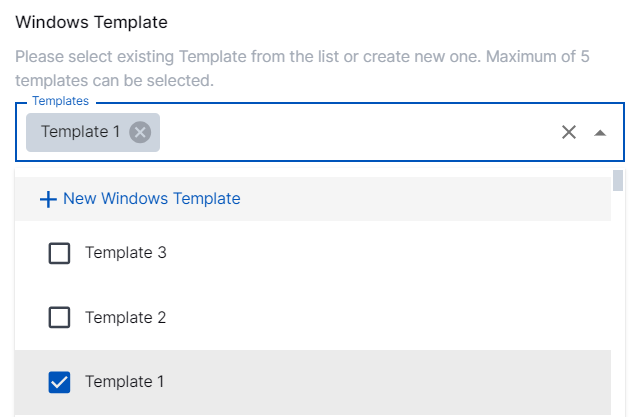
Windows Template – Select preconfigured templates to filter logs, or, create a new template. Templates enable you to filter logs by attribute values.
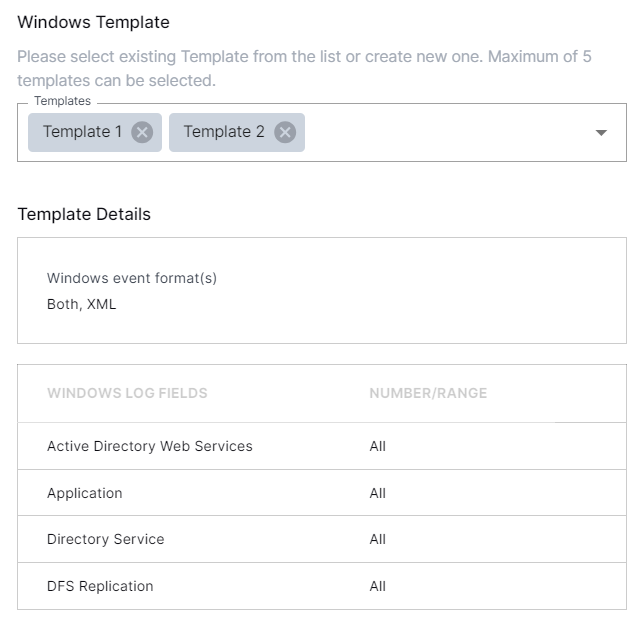
You can select one or up to five preconfigured templates. If you select templates with conflicting conditions, the collector instance may pull duplicate data. To avoid data duplication, it is recommended to create templates with different conditions. For example:
Log Conditions for Template 1
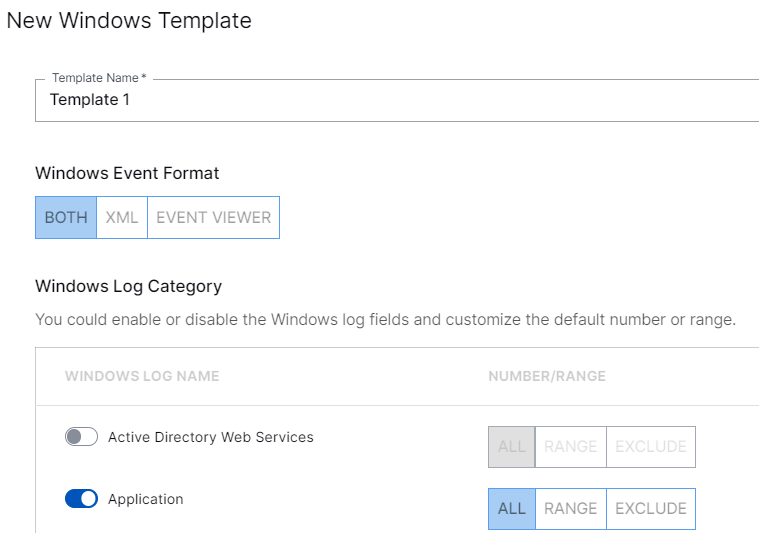
Log Conditions for Template 2

Log Conditions for Template 3
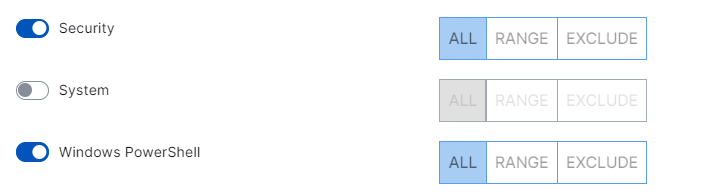
By clicking +New Windows Template, you can create and apply up to five templates.
To create a new Windows template:
In the Templates list, click New Windows Template.
In the Template Name field, specify a name for the new Windows template.
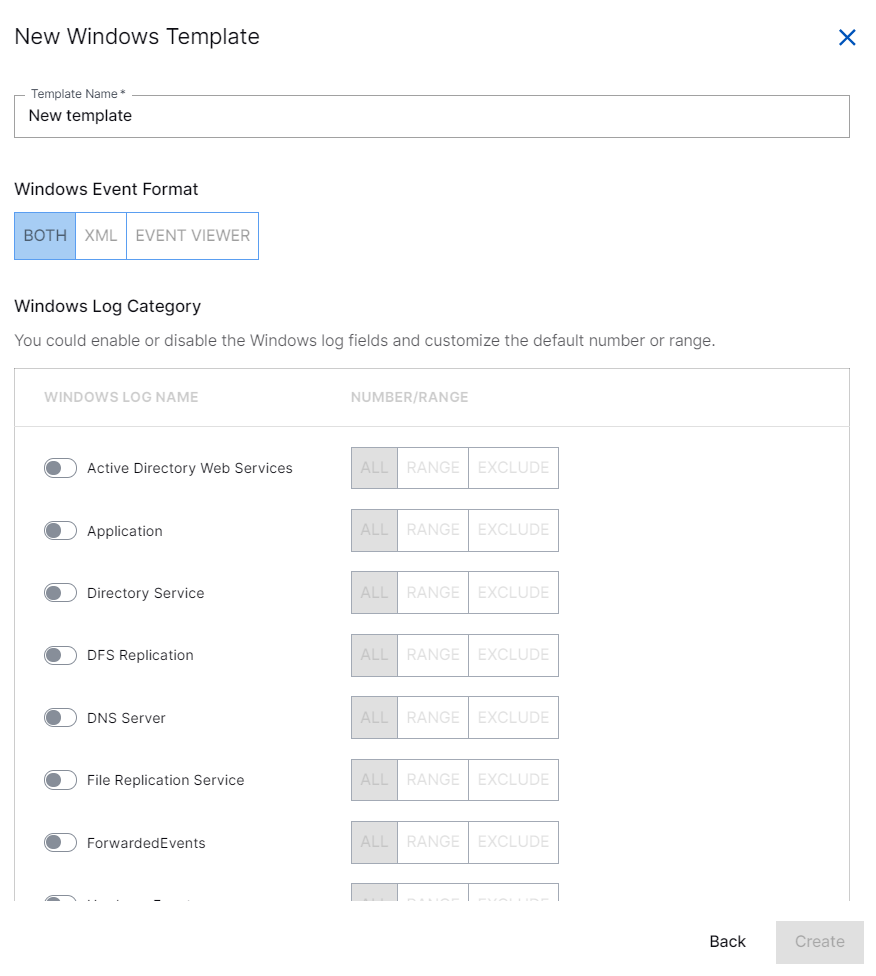
In the Windows Event Format section, select the format: XML, Event Viewer format (called as Friendly View in Windows Journal), or both, in which you want the Collector to pull logs.
In the Windows Log Category section, for filtering logs, enable the log fields that you want to use and select the appropriate option: All, Range, and Exclude.
All – Click All to include all types of logs irrespective of the value. The collector collects all events for the specified Windows Log name.
Range – Click Range and specify a range in the box that appears next. The collector collects security events based on the defined range.
Exclude – Click Exclude and specify a value for the events to be rejected while log collection in the box that appears next. The collector collects all the security events from the specified Windows Log name excluding the events listed in this section.
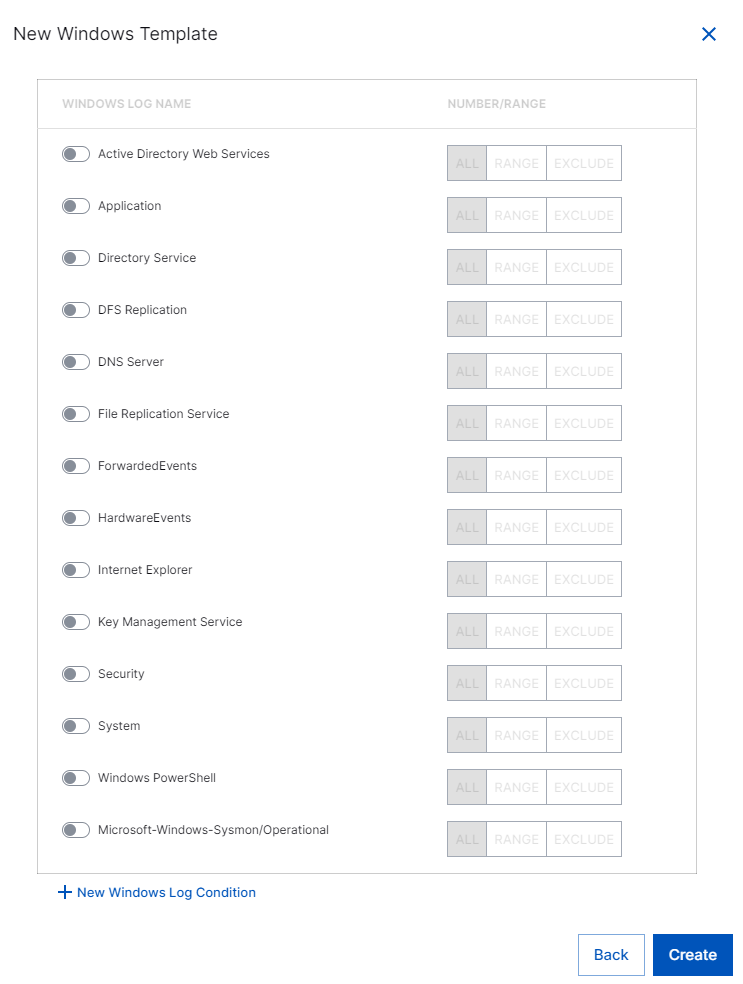
Click Create.
The Windows template is created.
In the Installation section, copy the scripts. Downloading certificates is not required for this collector.
Install Script – Copy the Install script. Paste the script in the PowerShell or CMD command line interface as an administrator and run the copied command to install the DAA Windows collector.
Uninstall Script – To uninstall the DAA Windows collector, copy and run the script using PowerShell or CMD interface as an administrator. You must execute the script on the windows server.
Verify that the Collector installed. After you run the Install script on your Windows server, you get a confirmation message about successful collector installation and the Collector instance is listed in the Overview section on the user interface.
The DAA Windows Collector is set up and is ready to pull Windows events from your Windows server.