
- Site Collector Overview
- Get Started with Site Collectors
- Install Site Collector
- Set Up Collectors
- Sign Up for the Early Access Program: Site Collectors
- Choose the Right Collector based on Data Sources
- Set Up Archive Windows Collector
- Set Up Archive Linux Collector
- Set Up Direct Access Agent (DAA) Windows Event Log Collector
- Set Up EStreamer Collector
- Set Up Fortinet Collector
- Set Up IBM Security QRadar Collector
- Set Up Kafka Collector
- Set Up Splunk Collector
- Set Up Linux File Collector
- Set Up Microsoft SQL Collector
- Set Up MySQL Collector
- Set Up Oracle Collector
- Set Up Syslog Collector
- Set Up Windows Active Directory Collector
- Set Up Windows Event Log Collector
- Set Up Windows File Collector
- Manage Site Collectors
- Apply Antivirus Exclusions
- Migrate to the New-Scale Site Collectors Service
- Modify Collector Configuration
- Modify a Site Collector Instance
- Manage Templates
- Monitor Log Sources
- Add Filters to Set Egress Log Filtering Conditions
- New Site Collector Management Service NGSCD
- Regenerate Certificates for Collectors
- Automatic Renewal of Security Certificates
- Refresh Certificates via User Interface (Site Collector 2.3.0 or Later)
- Set Auto Certificate Refresh via Maintenance Window (Site Collector 2.22.0 or later)
- Generate TLS Certificate for Site Collector 2.2 and Later
- Generate TLS Certificate for Site Collector 2.16.0 and Later
- Regenerate Security Certificates Using CLI
- Recover Certificates
- Troubleshoot Common Issues
- Upgrade Site Collector
- Upgrade the Site Collector Specifications
- Universal Collector Management Framework
- Run Required Prechecks
- Manage Collectors using Site Collector User Interface
- Manage Collectors using Command Line
- Upgrade Collectors using Site Collector User Interface
- Upgrade Collectors using the Command Line
- Automatic Renewal of Security Certificates
- Manual Security Certificate Update
- Recover Certificates
- Vulnerability Remediation Policy
- Delete a Site Collector Instance
- Site Collector Monitoring
- Troubleshoot the Site Collector
- Pre-checks failed during Site Collector installation and upgrade
- Site Collector UI shows the status INSTALLATION_ERROR
- Download Support Packages for Troubleshooting
- How to reboot the Virtual Machine (VM) successfully to apply security updates?
- What information must be added while creating a support ticket to resolve an issue?
- Site Collector UI is not displaying the heartbeats
- Splunk Collector can't be set up
- Splunk Collector is set up however, logs are not reaching DL/AA
- Only a few of the installed Splunk Collectors are processing logs or EPS has dropped by 50% as compared to last hour
- The Windows Active Directory Collector (formerly known as LDAP Collector) is set up, however, the context data is not reaching DL/AA
- The Windows Active Directory Collector (formerly known as LDAP Collector) is stuck in the ‘Update’ mode after deployment
- Installation is initiated; however, the collector shows the status as ‘Setting Up’ for some time
- Data Lake and Advanced Analytics Does Not Show Context Data
- Context Data from Windows Active Directory Collector is Segmented
- Minifi Permission Denied - Logback.xml File Missing and Config File Update - Failed Error Occurred while Installing the Windows Event Log Collector
- Where should I upload proxy certificates if I am running proxy with TLS interception?
- How to upgrade Linux collector instance?
Manage Notifications
Manage notification settings individually or in bulk from the Site Collectors overview page. Using the three-dot menu, you can access the Notification Settings popup window for a specific collector to toggle inactive notifications on or off and set custom thresholds. You can select multiple collectors simultaneously to apply uniform notification settings using the bulk action feature.
Use the following steps to manage notifications about collectors.
Log in to the New-Scale Security Operations Platform with your registered credentials.
Navigate to Collectors > Site Collectors.
The Overview page displays a list of collector instances.
Click (⋮) menu in the last column for a collector instance.
Click Notification Settings.
Enable or disable the notifications for an inactive Collector using the toggle button.
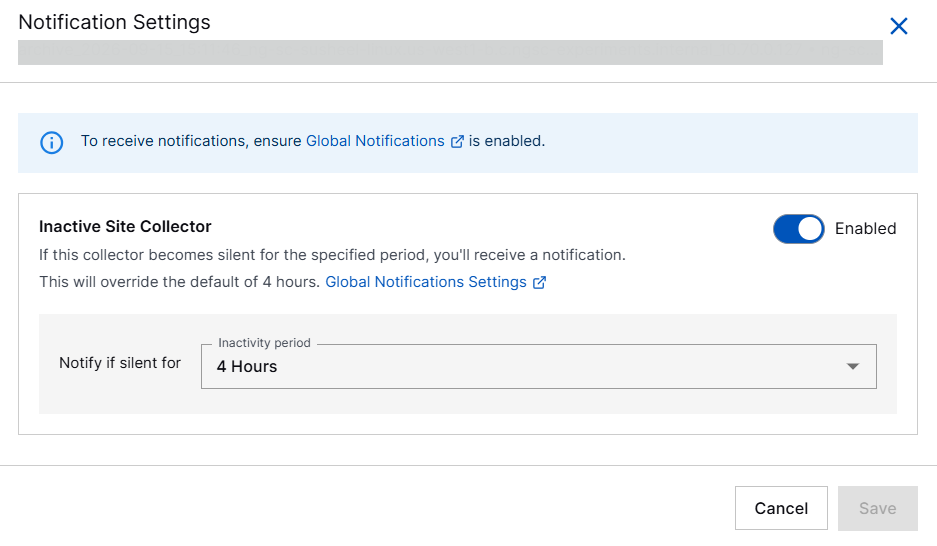
Select the inactivity period to set threshold for an inactive collector.
Click Save.
The notification settings are saved.
You can apply notification settings to multiple collectors in one go by selecting the collector instances. You can also filter collectors by collector type, Site Collector instance on which they are configured, and by their status, then configure the notification settings for the inactive collectors in bulk.

Note
Notification configuration applies only to the Inactive Site Collector notification type and not to the other notification types. The Inactive Site Collector Notification settings for individual collectors will be applied only if the Inactive Site Collector Notification is enabled in the Global Notification settings.
Custom certificates are not upgraded automatically. To avoid any disruption or certificate expiration issues you must manually renew any custom certificates.