
- Onboard Cloud Collectors
- Shareable Service Accounts
- Add Accounts for AWS Cloud Collectors
- Add Accounts for Cisco Duo Cloud Collector
- Add Accounts for Google Cloud Collectors
- Add Accounts for Microsoft Cloud Collectors
- Add Accounts for Okta Cloud Collectors
- Add Accounts for Salesforce Cloud Collectors
- Add Accounts for Splunk Cloud Collectors
- Add Accounts for Trend Micro Cloud Collectors
- Add Accounts for Wiz
- Abnormal Security Cloud Collector
- Anomali Cloud Collector
- AWS CloudTrail Cloud Collectors
- AWS CloudWatch Cloud Collector
- AWS CloudWatch Alarms Cloud Collector
- AWS GuardDuty Cloud Collector
- AWS S3 Cloud Collector
- AWS Security Lake Cloud Collector
- AWS SQS Cloud Collector
- Azure Activity Logs Cloud Collector
- Azure Blob Storage Cloud Collector
- Azure Log Analytics Cloud Collector
- Azure Event Hub Cloud Collector
- Azure Storage Analytics Cloud Collector
- Azure Virtual Network Flow Cloud Collector
- Box Cloud Collector
- Broadcom Carbon Black Cloud Collector
- Cato Networks Cloud Collector
- ChatGPT Enterprise Cloud Collector
- Cisco Duo Cloud Collector
- Cisco Meraki Cloud Collector
- Cisco Secure Endpoint Cloud Collector
- Cisco Umbrella Cloud Collector
- Cloudflare Cloud Collector
- Cribl Cloud Collector
- CrowdStrike Cloud Collectors
- Cylance Protect (now Arctic Wolf) Cloud Collector
- DataBahn Cloud Collector
- Dropbox Cloud Collector
- GCP Cloud Logging Cloud Collector
- GCP Pub/Sub Cloud Collector
- GCP Security Command Center Cloud Collector
- Gemini Enterprise Cloud Collector
- GitHub Cloud Collector
- Gmail BigQuery Cloud Collector
- Google Workspace Cloud Collector
- Google Security Operations Cloud Collector
- LastPass Cloud Collector
- Microsoft Copilot Integration
- Microsoft Defender XDR (via Azure Event Hub) Cloud Collector
- Microsoft Entra ID Context Cloud Collector
- Microsoft Entra ID Logs Cloud Collector
- Microsoft 365 Exchange Admin Reports Cloud Collector
- Supported Sources from Microsoft 365 Exchange Admin Reports
- Migrate to the Microsoft 365 Exchange Admin Reports Cloud Collector
- Prerequisites to Configure the Microsoft 365 Exchange Admin Reports Cloud Collector
- Configure the Microsoft 365 Exchange Admin Reports Cloud Collector
- Troubleshooting the Microsoft 365 Exchange Admin Reports Cloud Collector
- Recover Stopped Log Ingestion for Microsoft 365 Exchange Admin Reports Cloud Collector
- Microsoft 365 Management Activity Cloud Collector
- Microsoft Security Alerts Cloud Collector
- Microsoft Sentinel (via Event Hub) Cloud Collector
- Mimecast Cloud Collector
- Mimecast Incydr Cloud Collector
- Netskope Alerts Cloud Collector
- Netskope Events Cloud Collector
- Okta Cloud Collector
- Okta Context Cloud Collector
- OpenAI Cloud Collector
- Palo Alto Networks Cortex Data Lake Cloud Collector
- Palo Alto Networks XDR Cloud Collector
- Phishing Email Inbox Cloud Collector
- PingOne Identity Cloud Collector
- Progress ShareFile Cloud Collector
- Proofpoint On-Demand Cloud Collector
- Proofpoint Targeted Attack Protection Cloud Collector
- Qualys Cloud Collector
- Recorded Future Cloud Collector
- Recorded Future Context Cloud Collector
- Rest API Cloud Collector
- S2W Threat Intelligence Cloud Collector
- Salesforce Cloud Collector
- Salesforce EventLog Cloud Collector
- SentinelOne Alerts Cloud Collector
- SentinelOne Cloud Funnel Cloud Collector
- SentinelOne Threats Cloud Collector
- SentinelOne Cloud Collector
- ServiceNow Cloud Collector
- Slack Cloud Collector
- Snowflake Cloud Collector
- Sophos Central Cloud Collector
- Splunk Cloud Collector
- STIX/TAXII Cloud Collector
- Symantec Endpoint Security Cloud Collector
- Tenable Cloud Collector
- Trend Vision One Cloud Collector
- Trellix Endpoint Security Cloud Collector
- Vectra Cloud Collector
- Webhook Cloud Collectors
- Wiz API Cloud Collector
- Workday Cloud Collector
- Zoom Cloud Collector
- Zscaler ZIA Cloud Collector
- Shareable Service Accounts
Prerequisites to Configure the PingOne Cloud Collector
Before you configure the PingOne Cloud Collector, complete the following prerequisites:
Create a new PingOne administrator user for the cloud collector configuration.
Create an API Client.
Obtain the account ID for your PingOne Enterprise account and subscription IDs for the required endpoints.
Create an Administrator
Use the following steps to create an administrator.
Log in to the PingOne administrator portal as an administrator.
Navigate to ACCOUNT > Administrators.
Click Add Administrator.
Enter the required information such as name and email address, then select Audit & Report Administrator in the Role list.
Click Save. PingOne sends an email with a link to set a password to the user. After the user sets a password as prompted, and logs in for the first time via SSO, the user is added to the list of administrators.
Create an API Client
Use the following steps to create an API client.
Log in to the PingOne administrator portal as an administrator.
Navigate to DASHBOARD > Reporting > API CLIENTS.
Click Add API Client.
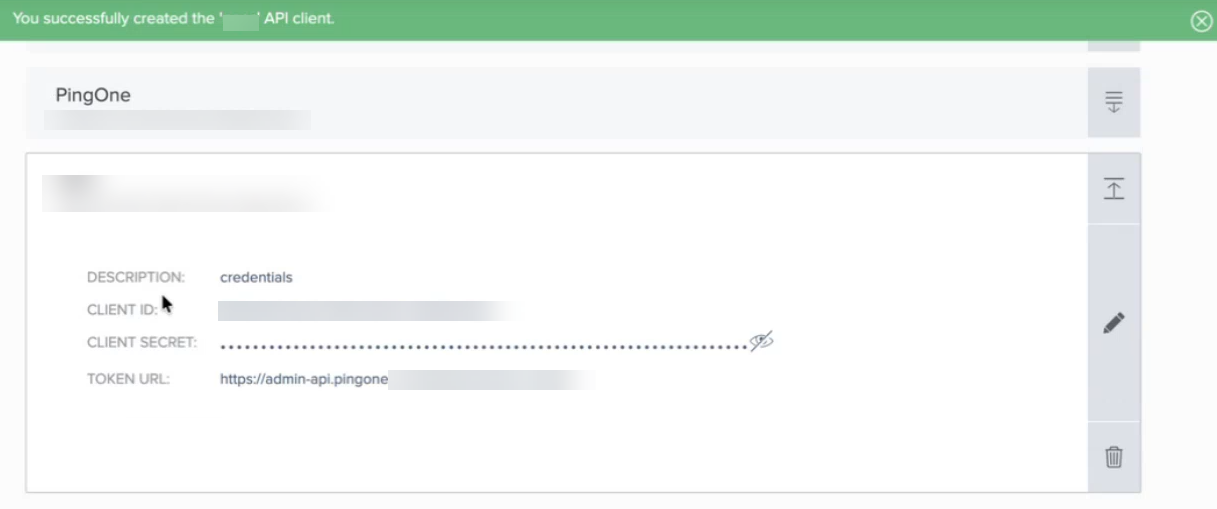
Enter the client name and description and click Next.
PingOne displays the client ID and client secret. Record the values for the client ID and client secret to use them while configuring the cloud collector.
Click Done.
Obtain Account ID and Subscription IDs
To manage subscriptions for the audit events, you must create poll subscriptions for the administrator. For poll subscriptions, the audit events of a specific type are accumulated and provided to a client pulling those events. For more information see Get the audit events for a Poll subscription in the PingOne documentation.
To get the audit events for a Poll subscription and obtain subscription ID:
Log in to the PingOne administrator portal as an administrator.
On the PingOne dashboard, navigate to Reporting > SUBSCRIPTIONS.
Click Add Subscription.
Specify a name for the subscription.
Select the type of event that you want to poll for this subscription. The TYPE list displays the data sources from where the collector collects data.
In Subscription Type area, select Poll, then select a batch size to indicate maximum number of audit events for the polling subscription to retrieve.
Click Done. The Subscriptions page displays the new Poll subscription created.
On the Subscriptions page, select the Poll subscription that you created, then click the expand icon to view details.
Copy the Poll URL. This URL contains account ID and the poll subscription ID. The poll URL has the following syntax: https://admin-api.pingone.com/v3/reports/<account-Id>/poll-subscriptions/<subscriptionID>/events
Note the account ID and the subscription ID represented by a string of letters and numbers. For example, in the URL https://admin-api.pingone.com/v3/reports/5733a0b1-ff99-4e59-95e6-58c14831xxxx/poll-subscriptions/8ae7c229-5198-40ae-bb68-b67bb46exxxx/events, the account ID is 5733a0b1-ff99-4e59-95e6-58c14831xxxx and the subscription ID is 8ae7c229-5198-40ae-bb68-b67bb46exxxx. Use the account ID and the subscription ID to configure the Ping Identity cloud collector.