
- Onboard Cloud Collectors
- Shareable Service Accounts
- Add Accounts for AWS Cloud Collectors
- Add Accounts for Cisco Duo Cloud Collector
- Add Accounts for Google Cloud Collectors
- Add Accounts for Microsoft Cloud Collectors
- Add Accounts for Okta Cloud Collectors
- Add Accounts for Salesforce Cloud Collectors
- Add Accounts for Splunk Cloud Collectors
- Add Accounts for Trend Micro Cloud Collectors
- Add Accounts for Wiz
- Abnormal Security Cloud Collector
- Anomali Cloud Collector
- AWS CloudTrail Cloud Collectors
- AWS CloudWatch Cloud Collector
- AWS CloudWatch Alarms Cloud Collector
- AWS GuardDuty Cloud Collector
- AWS S3 Cloud Collector
- AWS Security Lake Cloud Collector
- AWS SQS Cloud Collector
- Azure Activity Logs Cloud Collector
- Azure Blob Storage Cloud Collector
- Azure Log Analytics Cloud Collector
- Azure Event Hub Cloud Collector
- Azure Storage Analytics Cloud Collector
- Azure Virtual Network Flow Cloud Collector
- Box Cloud Collector
- Broadcom Carbon Black Cloud Collector
- Cato Networks Cloud Collector
- ChatGPT Enterprise Cloud Collector
- Cisco Duo Cloud Collector
- Cisco Meraki Cloud Collector
- Cisco Secure Endpoint Cloud Collector
- Cisco Umbrella Cloud Collector
- Cloudflare Cloud Collector
- Cribl Cloud Collector
- CrowdStrike Cloud Collectors
- Cylance Protect (now Arctic Wolf) Cloud Collector
- DataBahn Cloud Collector
- Dropbox Cloud Collector
- GCP Cloud Logging Cloud Collector
- GCP Pub/Sub Cloud Collector
- GCP Security Command Center Cloud Collector
- Gemini Enterprise Cloud Collector
- GitHub Cloud Collector
- Gmail BigQuery Cloud Collector
- Google Workspace Cloud Collector
- Google Security Operations Cloud Collector
- LastPass Cloud Collector
- Microsoft Copilot Integration
- Microsoft Defender XDR (via Azure Event Hub) Cloud Collector
- Microsoft Entra ID Context Cloud Collector
- Microsoft Entra ID Logs Cloud Collector
- Microsoft 365 Exchange Admin Reports Cloud Collector
- Supported Sources from Microsoft 365 Exchange Admin Reports
- Migrate to the Microsoft 365 Exchange Admin Reports Cloud Collector
- Prerequisites to Configure the Microsoft 365 Exchange Admin Reports Cloud Collector
- Configure the Microsoft 365 Exchange Admin Reports Cloud Collector
- Troubleshooting the Microsoft 365 Exchange Admin Reports Cloud Collector
- Recover Stopped Log Ingestion for Microsoft 365 Exchange Admin Reports Cloud Collector
- Microsoft 365 Management Activity Cloud Collector
- Microsoft Security Alerts Cloud Collector
- Microsoft Sentinel (via Event Hub) Cloud Collector
- Mimecast Cloud Collector
- Mimecast Incydr Cloud Collector
- Netskope Alerts Cloud Collector
- Netskope Events Cloud Collector
- Okta Cloud Collector
- Okta Context Cloud Collector
- OpenAI Cloud Collector
- Palo Alto Networks Cortex Data Lake Cloud Collector
- Palo Alto Networks XDR Cloud Collector
- Phishing Email Inbox Cloud Collector
- PingOne Identity Cloud Collector
- Progress ShareFile Cloud Collector
- Proofpoint On-Demand Cloud Collector
- Proofpoint Targeted Attack Protection Cloud Collector
- Qualys Cloud Collector
- Recorded Future Cloud Collector
- Recorded Future Context Cloud Collector
- Rest API Cloud Collector
- S2W Threat Intelligence Cloud Collector
- Salesforce Cloud Collector
- Salesforce EventLog Cloud Collector
- SentinelOne Alerts Cloud Collector
- SentinelOne Cloud Funnel Cloud Collector
- SentinelOne Threats Cloud Collector
- SentinelOne Cloud Collector
- ServiceNow Cloud Collector
- Slack Cloud Collector
- Snowflake Cloud Collector
- Sophos Central Cloud Collector
- Splunk Cloud Collector
- STIX/TAXII Cloud Collector
- Symantec Endpoint Security Cloud Collector
- Tenable Cloud Collector
- Trend Vision One Cloud Collector
- Trellix Endpoint Security Cloud Collector
- Vectra Cloud Collector
- Webhook Cloud Collectors
- Wiz API Cloud Collector
- Workday Cloud Collector
- Zoom Cloud Collector
- Zscaler ZIA Cloud Collector
- Shareable Service Accounts
Prerequisites to Configure the Gemini Enterprise Cloud Collector
Before you configure the Gemini Enterprise Cloud Collector, complete the following prerequisites:
Create a model armor template on console.cloud.google.com.
(Optional) Create a Gemini Enterprise app and enable the Model Armor template for the app. This step is optional if you already have the Gemini Enterprise App.
Obtain the Gemini Enterprise app ID.
Verify if the query retrieves logs for both Discovery Engine and Model Armor in the Log Explorer.
Set up a logging sink – Set up a logging sink to export data to Pub/Sub either at the project level or at a folder of the organization level, depending on the data you want to export. For more information, see Routing and storage overview.
Create the required subscription in the pub/sub topic.
Obtain a Subscription ID – Set up a subscription for the Pub/Sub topic to which the log data is exported. Note the Subscription ID that you set while creating a subscription in GCP Pub/Sub and subscription. Subscription ID is associated with your Pub/Sub topic. For more information, see Set up Pub/Sub topic and subscriptions in the Google documentation.
Set audit log permissions – Enable the Data write permission for the cloud discovery engine in Audit logs section.
Obtain a Project ID – Note the Project ID that you set while creating the Google service account. See Create a Service Account and Obtain a Project ID.
Assign the required permissions to the service account – Assign the following permissions to the service account to support auto-scaling on your Google Cloud Platform:
dataflow.metrics.get
monitoring.metricDescriptors.get
monitoring.metricDescriptors.list
monitoring.monitoredResourceDescriptors.list
monitoring.timeSeries.list
Obtain a Service Credentials JSON file – Create a JSON key for the service account on your Google Cloud Platform. You must enter the JSON file content in the SERVICE CREDENTIALS JSON field while adding a new Google Service account during the Cloud Collector configuration.
Assign the required subscription permissions – Assign pubsub.subscriptions.consume permission to the service account.
Create a Model Armor Template
The Model Armor templates help you set filters and thresholds for different safety and security needs to screen prompts and responses in your AI apps.
Use the following steps to create a Model Armor template on the Google Cloud Console.
Ensure that you have the Model Armor Admin IAM role (roles/modelarmor.admin) for creating templates.
Enable the Model Armor API in your Google Cloud project.
Navigate to the Security section, then select Model Armor. Alternatively, you can use the search box to locate the Model Armor page.
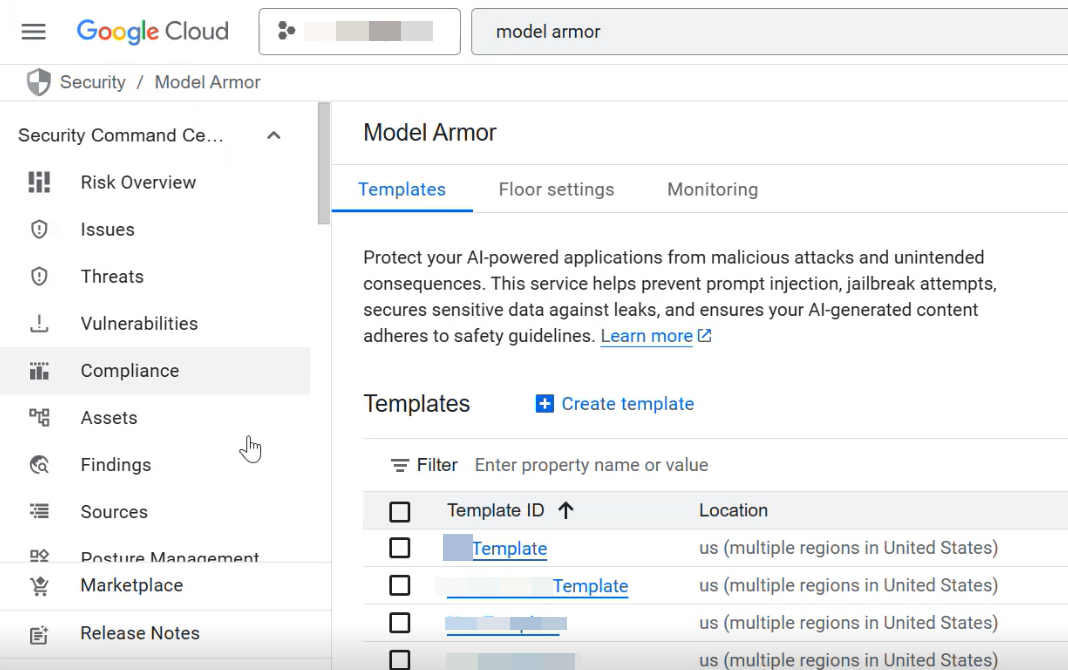
Click Create template.
Specify a template ID and select a region. The region that you select must match with the Gemini Enterprise app that you created.
In the Detections section, select Prompt injection and jailbreak detection. Based on your requirement, you can select multiple options.
In the Responsible AI section, based on your requirement set the filter.
In the Configure logging section, select Prompts and responses. You can select the operations for which you want to configure logging. When you enable this option, the log explorer displays Model Armor logs.
Optionally, you can select Enable multi-language support for using the multi-language detection settings.
Click Create.
The page displays a confirmation message which indicates that the template is created successfully.
For more information, see Create and manage templates in the Google Cloud documentation. For the detailed steps, refer to the Create a Model Armor template section in the Google cloud documentation.
On the Template details page that appears after you create the template, from the Resource name field, copy the path by clicking the copy icon.
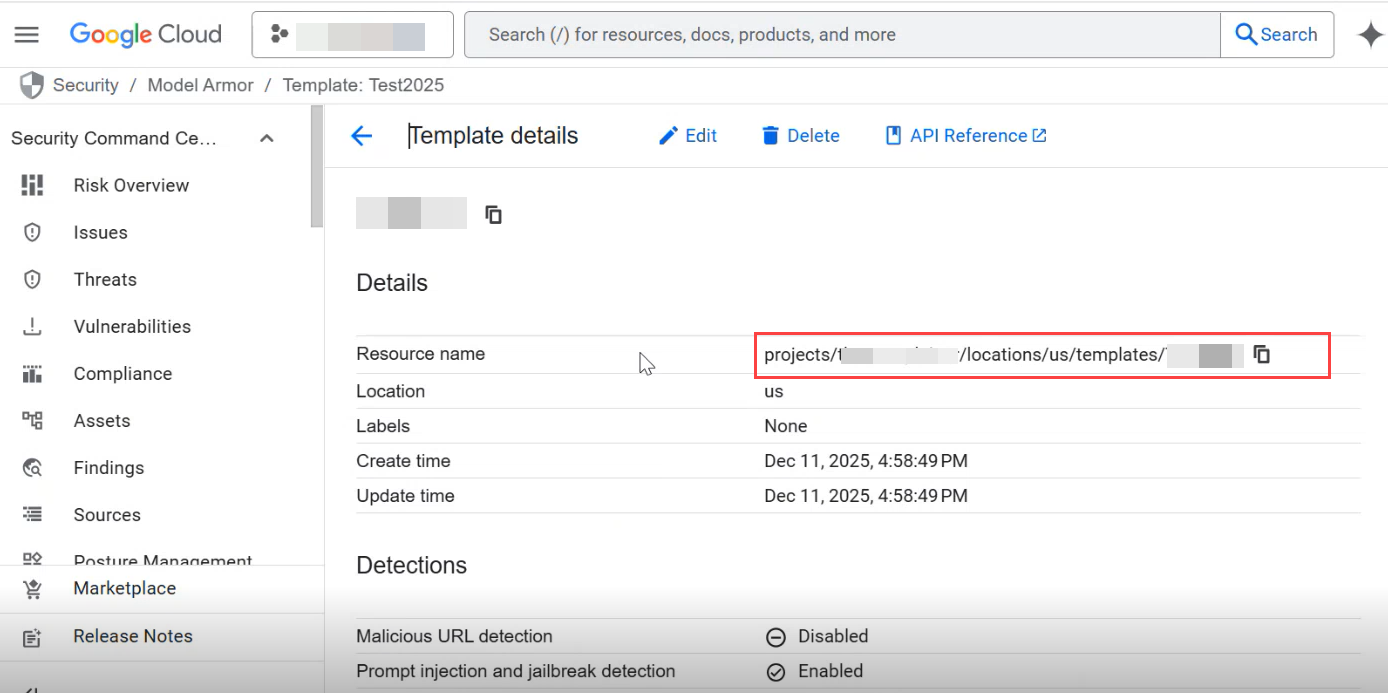
Record the Resource name path to use while creating the Gemini Enterprise app in your project on the the Google cloud console.
Create a Gemini Enterprise app
The Gemini Enterprise app helps you search relevant data and automate tasks using AI in a secure and easy way. Use the following steps to create a Gemini Enterprise App on the Google Cloud Console. For more information see Create an app in the Google cloud documentation.
On the Google Cloud Console, navigate to the Gemini Enterprise page. Alternatively, you can use the search box to locate the Gemini Enterprise page.
In the Apps page, click Create app.
Specify the name for app by updating the automatically generated app ID, and select a location. The region that you select for the app must match with the Google Model Armor Template that you created.
Click Create.
The page displays a confirmation message which indicates that the app is created successfully.
On the same app page in the left pane, click Configurations.
In the Assistant tab, enable the option Enable Model Armor.

In the Gemini Model Armor template for user prompts field, paste the Resource name path that you recorded while creating the Model Armor template.
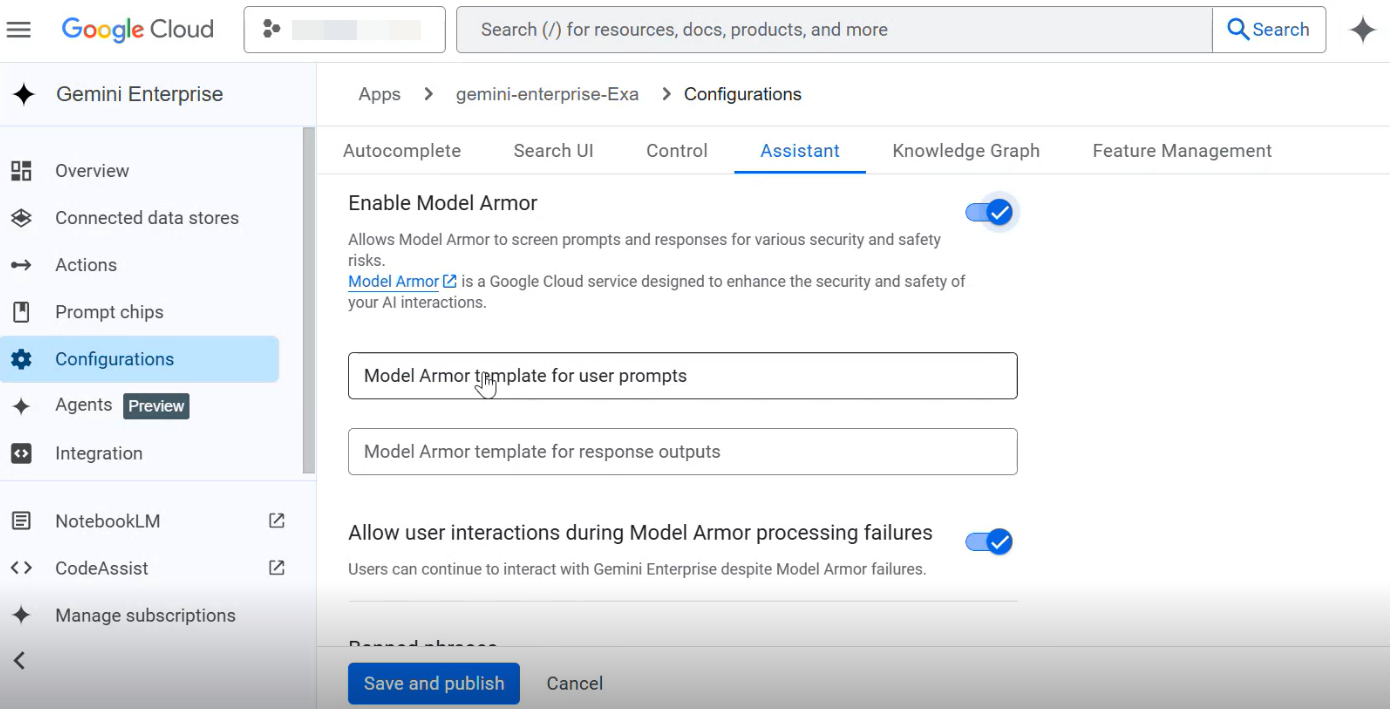
Complete the other required configurations for the Gemini Enterprise app based on your requirement. For more information see, Configure the assistant and the other relevant sections in the Google Cloud documentation.
Click Save and publish.
Obtain the Gemini Enterprise APP ID
Use the following steps to obtain the Gemini Enterprise App ID.
In the Google Cloud Console, navigate to the Apps page.
The Apps page lists all the Gemini Enterprise apps that you created.
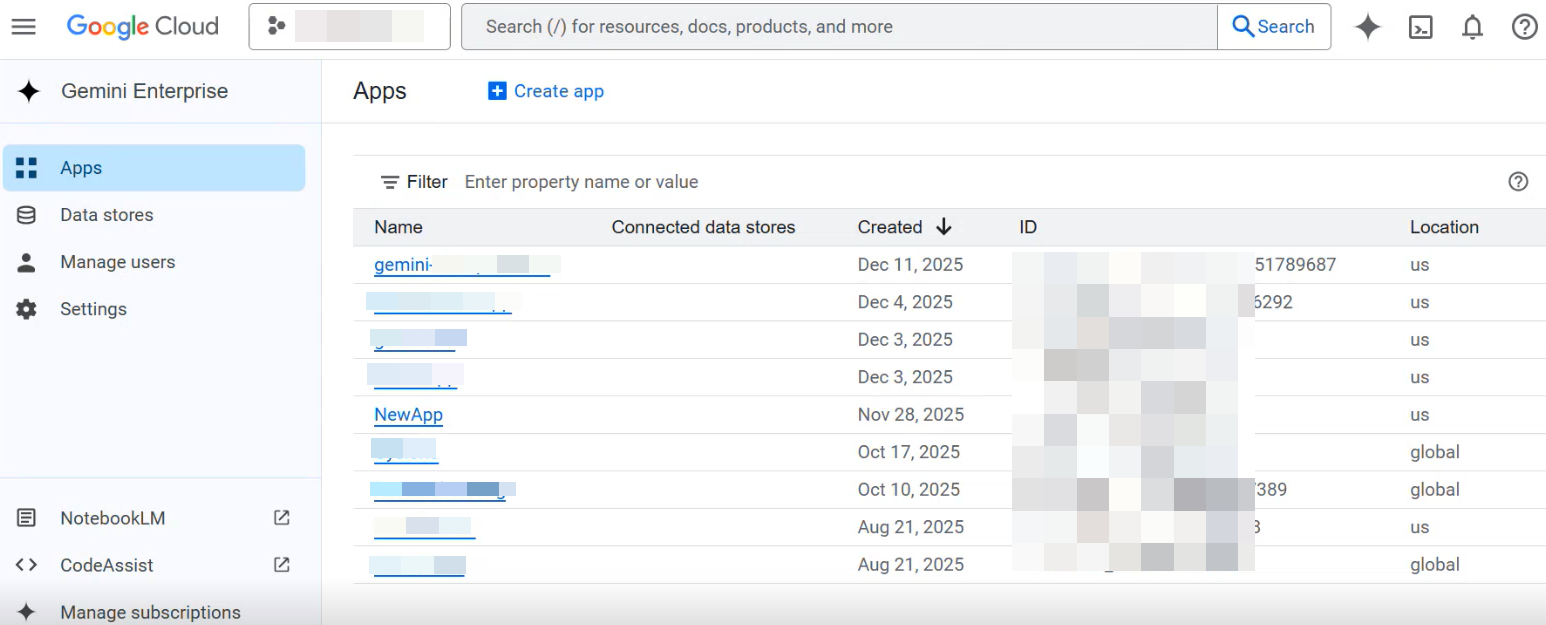
Record the app ID listed in the ID column for the Gemini Enterprise apps that you created.
Use this ID while entering query in the Log Explorer.
Verify Logs in the Log Explorer
In Google Cloud Console, Log Explorer helps you to search, view, filter, and analyze log data from various Google cloud services. The Log Explorer shows details all the logs in the explorer window. To filter and view only Model Armor logs, enter the appropriate query in the upper right text box.
Use the following steps to enter a query in the Log Explorer.
In the Log Explorer, enter the following query to verify its accuracy and ensure that the query retrieves logs for both Discovery Engine and Model Armor.
(resource.type="audited_resource"
resource.labels.method="google.cloud.discoveryengine.v1main.AssistantService.StreamAssist"
resource.labels.service="discoveryengine.googleapis.com"
operation.first="true"
protoPayload.resourceName=~"<yourappname>")
OR
(resource.type="modelarmor.googleapis.com/SanitizeOperation"
jsonPayload.operationType="SANITIZE_USER_PROMPT"
labels."modelarmor.googleapis.com/client_correlation_id"=~"<yourappname>")
Use this query while configuring the logging sink.
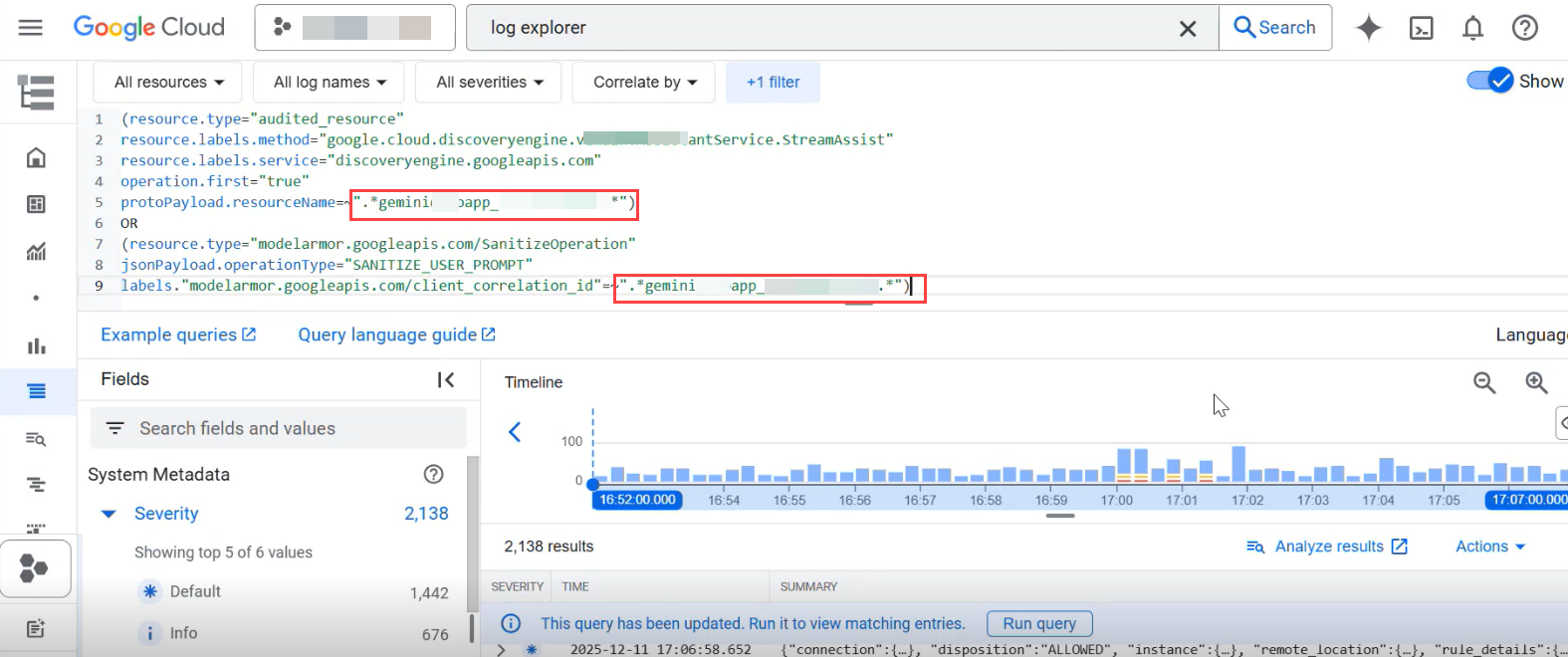
In the query, replace the ID in
".*geminiabcdapp_1891823799993*"in line 5 and 9, with your APP ID that you obtained after creating a Gemini Enterprise App via the Apps page.In the upper right corner, click Run Query.
Verify that the results section displays user prompt logs for the discovery engine and model armor.
Set up a Logging Sink
Use the following steps to set up a logging sunk.
On the Google Cloud console, navigate to Log Router.
Click Create Sink. For more information, see Routing and storage overview and create a sink in the Google cloud documentation.
Add sink details such as name and description.
In the Sink destination section, select the Cloud Pub/Sub topic sink service, and select an existing Cloud Pub/Sub topic or create a new one.
Click Next.
Enter the the following query to create a filter and verify if logs are fetched for model armor.
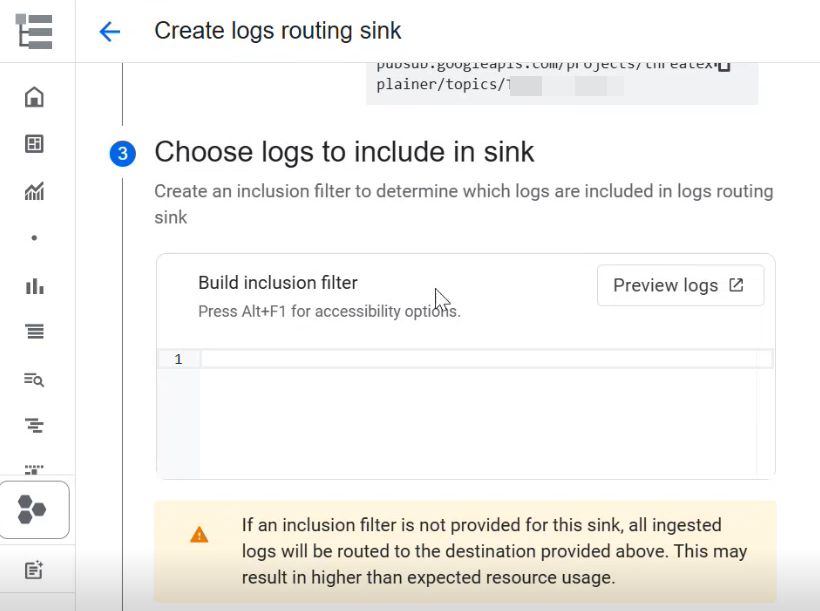
(resource.type="audited_resource"
resource.labels.method="google.cloud.discoveryengine.v1main.AssistantService.StreamAssist"
resource.labels.service="discoveryengine.googleapis.com"
operation.first="true"
protoPayload.resourceName=~"<yourappname>")
OR
(resource.type="modelarmor.googleapis.com/SanitizeOperation"
jsonPayload.operationType="SANITIZE_USER_PROMPT"
labels."modelarmor.googleapis.com/client_correlation_id"=~"<yourappname>")
Click Next, then click Create sink.
The page displays a confirmation message which indicates that the log sink is created successfully. The sink routes the logs from log explorer to the Pub/sub topic.
Create the Required Subscription in Pub/Sub Topic
After you created the log sink, you can create a subscription and obtain the subscription ID. Refer to the following steps for obtaining a subscription ID.
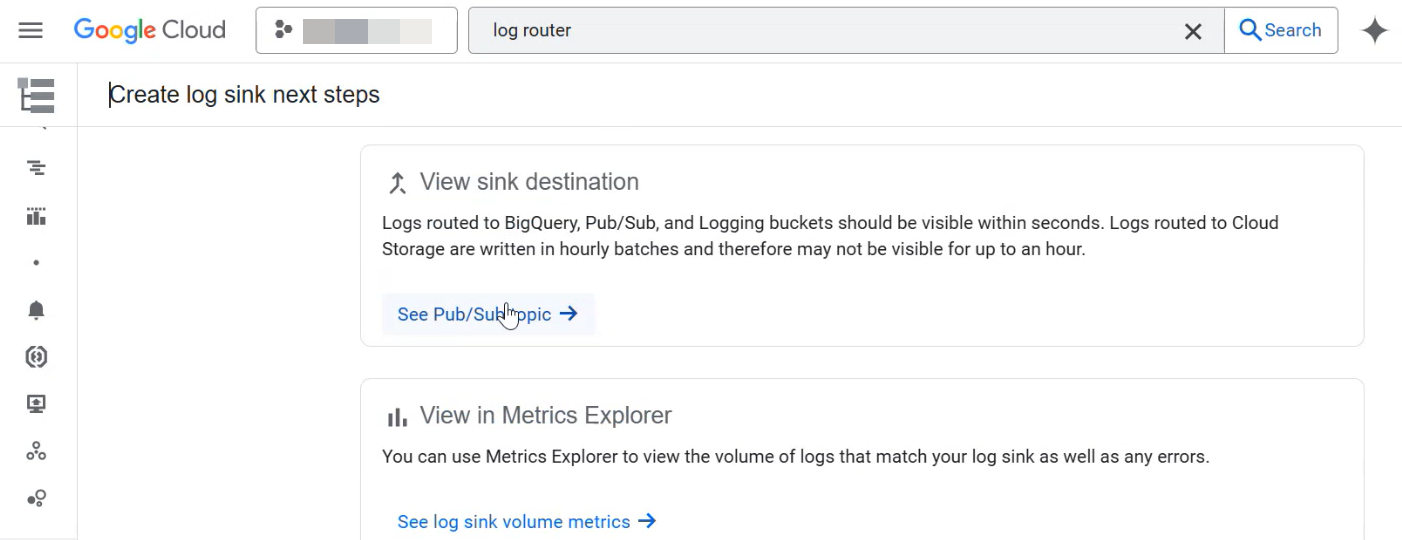
On the Create log sink next steps page, in the View sink destination section, click See Pub/Sub topic.
In the Pub/Sub topic that you created, in the Subscriptions section, Click Create subscription.
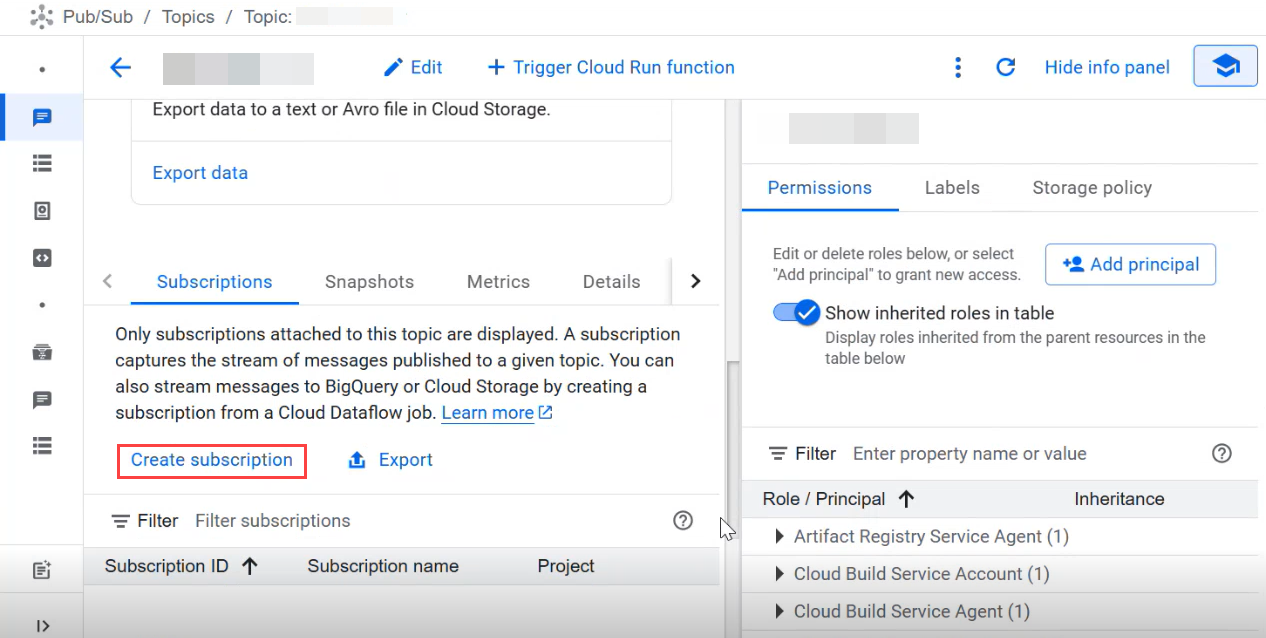
Specify a subscription ID. Use this subscription ID while you configure the Gemini Enterprise Cloud Collector.

Set the other options such as Message retention duration and Expiration period based on your requirement.
Click Create.
Set Audit Log Permissions
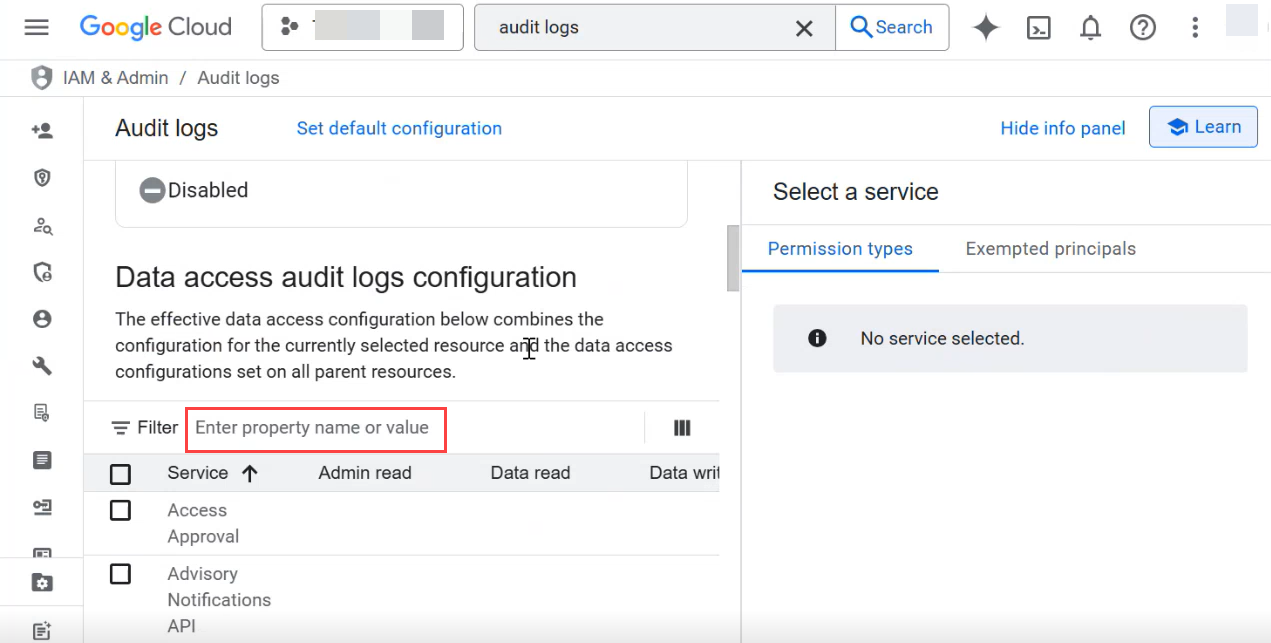
Use the following steps to configure audit log permissions for Cloud Discovery Engine API.
In the Google Cloud Console, navigate to IAM & Admin > Audit Logs. Alternatively, you can use the search box to locate the Audit logs page.
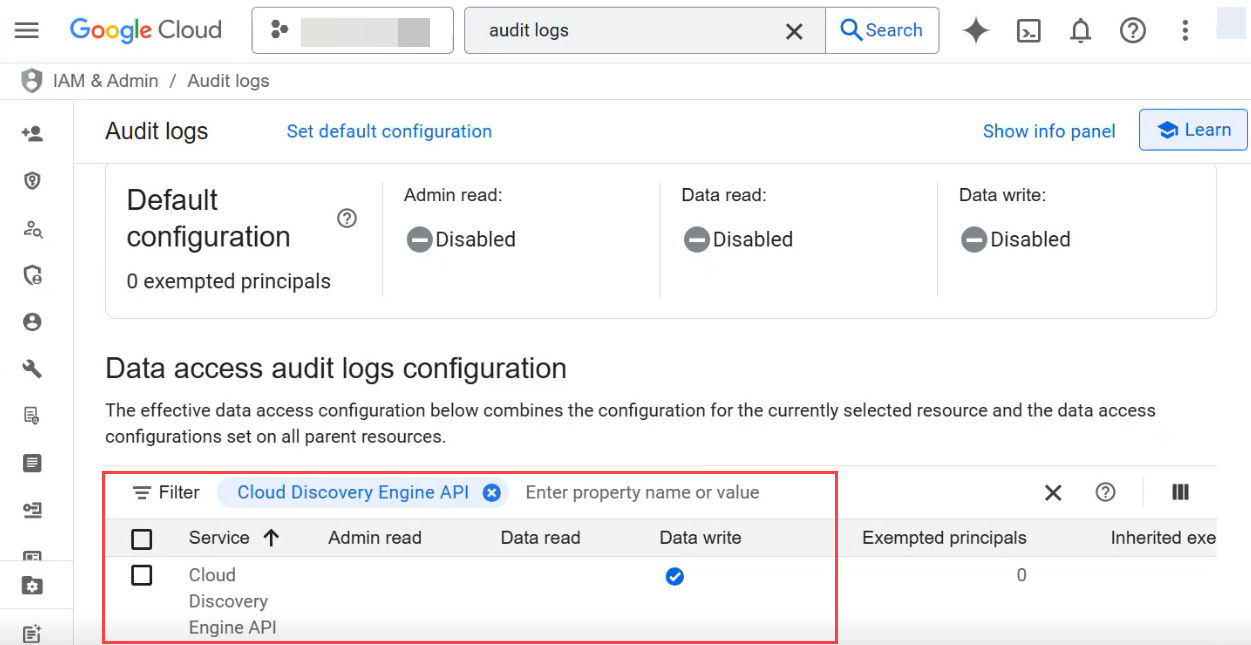
In the Data access audit logs configuration, search for a property name Cloud Discovery Engine API.
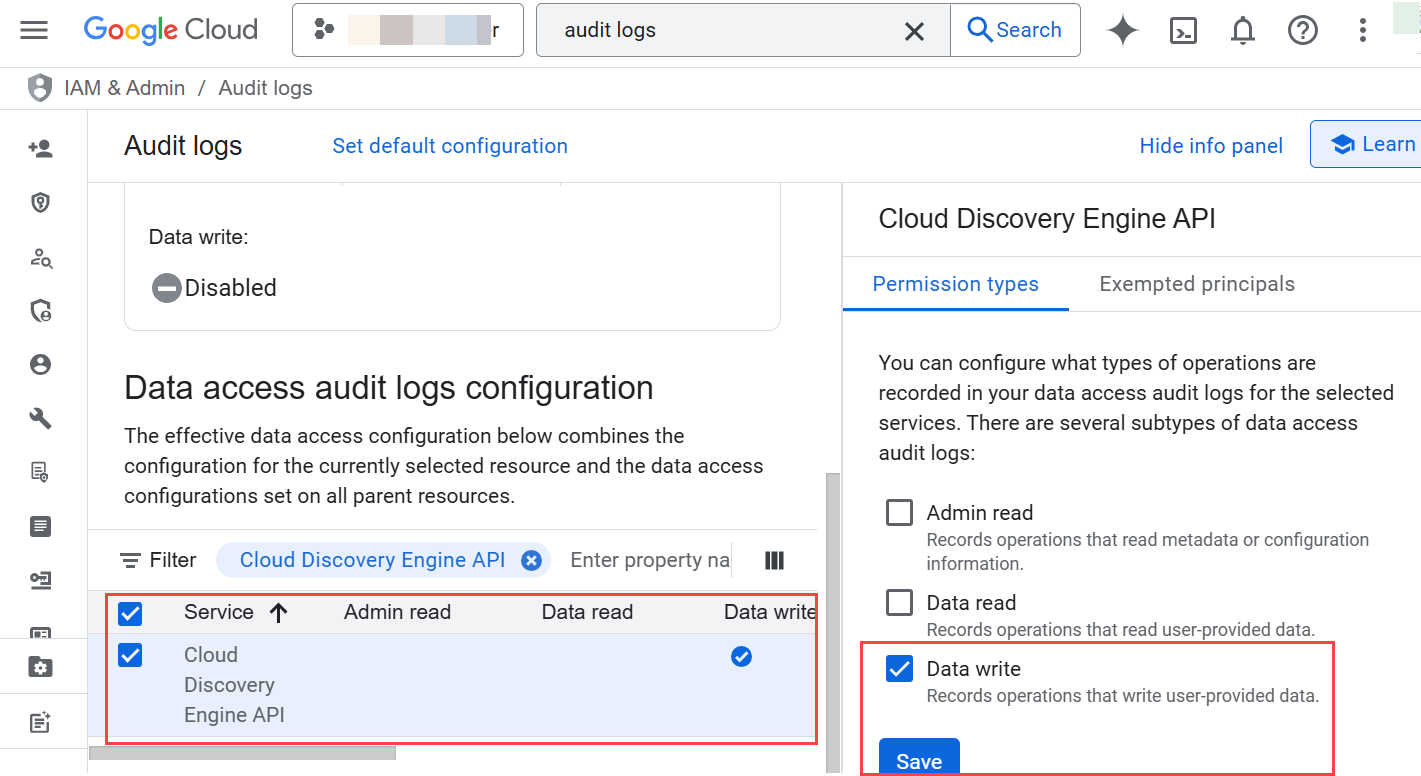
Enable the data access audit log type Data write for Cloud Discovery Engine API.
Click Save. The Data write permission is applicable to the apps that you create in the project in Google Cloud console.
Create a Service Account and Obtain a Project ID
To create a service account in the project in which the Pub/Sub subscription has been created, in the Google Cloud console, navigate to IAM & Admin > Service Accounts > CREATE SERVICE ACCOUNT page.
Select a Cloud project if you already created a project. If not, create a Cloud project.
Enter the project name and edit the automatically generated project ID. Note the Project ID that you set while creating the Google service account. You require to use the project ID while configuring the Gemini Enterprise Cloud Collector.
For more information and relevant steps, see Creating and managing service accounts in the Google documentation.
Create a Service-Credentials-Json File for the Gemini Enterprise Cloud Collector
To facilitate communication and enable to retrieve audit events, you must create a service-credentials-json file.
Log in to the Google Developers Console with an account that has super-admin permissions.
Select a Google Cloud project from which you want to collect logs.
Create the service account and download service account JSON file.
In the top-left corner of the console, click Menu.
Click IAM & Admin.
Click Create service account and in the Service account name field, enter a name for the service account.
Select the Furnish a new private key box and ensure the key type is set to JSON.
Select the Enable Domain-wide Delegation box and enter a name in the Product name for the consent screen field.
Click Create. You'll see a message that the service account JSON file has been downloaded to your computer. The JSON file contains the project ID.
Click Close.