
- Cloud Collectors Overview
- Administration
- Administrative Access
- Shareable Service Accounts
- Add Accounts for AWS Cloud Collectors
- Add Accounts for Cisco Duo Cloud Collector
- Add Accounts for Google Cloud Collectors
- Add Accounts for Microsoft Cloud Collectors
- Add Accounts for Okta Cloud Collectors
- Add Accounts for Salesforce Cloud Collectors
- Add Accounts for Splunk Cloud Collectors
- Add Accounts for Trend Micro Cloud Collectors
- Add Accounts for Wiz
- Define a Unique Site Name
- Sign Up for the Early Access Program
- Supported Cloud Collectors
- Onboard Cloud Collectors
- Abnormal Security Cloud Collector
- Anomali Cloud Collector
- AWS CloudTrail Cloud Collectors
- AWS CloudWatch Cloud Collector
- AWS CloudWatch Alarms Cloud Collector
- AWS GuardDuty Cloud Collector
- AWS S3 Cloud Collector
- AWS Security Lake Cloud Collector
- AWS SQS Cloud Collector
- Azure Activity Logs Cloud Collector
- Azure Blob Storage Cloud Collector
- Azure Log Analytics Cloud Collector
- Azure Event Hub Cloud Collector
- Azure Storage Analytics Cloud Collector
- Azure Virtual Network Flow Cloud Collector
- Box Cloud Collector
- Broadcom Carbon Black Cloud Collector
- Cato Networks Cloud Collector
- ChatGPT Enterprise Cloud Collector
- Cisco Duo Cloud Collector
- Cisco Meraki Cloud Collector
- Cisco Secure Endpoint Cloud Collector
- Cisco Umbrella Cloud Collector
- Cloudflare Cloud Collector
- Cribl Cloud Collector
- CrowdStrike Cloud Collectors
- Cylance Protect (now Arctic Wolf) Cloud Collector
- DataBahn Cloud Collector
- Dropbox Cloud Collector
- GCP Cloud Logging Cloud Collector
- GCP Pub/Sub Cloud Collector
- GCP Security Command Center Cloud Collector
- Gemini Enterprise Cloud Collector
- GitHub Cloud Collector
- Gmail BigQuery Cloud Collector
- Google Workspace Cloud Collector
- LastPass Cloud Collector
- Microsoft Defender XDR (via Azure Event Hub) Cloud Collector
- Microsoft Entra ID Context Cloud Collector
- Microsoft Entra ID Logs Cloud Collector
- Microsoft 365 Exchange Admin Reports Cloud Collector
- Supported Sources from Microsoft 365 Exchange Admin Reports
- Migrate to the Microsoft 365 Exchange Admin Reports Cloud Collector
- Prerequisites to Configure the Microsoft 365 Exchange Admin Reports Cloud Collector
- Configure the Microsoft 365 Exchange Admin Reports Cloud Collector
- Troubleshooting the Microsoft 365 Exchange Admin Reports Cloud Collector
- Microsoft 365 Management Activity Cloud Collector
- Microsoft Security Alerts Cloud Collector
- Microsoft Sentinel (via Event Hub) Cloud Collector
- Mimecast Cloud Collector
- Mimecast Incydr Cloud Collector
- Netskope Alerts Cloud Collector
- Netskope Events Cloud Collector
- Okta Cloud Collector
- Okta Context Cloud Collector
- Palo Alto Networks Cortex Data Lake Cloud Collector
- Palo Alto Networks XDR Cloud Collector
- Progress ShareFile Cloud Collector
- Proofpoint On-Demand Cloud Collector
- Proofpoint Targeted Attack Protection Cloud Collector
- Qualys Cloud Collector
- Recorded Future Cloud Collector
- Recorded Future Context Cloud Collector
- Rest API Cloud Collector
- S2W Threat Intelligence Cloud Collector
- Salesforce Cloud Collector
- Salesforce EventLog Cloud Collector
- SentinelOne Alerts Cloud Collector
- SentinelOne Cloud Funnel Cloud Collector
- SentinelOne Threats Cloud Collector
- SentinelOne Cloud Collector
- ServiceNow Cloud Collector
- Slack Cloud Collector
- Snowflake Cloud Collector
- Sophos Central Cloud Collector
- Splunk Cloud Collector
- STIX/TAXII Cloud Collector
- Symantec Endpoint Security Cloud Collector
- Tenable Cloud Collector
- Trend Vision One Cloud Collector
- Trellix Endpoint Security Cloud Collector
- Vectra Cloud Collector
- Zoom Cloud Collector
- Zscaler ZIA Cloud Collector
- Webhook Cloud Collectors
- Wiz Issues Cloud Collector
- Wiz API Cloud Collector
- Troubleshooting Cloud Collectors
Prerequisites to Configure the ChatGPT Enterprise Cloud Collector
Before you configure the ChatGPT Enterprise cloud collector, you must complete the necessary prerequisites. To begin, ensure that you have owner permissions for both the OpenAI Platform and ChatGPT Enterprise.
The prerequisite procedures in the subsections below will enable you to gain access to the ChatGPT Compliance API and to obtain information needed for configuring the cloud collector.
Specifically, you will:
Locate the Organization ID in both your OpenAI Platform and your ChatGPT Enterprise, and ensure that the IDs match. If these IDs do not match, contact OpenAI Support at [email protected].
Obtain the Workspace ID of your ChatGPT Enterprise data source.
Create an OpenAI Platform Admin key. You will need this key to ensure your ChatGPT Enterprise cloud collector can access the ChatGPT Compliance API.
Locate ChatGPT Enterprise Workspace Details
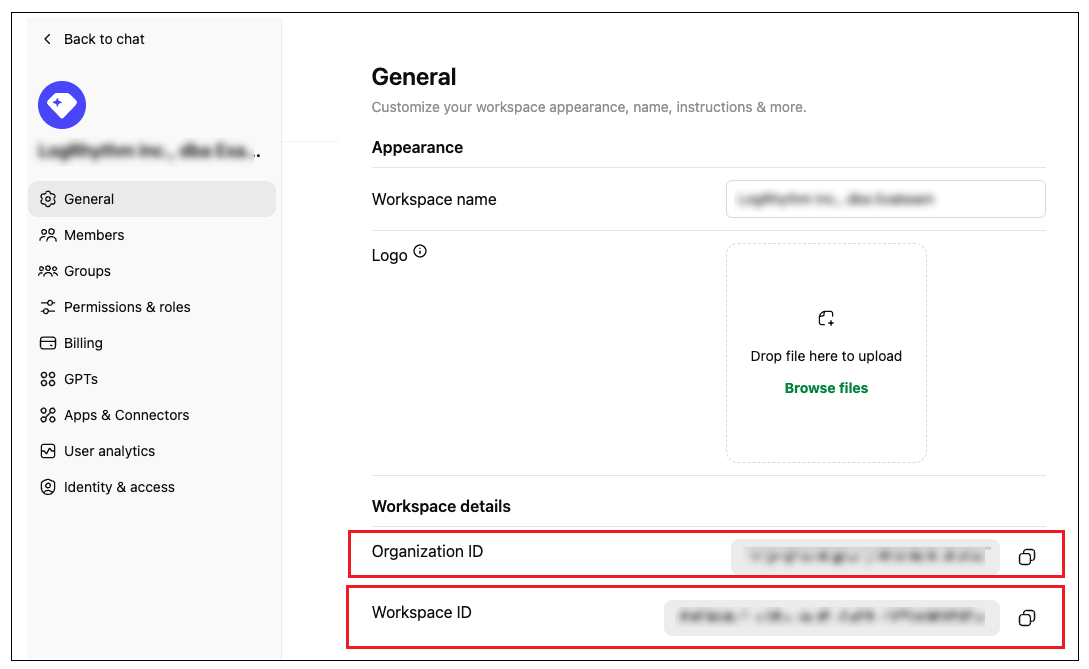
Navigate to your ChatGPT Enterprise workspace.
In the lower left corner, click the user icon and select the Workspace settings option. The General page opens.
From the Workspace details section, copy both of the following IDs:
Organization ID – You will need this ID for comparison with the Organization ID from the OpenAI Platform to ensure they match.
Workspace ID – You will need to provide this ID when contacting OpenAI Platform in the next procedure and when configuring the cloud collector itself.
Locate OpenAI Platform Workspace Details and Keys
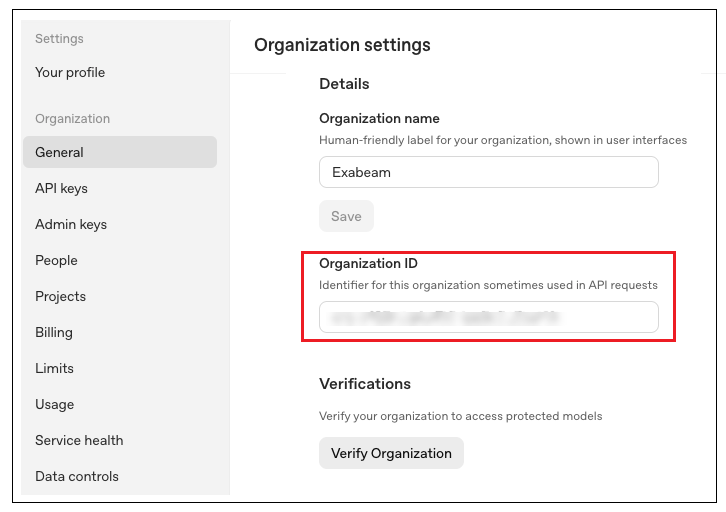
Navigate to OpenAI Platform. If prompted, choose Continue with Google.
In the left navigation pane, navigate to Settings and select General.
Note
Ensure that you have logged in to your organization workspace and not your own personal workspace.
Copy the Organization ID. Compare this ID with the Organization ID in your ChatGPT Enterprise to ensure they match. If these IDs do not match, contact OpenAI Support at [email protected].
In the left navigation pane, select Admin keys.
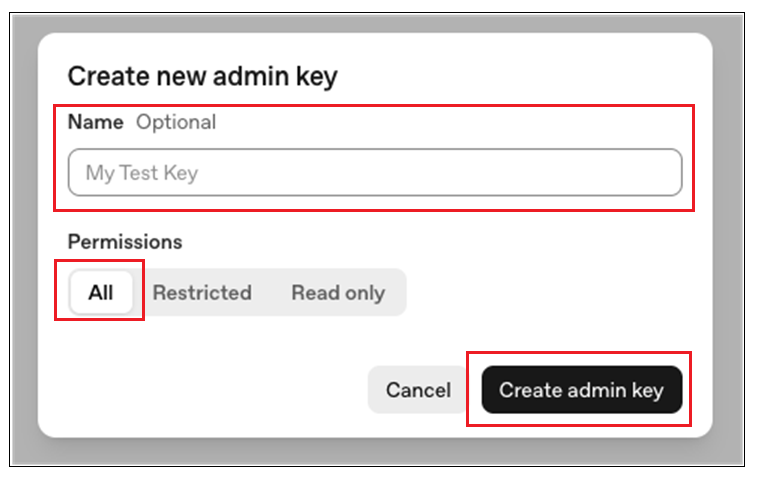
Create a new key as follows:
Click Create new admin key. The Create new admin key dialog box opens.
In the Name field, enter a name for the new admin key.
In the Permissions section select the All option.
Click the Create admin key button. The OpenAI Platform generates your new key. Copy and securely save information from this key, including the Key name, the Secret key, and the Created by. You will need this information for the next step and for configuring the cloud collector.
Send an email to OpenAI support, at [email protected], to request that Compliance API access be enabled for your organization's API key. In the email, request Read and Delete scope and provide all of the following account details:
ChatGPT Workspace ID – Obtained in Step 3 of Locate ChatGPT Enterprise Workspace Details.
Open AI Platform Organization ID – Obtained in Step 3 of this section.
API Key – Provide the last four characters of the Secret key you obtained in Step 5.
Key Name – Obtained in Step 5.
Created by – Obtained in Step 5.
When you receive approval from OpenAI, you can Configure the ChatGPT Enterprise Cloud Collector.